Pruebas de Accesibilidad de Asana: Flujos de Trabajo Rápidos y Estructurados
Asana
¿No sabes por dónde empezar con la IA?Evalúa preparación, riesgos y prioridades en menos de una hora.
➔ Descarga nuestro paquete gratuito de preparación para IA
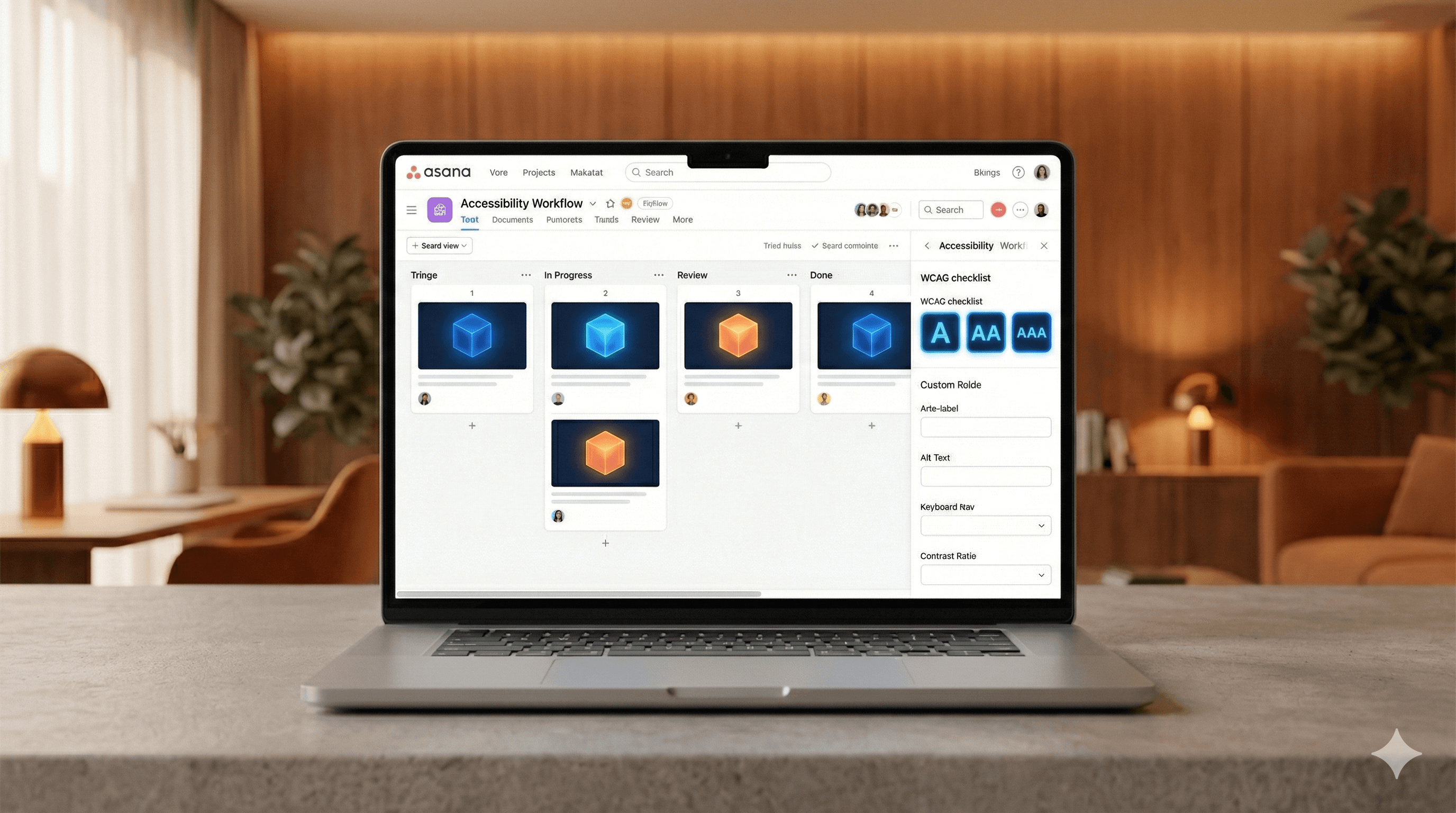
El enfoque actualizado de pruebas de accesibilidad de Asana se centra en listas de verificación estructuradas, automatización ligera y una rigurosa priorización. Al mapear las verificaciones WCAG a tareas y campos personalizados de Asana, los equipos identifican problemas claros y solucionables antes, reducen idas y vueltas, y rastrean los resultados desde el descubrimiento hasta la verificación en un proceso transparente.
Por qué esto importa ahora
La accesibilidad no es una auditoría única. Es un hábito continuo en diseño, ingeniería y contenido. Cuando las pruebas son improvisadas, los equipos pasan por alto problemas previsibles—como etiquetas faltantes o mal contraste de color—y las soluciones se alargan. Un flujo de trabajo estructurado en Asana acorta el ciclo de “encontrado” a “solucionado”.
Qué es nuevo en el enfoque
El enfoque está en claridad, velocidad y verificación:
Claridad: Convierte las reglas WCAG en una lista breve y amigable para el equipo. Cada verificación se convierte en una plantilla de tarea con criterios de aceptación.
Velocidad: Agrega automatización ligera (linting, verificaciones de contraste, trampas de teclado) para identificar problemas comunes antes de la revisión humana.
Verificación: Registra evidencia (capturas de pantalla, clips breves, notas de tecnología asistiva) y marca resultados con campos personalizados.
El flujo de trabajo central en Asana
Crea un Tablero de Accesibilidad
Columnas: Para Probar, Problemas Encontrados, En Progreso, Listo para Verificación, Hecho.
Plantillas: “Navegación por Teclado”, “Formularios y Etiquetas”, “Contraste de Color”, “Semántica del Lector de Pantalla”.
Usa Campos Personalizados para precisión
Área: Componente/Página (por ejemplo, “Checkout – Formulario de Dirección”).
Tipo de problema: Contraste, Enfoque, Semántica, Movimiento/Animación, Subtítulos de Medios.
Gravedad/Impacto: Bloqueante, Alta, Media, Baja.
Ref. WCAG: por ejemplo, 2.4.3 Orden de Enfoque, 1.4.11 Contraste No Textual.
Estado: Nuevo, Priorizado, Listo para Arreglar, Verificado.
Adopta una Lista de Verificación repetible
Sólo teclado: Todas las acciones alcanzables, enfoque visible, sin trampas.
Básicos del lector de pantalla: Marcas, encabezados, etiquetas y roles correctos.
Formularios: Etiquetas programáticas, mensajes de error útiles, sin etiquetas sólo como marcador de posición.
Contraste: Se cumplen ratios mínimos (texto, componentes de UI, estados).
Medios: Subtítulos, transcripciones, alternativas de movimiento reducido.
Acelera el descubrimiento con automatización
Ejecuta verificaciones automatizadas en CI o localmente (linters, pruebas de contraste, validación HTML). Trata los resultados como señales, no veredictos finales. Crea subtareas de Asana etiquetadas como “Hallazgo Automatizado” para un triage rápido.
Prioriza en minutos, no en reuniones
Usa una regla corta de triage: ¿Bloquea al usuario? ¿Cuántos usuarios? ¿Qué tan difícil es de arreglar? Asigna gravedad, responsable y fecha de entrega directamente en Asana. Agrega una nota de reproducción de 2-3 frases y un clip o captura de pantalla de 10-20 segundos.
Arregla con contexto
Los ingenieros vinculan cambios de código, los diseñadores adjuntan componentes actualizados y los diseñadores de contenido añaden alternativas de texto. Mantén la referencia WCAG y los criterios de aceptación visibles en la descripción de la tarea.
Verifica y aprende
Mueve a Listo para Verificación. Vuelve a probar con teclado y un lector de pantalla. Marca la tarea como Verificada, adjunta pruebas y añade una lección de una línea a una tarea recurrente “Aprendizajes A11y” para futuros sprints.
Ejemplos prácticos
Lagunas en etiquetas de formulario: Un linter señala entradas sin etiquetas. La plantilla de Asana sugiere añadir etiquetas programáticas y probar con un lector de pantalla. La verificación requiere un clip narrado que demuestre el enfoque en el campo, el anuncio y la recuperación de errores.
Regresiones de contraste: Una entrega de diseño reduce el contraste de los botones. La plantilla de “Contraste de Color” incluye una verificación rápida de ratios y tokens alternativos. La verificación espera capturas de pantalla antes/después con ratios medidos.
Problemas de orden de enfoque: Se abre un modal pero el enfoque permanece atrás. La plantilla de “Navegación por Teclado” enlaza a guías sobre atrapado y restauración del enfoque. La verificación requiere recorrer con tabulador y cerrar mediante teclado.
Consejos para resultados más rápidos
Incluye la lista de verificación en tu Definición de Hecho.
Mantén las tareas pequeñas; divide problemas de varias páginas en tareas separadas.
Define las fechas de entrega por defecto para el siguiente sprint.
Añade una sección de lista urgente en el tablero para elementos críticos que bloquean al usuario.
Revisa una pequeña muestra con un lector de pantalla semanalmente—incluso 15 minutos exponen patrones recurrentes.
Midiendo el éxito
Rastrea:
Tiempo para priorizar: Desde “Encontrado” hasta “Priorizado”.
Tiempo para verificar: Desde “Listo para Arreglar” hasta “Verificado”.
Tasa de recurrencia de problemas: La frecuencia con que vuelve el mismo tipo de problema.
Cobertura: Porcentaje de flujos clave probados mensualmente.
Una caída constante en el tiempo de verificación y recurrencia muestra que el flujo de trabajo está dando frutos.
Empezando
Activa el tablero, agrega los campos personalizados, pega la lista de verificación y realiza una hora de pruebas en un flujo de tráfico alto. Al final de la hora tendrás una lista clasificada de problemas, responsables y fechas de entrega—todo visible, todo en movimiento.
¿Quieres ayuda para implementar esto? Generation Digital puede configurar proyectos, campos y plantillas de Asana a medida para tu producto y objetivos de cumplimiento.
Preguntas frecuentes
¿Cómo mejora este método las pruebas?
Convierte la guía WCAG en tareas claras, añade automatización ligera para detectar oportunidades fáciles y utiliza un triage disciplinado para que las soluciones avancen rápidamente del descubrimiento a la verificación.
¿Cuáles son los beneficios de pruebas de accesibilidad más rápidas?
Los usuarios enfrentan menos bloqueos, los equipos ven menos regresiones y los líderes obtienen visibilidad sobre riesgos y avances—todo dentro de Asana.
¿Pueden aplicarse estos métodos en otros lugares?
Sí. El modelo de lista de verificación y triage funciona en cualquier rastreador; la fortaleza de Asana es la simplicidad, plantillas y visibilidad en todos los equipos.
¿Reemplazan las herramientas automatizadas las pruebas manuales?
No. La automatización encuentra patrones comunes; las pruebas manuales con teclado y lectores de pantalla confirman la usabilidad en el mundo real.
¿Con qué estándares se alinea esto?
Principalmente con los criterios de éxito WCAG 2.2, con énfasis en el orden de enfoque, semántica, etiquetas y contraste.
Recibe noticias y consejos sobre IA cada semana en tu bandeja de entrada
Al suscribirte, das tu consentimiento para que Generation Digital almacene y procese tus datos de acuerdo con nuestra política de privacidad. Puedes leer la política completa en gend.co/privacy.



Generación
Digital

Oficina en Reino Unido
Generation Digital Ltd
33 Queen St,
Londres
EC4R 1AP
Reino Unido
Oficina en Canadá
Generation Digital Americas Inc
181 Bay St., Suite 1800
Toronto, ON, M5J 2T9
Canadá
Oficina en EE. UU.
Generation Digital Américas Inc
77 Sands St,
Brooklyn, NY 11201,
Estados Unidos
Oficina de la UE
Software Generación Digital
Edificio Elgee
Dundalk
A91 X2R3
Irlanda
Oficina en Medio Oriente
6994 Alsharq 3890,
An Narjis,
Riad 13343,
Arabia Saudita







Número de la empresa: 256 9431 77 | Derechos de autor 2026 | Términos y Condiciones | Política de Privacidad