Mejore el aprendizaje con las imágenes interactivas de Gemini
Géminis
¿No sabes por dónde empezar con la IA?Evalúa preparación, riesgos y prioridades en menos de una hora.
➔ Descarga nuestro paquete gratuito de preparación para IA
¿Qué son las imágenes interactivas de Gemini?
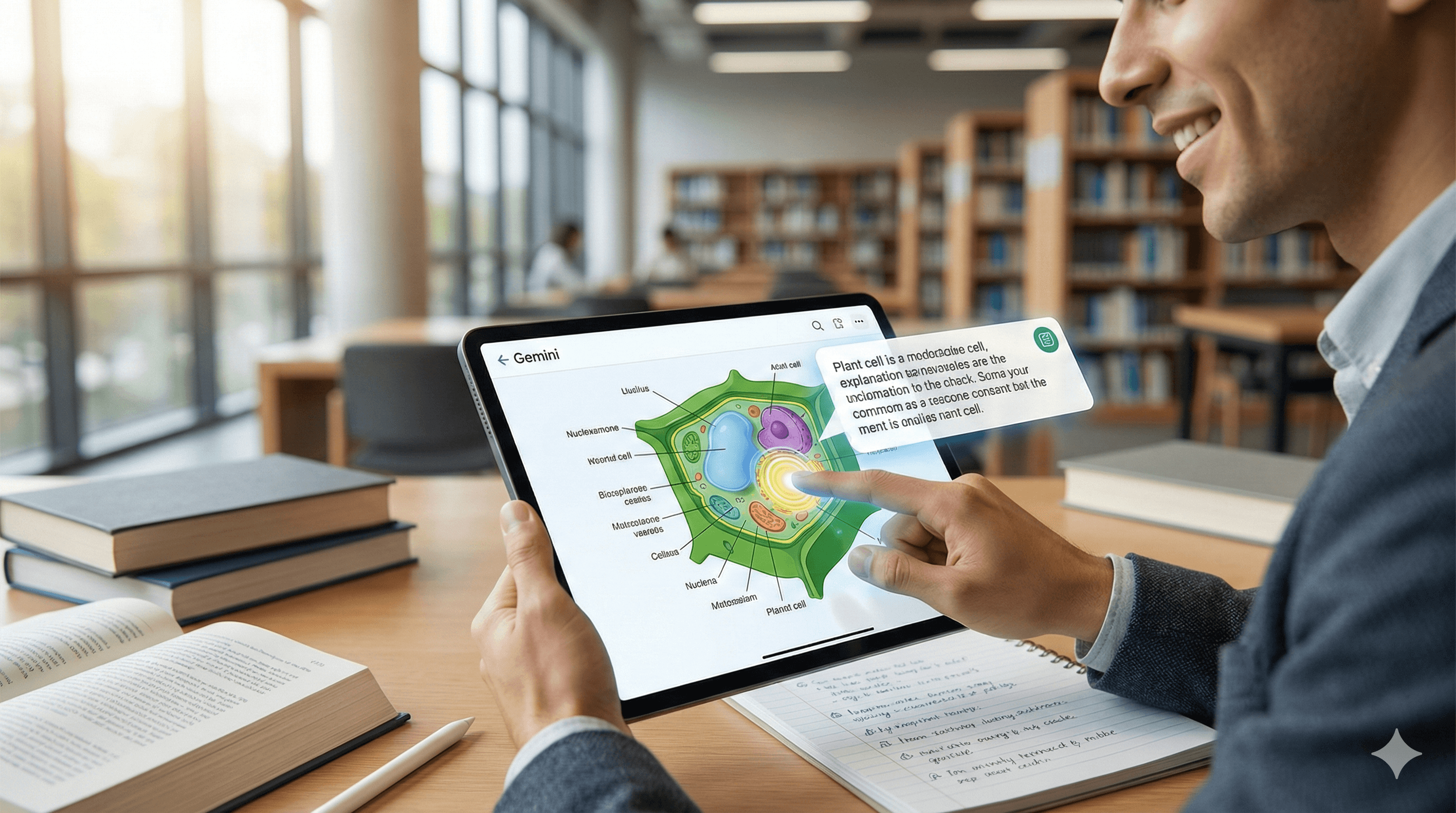
Una nueva capacidad de la aplicación Gemini que convierte diagramas estáticos en visuales explorables. Los estudiantes pueden tocar las partes etiquetadas para revelar explicaciones, aplicando principios de ciencia del aprendizaje de LearnLM para profundizar la comprensión y retención. Disponible a medida que esta función se implemente en las experiencias de Gemini.
El aprendizaje funciona mejor cuando te involucras activamente con las ideas. Gemini ahora te ayuda a hacer exactamente eso con imágenes interactivas: diagramas y visuales que puedes explorar, no solo mirar. En lugar de leer un muro de texto, tocas una etiqueta, revelas una explicación y construyes comprensión paso a paso.
Por qué es importante
Del aprendizaje pasivo al activo. LearnLM, el enfoque basado en la investigación detrás de las funciones de aprendizaje de Gemini, se enfoca en el cuestionamiento, la retroalimentación y las señales multisensoriales que mejoran la comprensión y el recuerdo. Las imágenes interactivas llevan esos principios al estudio cotidiano.
Claridad para temas complejos. Las explicaciones visuales acortan el camino de “No lo entiendo” a “Veo cómo funciona esto”, ya sea que estés estudiando biología, circuitos o líneas de tiempo.
Integrado en Gemini. No necesitas software adicional; la capacidad se está implementando dentro de la aplicación Gemini con módulos de “diseño visual” de apoyo que presentan respuestas más ricas e interactivas.
Cómo funciona
Cuando pides a Gemini un diagrama (por ejemplo, “Explica una célula vegetal con un diagrama etiquetado”), Gemini puede devolver una imagen interactiva. Cada punto interactivo/etiqueta se puede tocar para expandir una definición, ejemplo o relación, ayudándote a construir un modelo mental. Esto se encuentra junto a otras herramientas de aprendizaje en Gemini (por ejemplo, agregando imágenes a explicaciones, pasos guiados).
Ejemplos prácticos
Biología: Toca cada orgánulo en una célula vegetal o animal para ver su función, analogías y conceptos erróneos comunes.
Física: Explora un diagrama de circuito; selecciona componentes para aprender qué cambia si varía la resistencia o el voltaje.
Historia: Interactúa con una línea de tiempo; toca eventos para conocer causas, consecuencias y figuras clave.
Geografía: Haz clic en capas de un diagrama de placas tectónicas para revelar límites, peligros y estudios de caso.
Inicio rápido: instrucciones para probar
“Crea una imagen interactiva de una célula vegetal con etiquetas tocables y breves explicaciones.”
“Muestra una línea de tiempo de la Revolución Industrial como imagen interactiva; permíteme tocar para ver causas y efectos.”
“Haz un diagrama de circuito interactivo y explica qué sucede si duplico el voltaje.”
“Genera una imagen interactiva basada en mapas de límites de placas con ejemplos.”
Consejo: Si aún no ves la interactividad, pide a Gemini que “use diseño visual” para una respuesta más rica y modular mientras la función se termina de implementar.
Mejores prácticas para estudiantes y maestros
Segmenta el contenido. Mantén cada punto interactivo enfocado en un concepto; añade ejemplos y una nota sobre malentendidos para fortalecer el recuerdo (guía de LearnLM).
Prueba la comprensión. Después de explorar una imagen, pregunta: “Hazme una prueba sobre las partes que toqué” o “Crea tarjetas de memoria de este diagrama.”
Combina con notas. Exporta resúmenes a tus notas/wiki para que el material de estudio sea fácilmente buscable y compartible entre tu clase o equipo.
Verifica fuentes. Para temas factuales, pide a Gemini que cite fuentes o añada enlaces para lectura adicional.
Dónde aparece
Aplicación Gemini (web y móvil) a medida que el despliegue de la función progresa.
Características de aprendizaje complementarias aparecen en Gemini para Educación (contexto institucional) y en artículos de apoyo que describen el aprendizaje con imágenes en las aplicaciones de Gemini.
Preguntas frecuentes
P1: ¿Cómo mejoran las imágenes interactivas el aprendizaje?
Transforman diagramas en lecciones explorables. Tocar etiquetas desencadena explicaciones concisas que siguen principios de ciencia del aprendizaje (segmentación, señales de recuperación), mejorando la comprensión y retención.
P2: ¿Qué hace que el enfoque de Gemini sea único?
Gemini vincula la interactividad a LearnLM: los modelos de Google informados por investigación para educación, por lo que los visuales, instrucciones y retroalimentación están diseñados para promover el aprendizaje activo en lugar de la lectura pasiva.
P3: ¿Pueden usarse imágenes interactivas en todas las materias?
Sí. Los ejemplos de Google abarcan ciencia, historia y más, y la capacidad de diseño visual soporta explicaciones modulares ricas en imágenes en diversos temas.
P4: ¿Cómo lo pruebo hoy?
Utiliza la aplicación Gemini y solicita una imagen interactiva (por ejemplo, “diagrama etiquetado con partes tocables”). Si la interactividad aún no ha llegado, pide un diseño visual o solicita un diagrama etiquetado más preguntas de seguimiento.
Recibe noticias y consejos sobre IA cada semana en tu bandeja de entrada
Al suscribirte, das tu consentimiento para que Generation Digital almacene y procese tus datos de acuerdo con nuestra política de privacidad. Puedes leer la política completa en gend.co/privacy.



Generación
Digital

Oficina en Reino Unido
Generation Digital Ltd
33 Queen St,
Londres
EC4R 1AP
Reino Unido
Oficina en Canadá
Generation Digital Americas Inc
181 Bay St., Suite 1800
Toronto, ON, M5J 2T9
Canadá
Oficina en EE. UU.
Generation Digital Américas Inc
77 Sands St,
Brooklyn, NY 11201,
Estados Unidos
Oficina de la UE
Software Generación Digital
Edificio Elgee
Dundalk
A91 X2R3
Irlanda
Oficina en Medio Oriente
6994 Alsharq 3890,
An Narjis,
Riad 13343,
Arabia Saudita







Número de la empresa: 256 9431 77 | Derechos de autor 2026 | Términos y Condiciones | Política de Privacidad