Crea tu primer tablero Kanban en Miro (guía sencilla)
Miro
¿No sabes por dónde empezar con la IA?Evalúa preparación, riesgos y prioridades en menos de una hora.
➔ Descarga nuestro paquete gratuito de preparación para IA
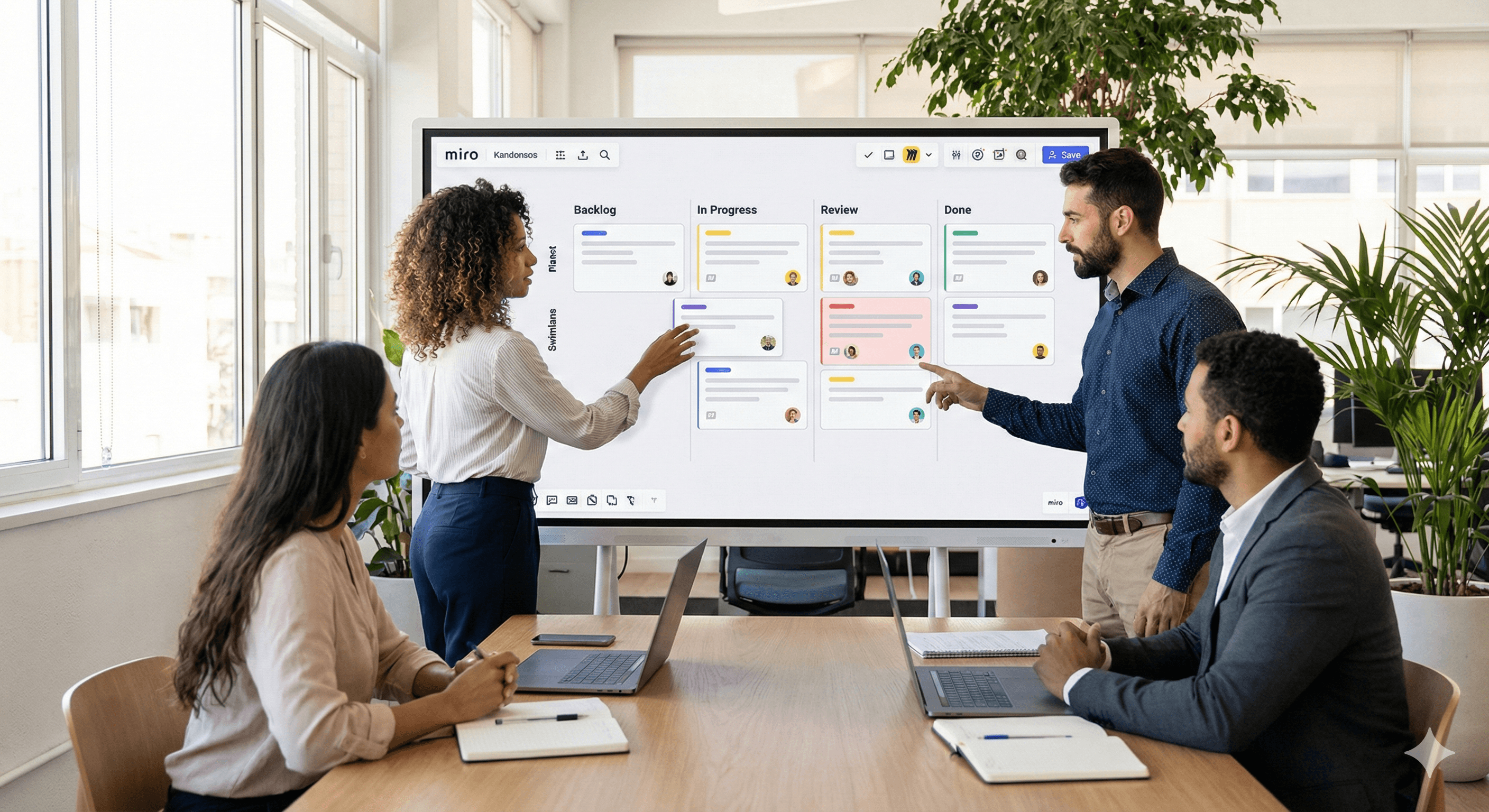
Miro hace que Kanban sea simple: comienza con una plantilla predefinida, personaliza las columnas para que coincidan con tu flujo de trabajo y añade Tarjetas para seguir las tareas a medida que se mueven de "Por hacer" a "Hecho". Todo se actualiza en tiempo real, para que los equipos se mantengan alineados sin tener que usar múltiples herramientas.
¿Por qué usar Kanban en Miro?
Diseño visual y flexible: Arrastra y suelta tarjetas, añade columnas o carriles, y adapta el tablero a cualquier equipo o proceso.
Diseñado para la colaboración: Alterna entre vistas de Kanban, Cronograma y Tabla a medida que el trabajo evoluciona; las actualizaciones son instantáneas en todos los dispositivos.
Arranque rápido con plantillas: Escoge entre las plantillas Kanban de Miro (incluyendo una opción asistida por IA) para evitar comenzar desde cero.
Paso a paso: crea tu primer Kanban en minutos
1) Elige una plantilla Kanban
Abre la biblioteca de plantillas de Miro y selecciona una plantilla de Kanban o de marco de trabajo Kanban para obtener una estructura de tablero predefinida.
2) Personaliza las columnas (tus etapas de trabajo)
Renombra las columnas predeterminadas (por ejemplo, Pendiente → En progreso → Revisión → Hecho) y añade/elimina columnas según sea necesario. También puedes cambiar a otras vistas más adelante si necesitas una perspectiva diferente.
3) Añade Tarjetas para las tareas
Usa Tarjetas para capturar el título, descripción, responsable y fecha de vencimiento de la tarea; arrastra para reordenar o mover a través de las columnas a medida que avanza el trabajo.
4) Añade carriles (opcional)
Si deseas carriles horizontales (por equipo, prioridad o flujo), configúralos con plantillas o diagramas de carriles para separar visualmente el trabajo.
5) Conecta con herramientas de entrega (opcional)
¿Trabajas desde Jira o Trello? Importa problemas a Miro o sincroniza Tarjetas con Tarjetas Jira/Planificador para Jira para mantener todo alineado con tu fuente de verdad.
6) Comparte y colabora
Invita a compañeros a comentar, actualizar Tarjetas, y gestionar el flujo juntos: el lienzo de Miro está diseñado para la colaboración en vivo y simultánea de varios usuarios.
Consejos profesionales para un flujo más fluido
Manténlo sencillo: Comienza con 3-5 columnas; añade más a medida que tu proceso madure. (El Kanban de Miro es fácil de reconfigurar.)
Estandariza las Tarjetas: Crea una lista de verificación simple para las Tarjetas (definición de hecho, propietario, fecha límite) para que la calidad sea consistente en todas las tareas.
Escala con integraciones: Sincroniza el trabajo con Jira para evitar entradas duplicadas y mantener la paridad de estado.
Preguntas frecuentes
P1: ¿Qué es un tablero Kanban?
Un flujo de trabajo visual que organiza las tareas en columnas (por ejemplo, Por hacer, En progreso, Hecho) para que los equipos puedan ver el estado, identificar cuellos de botella y mejorar el flujo.
P2: ¿Por qué usar Miro para Kanban?
Miro combina plantillas, colaboración en tiempo real y vistas flexibles (Kanban, Cronograma, Tabla) para que puedas planificar y ejecutar en un solo lugar.
P3: ¿Puedo personalizar las plantillas Kanban de Miro?
Sí—renombra columnas, añade carriles, y adapta Tarjetas a tu proceso. También puedes aprovechar plantillas impulsadas por IA para generar un tablero a partir de una breve descripción.
P4: ¿Puedo integrarlo con Jira o Trello?
Por supuesto. Usa Tarjetas Jira o Planificador para Jira para una sincronización bidireccional, y conecta herramientas de Atlassian desde el centro de integraciones de Miro.
Próximos pasos
¿Quieres configurarlo para tu equipo? Reserva un taller de Miro con Generation Digital—adaptaremos tu plantilla Kanban, añadiremos carriles, y conectaremos la sincronización con Jira para que tu tablero se convierta en la única fuente de verdad.
Recibe noticias y consejos sobre IA cada semana en tu bandeja de entrada
Al suscribirte, das tu consentimiento para que Generation Digital almacene y procese tus datos de acuerdo con nuestra política de privacidad. Puedes leer la política completa en gend.co/privacy.



Generación
Digital

Oficina en Reino Unido
Generation Digital Ltd
33 Queen St,
Londres
EC4R 1AP
Reino Unido
Oficina en Canadá
Generation Digital Americas Inc
181 Bay St., Suite 1800
Toronto, ON, M5J 2T9
Canadá
Oficina en EE. UU.
Generation Digital Américas Inc
77 Sands St,
Brooklyn, NY 11201,
Estados Unidos
Oficina de la UE
Software Generación Digital
Edificio Elgee
Dundalk
A91 X2R3
Irlanda
Oficina en Medio Oriente
6994 Alsharq 3890,
An Narjis,
Riad 13343,
Arabia Saudita






Número de la empresa: 256 9431 77 | Derechos de autor 2026 | Términos y Condiciones | Política de Privacidad