Google Gemini propose maintenant des suggestions de créneaux pour les réunions dans le Calendrier
Gémeaux
Pas sûr de quoi faire ensuite avec l'IA?Évaluez la préparation, les risques et les priorités en moins d'une heure.
➔ Téléchargez notre kit de préparation à l'IA gratuit
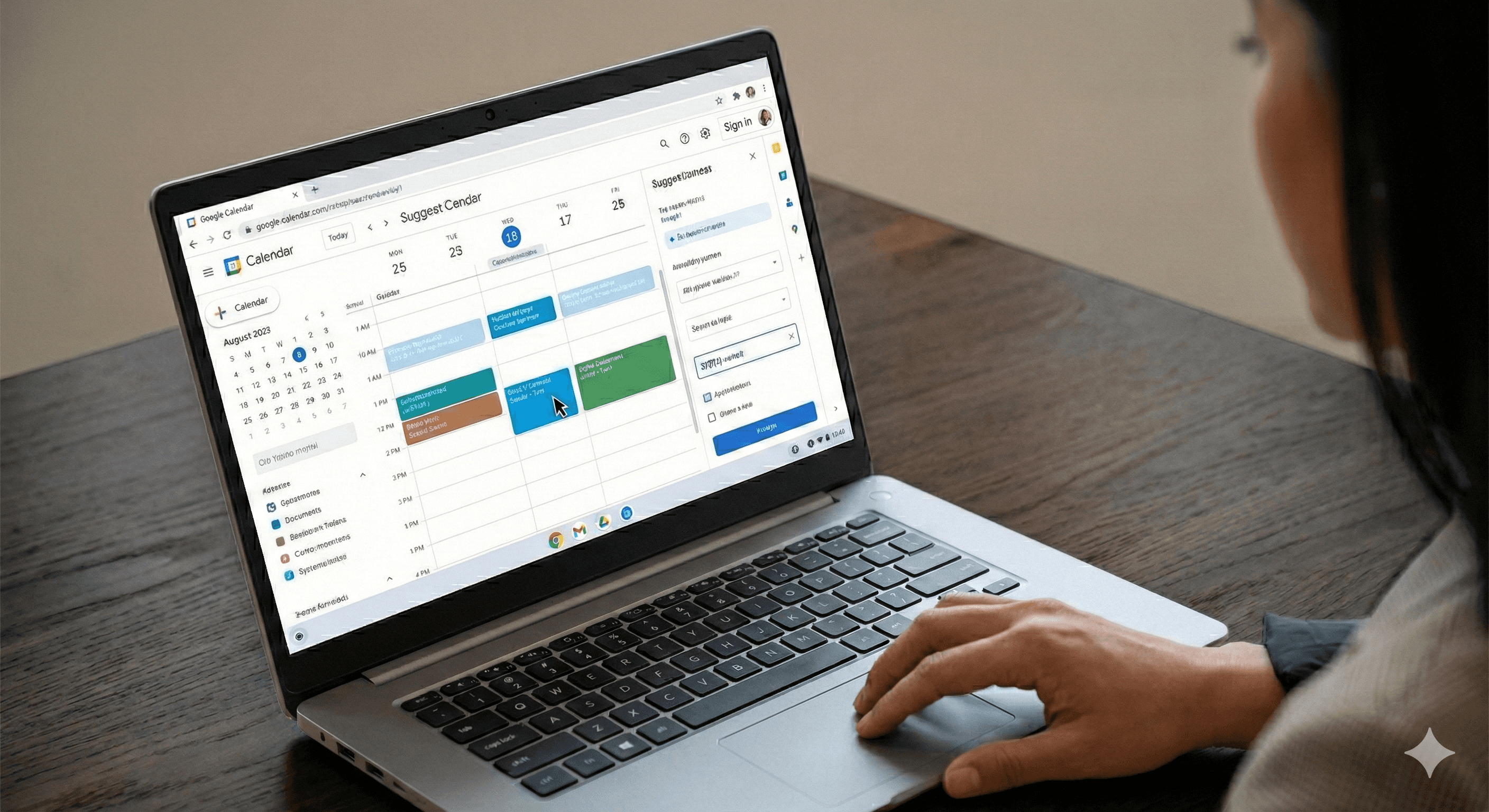
Gemini dans Google Agenda suggère maintenant les meilleurs moments de réunion en analysant la disponibilité des participants, les heures de travail et les conflits. Lorsque plusieurs invités refusent, Agenda peut afficher une bannière avec une alternative recommandée et permettre aux organisateurs de replanifier en un clic — réduisant ainsi les allers-retours et accélérant la planification.
Pourquoi c'est important maintenant
Trouver un moment qui fonctionne pour tout le monde est encore un énorme frein. La dernière mise à jour de Google intègre Gemini directement dans Agenda pour automatiser le travail ardu : il vérifie qui est disponible, respecte les heures de travail et propose les meilleures options. Si les plans changent, il peut indiquer un nouvel horaire automatiquement lorsque des personnes déclinent — ainsi vous gardez l'élan sans interminables discussions.
Quoi de neuf
Horaires suggérés avec Gemini : Lorsque vous créez ou modifiez un événement, cliquez sur Horaires suggérés et Gemini recommande des créneaux optimaux pour tous les invités que vous pouvez voir dans Agenda.
Replanification en un clic : Si plusieurs participants refusent, Agenda affiche une bannière avec un horaire qui convient à tout le monde; mettez à jour en un seul clic.
Fonctionne avec “Aidez-moi à planifier” de Gmail : Google avait auparavant ajouté des suggestions d'horaires Gemini dans Gmail; Agenda reflète maintenant cette expérience pour les réunions avec plusieurs participants.
Comment ça fonctionne (en pratique)
Créez un événement dans Google Agenda et ajoutez vos invités.
Cliquez sur Horaires suggérés pour voir les options basées sur la disponibilité, les fuseaux horaires et les heures de travail.
Sélectionnez un créneau ou ajustez la vue (Jour, 3 jours, Semaine) pour explorer d'autres options.
Si vous replanifiez, ouvrez l'événement, cliquez sur Horaires suggérés, ou acceptez la suggestion de bannière lorsque plusieurs invités refusent.
Notes & limitations : Les horaires suggérés apparaissent actuellement uniquement sur desktop, pas sur les applications Agenda Android ou iOS; ils ne s'afficheront pas pour les événements très longs (plus de huit heures) ou les grandes réunions, et vous aurez besoin d'un accès Gemini habilité par votre administrateur.
Disponibilité & déploiement (RU & mondial)
Éditions : Business Standard/Plus, Enterprise Standard/Plus, et Google AI Pro pour l'éducation add-on.
Vitesse de déploiement : Domaines de sortie rapide disponibles maintenant; domaines de sortie programmée déploiement progressif commençant le 2 février 2026 (jusqu'à 15 jours).
Une couverture indépendante note également la disponibilité dans certaines catégories d'affaires et d'éducation avec le déploiement.
Cas d'utilisation exemplaires
Planification d'équipe : Ajoutez un groupe interfonctionnel, cliquez sur Horaires suggérés, et choisissez le premier créneau qui respecte les heures de travail de chacun.
Réorganisation de dernière minute : Deux participants clés refusent? Acceptez la suggestion de bannière et replanifiez en un clic.
Boîte de réception à invitation : Utilisez la fonction Aidez-moi à planifier de Gmail pour des discussions individuelles, puis gérez les modifications dans Agenda avec les suggestions de Gemini.
Conseils pour de meilleurs résultats
Partagez les agendas de manière appropriée : Assurez-vous que les collègues partagent leur disponibilité pour que Gemini puisse calculer des créneaux viables.
Définissez des heures de travail : Des heures de travail précises améliorent les propositions, surtout entre les fuseaux horaires.
Utilisez le desktop pour le moment : Les horaires suggérés sont actuellement uniquement sur desktop.
FAQ
Q1: Où puis-je trouver les horaires suggérés par Gemini?
Ouvrez un événement (nouveau ou existant) dans Agenda sur desktop et cliquez sur Horaires suggérés.
Q2: L'Agenda peut-il suggérer automatiquement un nouvel horaire si des personnes refusent?
Oui — les organisateurs peuvent voir une bannière suggérant un horaire où tous les invités sont disponibles; cliquez pour replanifier instantanément.
Q3: Qui bénéficie de cette fonctionnalité?
Elle est en cours de déploiement pour les éditions Business Standard/Plus, Enterprise Standard/Plus, et Google AI Pro pour l'éducation add-on, avec un calendrier de sortie rapide versus programmée.
Q4: Cela fonctionne-t-il sur mobile?
Pas encore — les horaires suggérés par Gemini sont actuellement uniquement sur desktop.
Q5: En quoi cela diffère-t-il du “Aidez-moi à planifier” de Gmail?
Gmail détecte l'intention de planification dans les e-mails et propose des créneaux que vous pouvez coller dans une réponse. La fonction d'Agenda propose des horaires à l'intérieur d'Agenda, y compris une nudge de replanification en un clic pour les réunions refusées.
Recevez chaque semaine des nouvelles et des conseils sur l'IA directement dans votre boîte de réception
En vous abonnant, vous consentez à ce que Génération Numérique stocke et traite vos informations conformément à notre politique de confidentialité. Vous pouvez lire la politique complète sur gend.co/privacy.



Génération
Numérique

Bureau du Royaume-Uni
Génération Numérique Ltée
33 rue Queen,
Londres
EC4R 1AP
Royaume-Uni
Bureau au Canada
Génération Numérique Amériques Inc
181 rue Bay, Suite 1800
Toronto, ON, M5J 2T9
Canada
Bureau aux États-Unis
Generation Digital Americas Inc
77 Sands St,
Brooklyn, NY 11201,
États-Unis
Bureau de l'UE
Génération de logiciels numériques
Bâtiment Elgee
Dundalk
A91 X2R3
Irlande
Bureau du Moyen-Orient
6994 Alsharq 3890,
An Narjis,
Riyad 13343,
Arabie Saoudite







Numéro d'entreprise : 256 9431 77 | Droits d'auteur 2026 | Conditions générales | Politique de confidentialité