ChatGPT Lockdown Mode: Reduce Prompt Injection Risk

ChatGPT Lockdown Mode: Reduce Prompt Injection Risk
ChatGPT

12 feb 2026

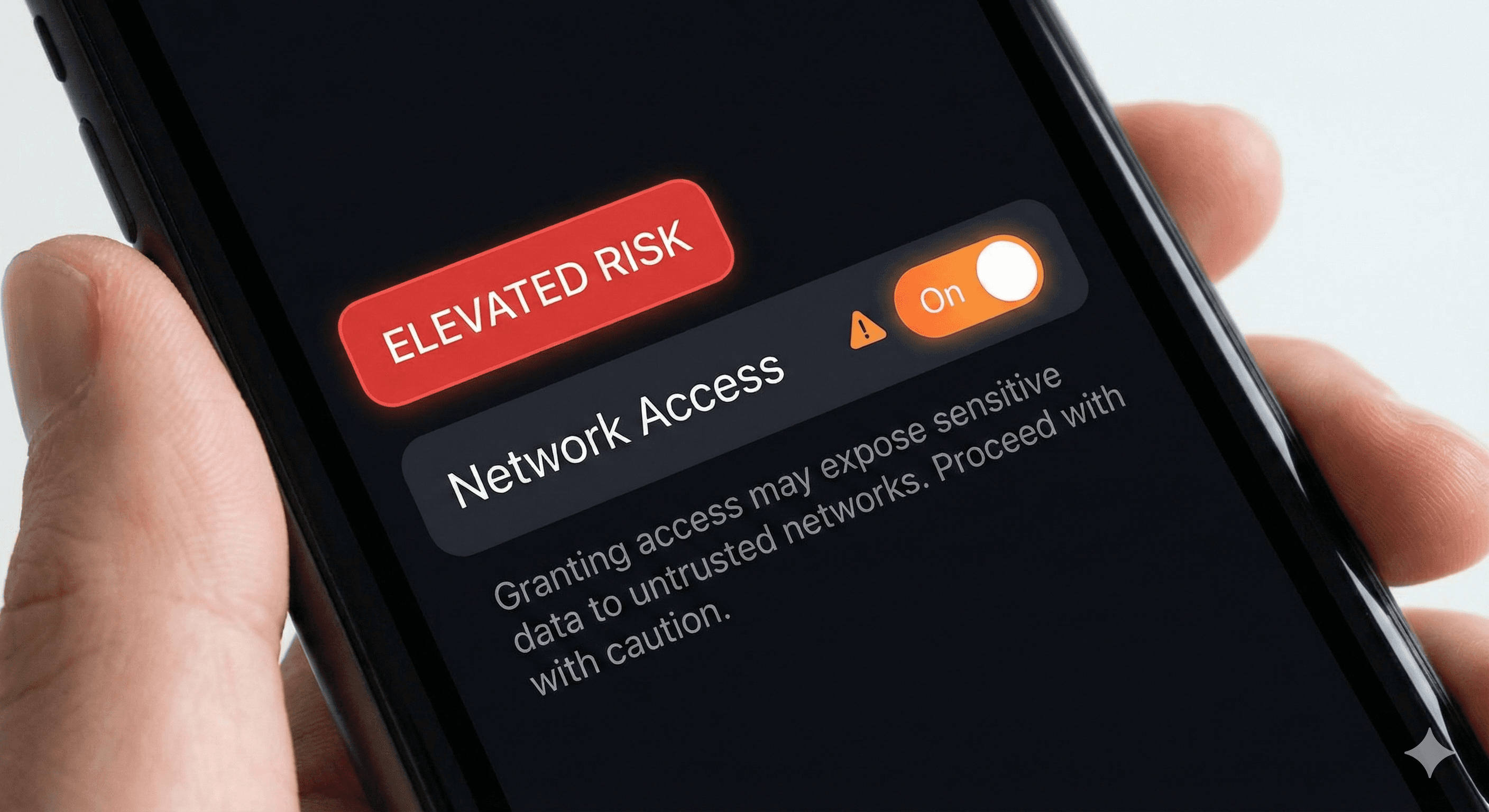
A person holds a smartphone displaying a warning interface, highlighting "Elevated Risk" and a switched-on toggle for "Network Access," emphasizing the concept of "ChatGPT Lockdown Mode: Reduce Prompt Injection Risk."

¿No sabes por dónde empezar con la IA?
Evalúa preparación, riesgos y prioridades en menos de una hora.

¿No sabes por dónde empezar con la IA?
Evalúa preparación, riesgos y prioridades en menos de una hora.

➔ Descarga nuestro paquete gratuito de preparación para IA

Lockdown Mode is an optional advanced security setting in ChatGPT that disables or tightly limits network-enabled tools to reduce prompt-injection data exfiltration risk. Web browsing is restricted to cached content, and features like Agent Mode and Deep Research are disabled. “Elevated Risk” labels flag higher-risk capabilities so users can make informed choices.

As AI systems become more useful when connected to the web and workplace apps, they also become more attractive targets. One of the most important emerging threats is prompt injection—where a third party tries to trick an AI system into following malicious instructions or revealing sensitive information.

To address this, OpenAI has introduced two new protections:

  • Lockdown Mode, an optional advanced setting that restricts high-risk capabilities to reduce prompt injection–based data exfiltration.

  • “Elevated Risk” labels, a standardised label that flags a short list of capabilities that can introduce additional risk, so users understand the trade-offs before enabling them.

What is Lockdown Mode?

Lockdown Mode is designed for a small set of highly security-conscious users—for example, executives and security teams—who need stronger protection against advanced threats. It works by deterministically disabling or limiting tools that could be exploited for exfiltration.

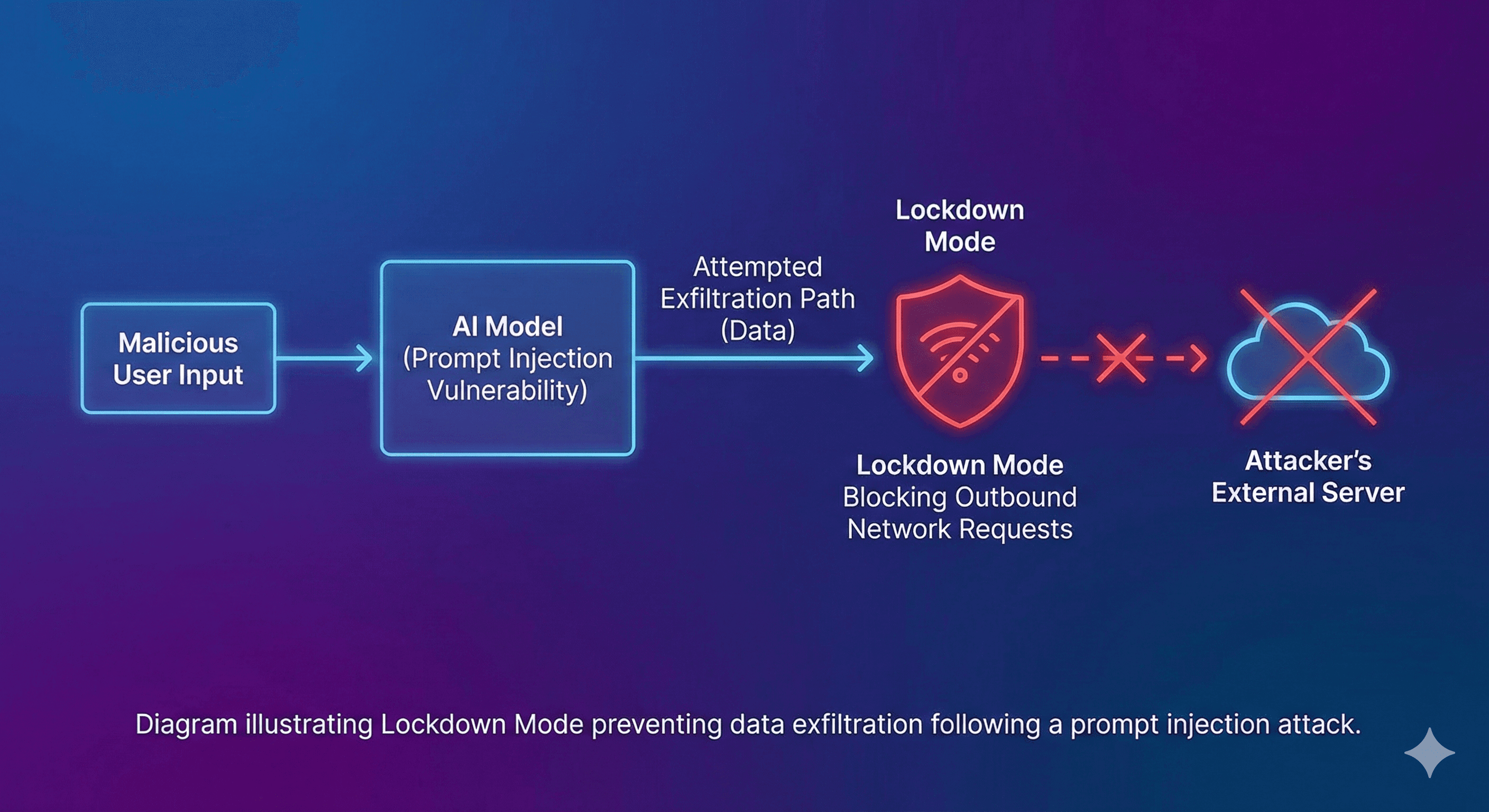
A key example is browsing: in Lockdown Mode, web browsing is limited to cached content, so no live requests leave OpenAI’s controlled network—reducing the chance an attacker can trick the system into sending sensitive data out through browsing.
What Lockdown Mode disables (at the time of writing)

OpenAI’s Help Centre lists the following restrictions for users in Lockdown Mode:

  • Live web browsing disabled (browsing limited to cached content)

  • Deep Research disabled

  • Agent Mode disabled

  • Canvas networking blocked (users can’t approve Canvas-generated code to access the network)

  • File downloads disabled (ChatGPT can’t download files for analysis; it can still use files you upload manually)

  • Image support limited (ChatGPT responses can’t include images, though users can still upload images and use image generation)

Important nuance: Lockdown Mode is designed to reduce the risk of exfiltration by preventing outbound network paths. It does not guarantee prompt injections can’t appear in context (for example, a malicious instruction could still exist in content you view).

How “Elevated Risk” labels work

Some features are inherently riskier because they involve network access or actions with side effects. OpenAI is standardising an “Elevated Risk” label across ChatGPT, ChatGPT Atlas, and Codex so users receive consistent guidance wherever they encounter these capabilities.

OpenAI’s example is Codex: enabling agent internet access is labelled “Elevated Risk” and accompanied by an explanation of what changes, what risks are introduced, and when it’s appropriate.

OpenAI also notes that labels may be removed as mitigations improve, and the set of labelled features may change over time.

Practical steps: how to implement this in an organisation

1) Decide who actually needs Lockdown Mode

Lockdown Mode is not intended for everyone. Start with users who:

  • handle the most sensitive data (legal, finance, M&A, security)

  • are likely to be targeted (executives, public-facing leaders)

  • rely heavily on connected tools and could be exposed to injection via web/app content

2) Enable Lockdown Mode via roles

OpenAI states that admins enable Lockdown Mode in Workspace Settings by creating a custom role and designating it as a Lockdown Mode role, then assigning users to that role.

3) Tighten app and action permissions (the critical control)

Apps/connectors can interact with the internet and can introduce risk. Lockdown Mode does not automatically disable apps; instead, OpenAI recommends admins carefully configure which apps and which actions (read vs write) are enabled, keeping them to the minimum required.

The Help Centre guidance highlights that:

  • Sync connectors and read actions in trusted apps are lower risk as “sinks”, but can still be sensitive “sources”.

  • Write actions are inherently riskier because they create observable side effects; enable only where you’re confident no malicious actor can observe the outcome.

4) Use “Elevated Risk” labels as a policy trigger

Treat Elevated Risk labels as a prompt for controls such as:

  • requiring a business justification to enable the feature

  • requiring allowlists (domains, actions)

  • scoping to a specific group or role

  • ensuring audit / compliance logging is enabled

Summary

Lockdown Mode provides a stricter operating environment in ChatGPT by disabling or limiting network-enabled tools (including restricting browsing to cached content) to reduce prompt injection–based data exfiltration risk. Elevated Risk labels add clear visibility for capabilities that can introduce additional security exposure, helping teams decide what to enable and under what controls.

Next steps: Generation Digital can help you map these controls to your security posture—who should be in Lockdown Mode, what connectors/actions are safe to allow, and how to communicate usage guidelines that stand up to audit.

FAQs

Q1: What is Lockdown Mode in ChatGPT?
Lockdown Mode is an optional advanced security setting that disables or limits network-enabled tools and capabilities to reduce the risk of prompt injection–based data exfiltration. (help.openai.com)

Q2: What changes when Lockdown Mode is enabled?
Live browsing is disabled (browsing is limited to cached content), and features such as Deep Research and Agent Mode are disabled. Some other capabilities, like file downloads for analysis, are also blocked. (help.openai.com)

Q3: How do Elevated Risk labels work?
Elevated Risk labels flag a short list of capabilities that may introduce additional security exposure (often due to network access). The label is paired with guidance explaining the risks and when enabling the capability is appropriate. (openai.com)

Q4: Is Lockdown Mode available on all ChatGPT plans?
Not yet. OpenAI states it is available for ChatGPT Enterprise, ChatGPT Edu, ChatGPT for Healthcare, and ChatGPT for Teachers, with consumer availability planned for the coming months. (openai.com)

Lockdown Mode is an optional advanced security setting in ChatGPT that disables or tightly limits network-enabled tools to reduce prompt-injection data exfiltration risk. Web browsing is restricted to cached content, and features like Agent Mode and Deep Research are disabled. “Elevated Risk” labels flag higher-risk capabilities so users can make informed choices.

As AI systems become more useful when connected to the web and workplace apps, they also become more attractive targets. One of the most important emerging threats is prompt injection—where a third party tries to trick an AI system into following malicious instructions or revealing sensitive information.

To address this, OpenAI has introduced two new protections:

  • Lockdown Mode, an optional advanced setting that restricts high-risk capabilities to reduce prompt injection–based data exfiltration.

  • “Elevated Risk” labels, a standardised label that flags a short list of capabilities that can introduce additional risk, so users understand the trade-offs before enabling them.

What is Lockdown Mode?

Lockdown Mode is designed for a small set of highly security-conscious users—for example, executives and security teams—who need stronger protection against advanced threats. It works by deterministically disabling or limiting tools that could be exploited for exfiltration.

A key example is browsing: in Lockdown Mode, web browsing is limited to cached content, so no live requests leave OpenAI’s controlled network—reducing the chance an attacker can trick the system into sending sensitive data out through browsing.

What Lockdown Mode disables (at the time of writing)

OpenAI’s Help Centre lists the following restrictions for users in Lockdown Mode:

  • Live web browsing disabled (browsing limited to cached content)

  • Deep Research disabled

  • Agent Mode disabled

  • Canvas networking blocked (users can’t approve Canvas-generated code to access the network)

  • File downloads disabled (ChatGPT can’t download files for analysis; it can still use files you upload manually)

  • Image support limited (ChatGPT responses can’t include images, though users can still upload images and use image generation)

Important nuance: Lockdown Mode is designed to reduce the risk of exfiltration by preventing outbound network paths. It does not guarantee prompt injections can’t appear in context (for example, a malicious instruction could still exist in content you view).

How “Elevated Risk” labels work

Some features are inherently riskier because they involve network access or actions with side effects. OpenAI is standardising an “Elevated Risk” label across ChatGPT, ChatGPT Atlas, and Codex so users receive consistent guidance wherever they encounter these capabilities.

OpenAI’s example is Codex: enabling agent internet access is labelled “Elevated Risk” and accompanied by an explanation of what changes, what risks are introduced, and when it’s appropriate.

OpenAI also notes that labels may be removed as mitigations improve, and the set of labelled features may change over time.

Practical steps: how to implement this in an organisation

1) Decide who actually needs Lockdown Mode

Lockdown Mode is not intended for everyone. Start with users who:

  • handle the most sensitive data (legal, finance, M&A, security)

  • are likely to be targeted (executives, public-facing leaders)

  • rely heavily on connected tools and could be exposed to injection via web/app content

2) Enable Lockdown Mode via roles

OpenAI states that admins enable Lockdown Mode in Workspace Settings by creating a custom role and designating it as a Lockdown Mode role, then assigning users to that role.

3) Tighten app and action permissions (the critical control)

Apps/connectors can interact with the internet and can introduce risk. Lockdown Mode does not automatically disable apps; instead, OpenAI recommends admins carefully configure which apps and which actions (read vs write) are enabled, keeping them to the minimum required.

The Help Centre guidance highlights that:

  • Sync connectors and read actions in trusted apps are lower risk as “sinks”, but can still be sensitive “sources”.

  • Write actions are inherently riskier because they create observable side effects; enable only where you’re confident no malicious actor can observe the outcome.

4) Use “Elevated Risk” labels as a policy trigger

Treat Elevated Risk labels as a prompt for controls such as:

  • requiring a business justification to enable the feature

  • requiring allowlists (domains, actions)

  • scoping to a specific group or role

  • ensuring audit / compliance logging is enabled

Summary

Lockdown Mode provides a stricter operating environment in ChatGPT by disabling or limiting network-enabled tools (including restricting browsing to cached content) to reduce prompt injection–based data exfiltration risk. Elevated Risk labels add clear visibility for capabilities that can introduce additional security exposure, helping teams decide what to enable and under what controls.

Next steps: Generation Digital can help you map these controls to your security posture—who should be in Lockdown Mode, what connectors/actions are safe to allow, and how to communicate usage guidelines that stand up to audit.

FAQs

Q1: What is Lockdown Mode in ChatGPT?
Lockdown Mode is an optional advanced security setting that disables or limits network-enabled tools and capabilities to reduce the risk of prompt injection–based data exfiltration. (help.openai.com)

Q2: What changes when Lockdown Mode is enabled?
Live browsing is disabled (browsing is limited to cached content), and features such as Deep Research and Agent Mode are disabled. Some other capabilities, like file downloads for analysis, are also blocked. (help.openai.com)

Q3: How do Elevated Risk labels work?
Elevated Risk labels flag a short list of capabilities that may introduce additional security exposure (often due to network access). The label is paired with guidance explaining the risks and when enabling the capability is appropriate. (openai.com)

Q4: Is Lockdown Mode available on all ChatGPT plans?
Not yet. OpenAI states it is available for ChatGPT Enterprise, ChatGPT Edu, ChatGPT for Healthcare, and ChatGPT for Teachers, with consumer availability planned for the coming months. (openai.com)

Recibe noticias y consejos sobre IA cada semana en tu bandeja de entrada

Al suscribirte, das tu consentimiento para que Generation Digital almacene y procese tus datos de acuerdo con nuestra política de privacidad. Puedes leer la política completa en gend.co/privacy.


Próximos talleres y seminarios web

A diverse group of professionals collaborating around a table in a bright, modern office setting.

Claridad Operacional a Gran Escala - Asana

Webinar Virtual
Miércoles 25 de febrero de 2026
En línea

A diverse group of professionals collaborating around a table in a bright, modern office setting.

Trabaja con compañeros de equipo de IA - Asana

Taller Presencial
Jueves 26 de febrero de 2026
Londres, Reino Unido

A diverse group of professionals collaborating around a table in a bright, modern office setting.

De Idea a Prototipo: IA en Miro

Seminario Web Virtual
Miércoles 18 de febrero de 2026
En línea

Generación
Digital

Oficina en Reino Unido

Generation Digital Ltd
33 Queen St,
Londres
EC4R 1AP
Reino Unido

Oficina en Canadá

Generation Digital Americas Inc
181 Bay St., Suite 1800
Toronto, ON, M5J 2T9
Canadá

Oficina en EE. UU.

Generation Digital Américas Inc
77 Sands St,
Brooklyn, NY 11201,
Estados Unidos

Oficina de la UE

Software Generación Digital
Edificio Elgee
Dundalk
A91 X2R3
Irlanda

Oficina en Medio Oriente

6994 Alsharq 3890,
An Narjis,
Riad 13343,
Arabia Saudita

UK Fast Growth Index UBS Logo
Financial Times FT 1000 Logo
Febe Growth 100 Logo (Background Removed)

Número de la empresa: 256 9431 77 | Derechos de autor 2026 | Términos y Condiciones | Política de Privacidad

Generación
Digital

Oficina en Reino Unido

Generation Digital Ltd
33 Queen St,
Londres
EC4R 1AP
Reino Unido

Oficina en Canadá

Generation Digital Americas Inc
181 Bay St., Suite 1800
Toronto, ON, M5J 2T9
Canadá

Oficina en EE. UU.

Generation Digital Américas Inc
77 Sands St,
Brooklyn, NY 11201,
Estados Unidos

Oficina de la UE

Software Generación Digital
Edificio Elgee
Dundalk
A91 X2R3
Irlanda

Oficina en Medio Oriente

6994 Alsharq 3890,
An Narjis,
Riad 13343,
Arabia Saudita

UK Fast Growth Index UBS Logo
Financial Times FT 1000 Logo
Febe Growth 100 Logo (Background Removed)


Número de Empresa: 256 9431 77
Términos y Condiciones
Política de Privacidad
Derechos de Autor 2026





