Asistente Glean: Búsqueda, Autocompletar e Imágenes (2026)
Recopilar
¿No sabes por dónde empezar con la IA?Evalúa preparación, riesgos y prioridades en menos de una hora.
➔ Descarga nuestro paquete gratuito de preparación para IA
La última actualización del Asistente de Glean incorpora Búsqueda en el Chat, autocompletar más inteligente, y generación de imágenes en un solo flujo de trabajo. Puedes encontrar el conocimiento de la empresa, aceptar sugerencias de autocompletar y crear elementos visuales alineados con la marca sin salir de la conversación, reduciendo los cambios de contexto y acelerando la entrega para los equipos empresariales.
Por qué esto importa ahora
El Asistente ha evolucionado de preguntas y respuestas a un espacio de trabajo para encontrar y crear: busca directamente en el chat, acepta sugerencias de autocompletar y genera imágenes que se alinean con el contexto de tu empresa. Esto cierra la brecha entre preguntar, localizar la fuente correcta y producir un recurso compartible.
Lo nuevo (a simple vista)
Búsqueda en el Chat: Consulta el conocimiento de tu empresa sin cambiar de pestaña; los resultados están basados en tus fuentes indexadas y aparecen en línea con las respuestas.
Autocompletar: Navegación más rápida y finalización de consultas con sugerencias conscientes del contexto (documentos, personas, equipos, operadores) mientras escribes.
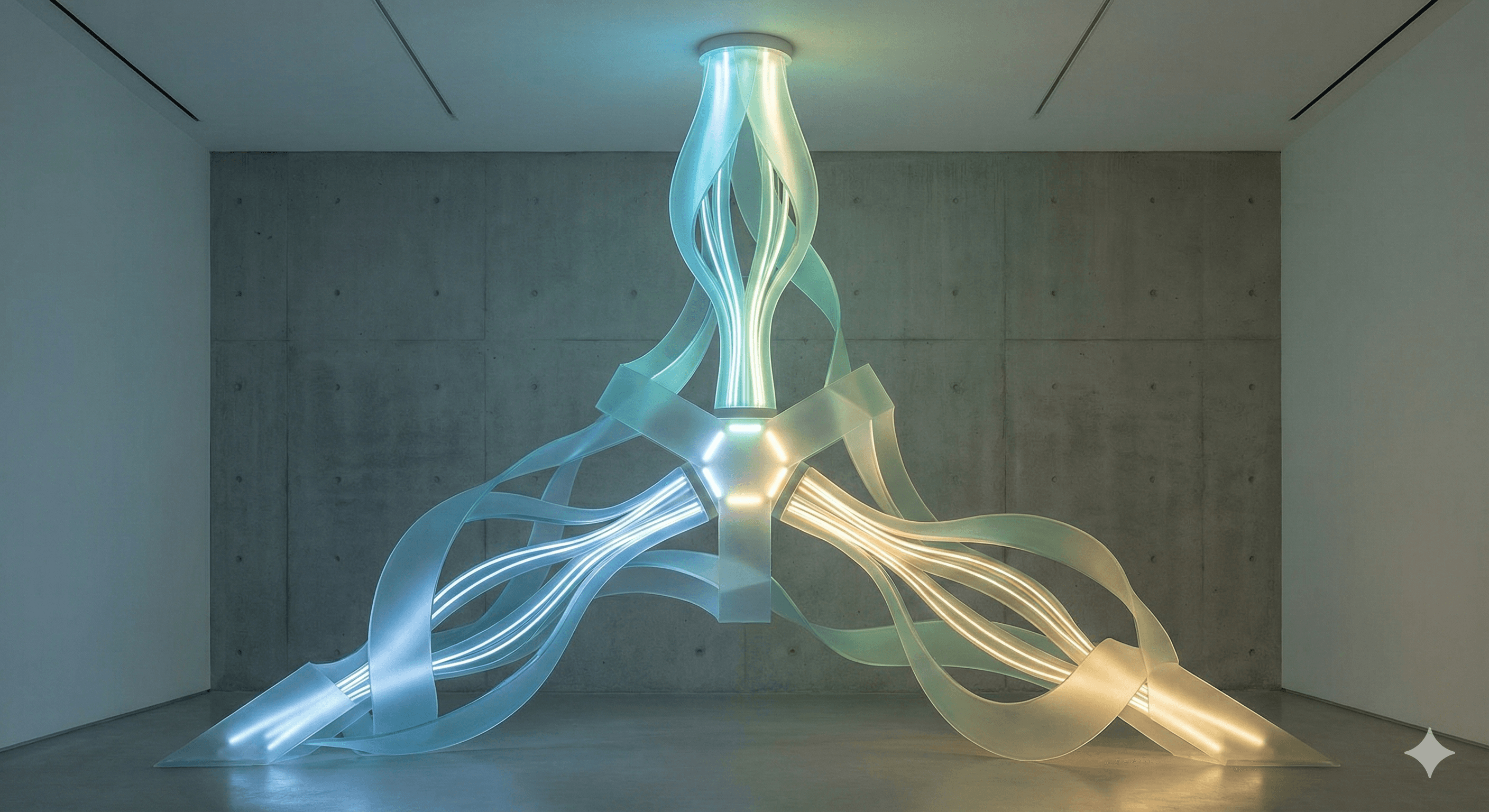
Generación de imágenes: Crea visuales contextuales desde el Asistente para que los resultados vivan junto a las citas y el historial de chat.
(Imágenes contextuales relacionadas): El Asistente también puede mostrar diagramas/gráficos ya existentes en los documentos de tu empresa directamente en el chat.
Pasos prácticos (habilitar en minutos)
Abre el Asistente y comienza un chat. Usa lenguaje natural más filtros (aplicación, autor, fecha) para reducir los resultados; fija respuestas clave en Canvas.
Usa autocompletar: comienza a escribir una consulta o título de documento; selecciona documentos o personas sugeridas para entrar directamente.
Genera imágenes: solicita al Asistente que cree un visual (por ejemplo, "diagrama de concepto para el flujo de incorporación"), luego insértalo en tu resumen o presentación.
Mantén el contexto enriquecido: adjunta archivos de aplicaciones conectadas para que la búsqueda, el chat y las imágenes hagan referencia a las mismas fuentes.
Ejemplos
Esquema de proyecto en un solo hilo: Pide al Asistente propuestas anteriores, acepta una sugerencia de autocompletar para abrir la presentación correcta, luego genera un diagrama para la nueva variante, sin cambiar de aplicación.
Actualización del manual de soporte: Busca incidentes pasados en el chat, resume las soluciones y agrega una imagen etiquetada que muestre el camino de escalación.
Preguntas Frecuentes
P1: ¿Cómo funciona la Búsqueda en el Chat?
Escribe una pregunta en el Asistente; este busca en las fuentes de tu empresa y devuelve resultados citados directamente en el chat para que puedas refinar o actuar de inmediato.
P2: ¿Cuáles son los beneficios del autocompletar?
Acelera el descubrimiento al sugerir consultas, documentos, personas y operadores mientras escribes, ayudándote a llegar al elemento correcto más rápido.
P3: ¿Puedo crear imágenes directamente en el Asistente?
Sí. El Asistente admite la generación de imágenes en el chat, para que puedas producir imágenes junto a tus fuentes y resúmenes.
Próximos Pasos
¿Implementando las nuevas funciones del Asistente en una organización del Reino Unido? Contacta a Generation Digital para una implementación centrada en la gobernanza—SSO, permisos, bibliotecas de prompts y guías de adopción incluidas.
Recibe noticias y consejos sobre IA cada semana en tu bandeja de entrada
Al suscribirte, das tu consentimiento para que Generation Digital almacene y procese tus datos de acuerdo con nuestra política de privacidad. Puedes leer la política completa en gend.co/privacy.



Generación
Digital

Oficina en Reino Unido
Generation Digital Ltd
33 Queen St,
Londres
EC4R 1AP
Reino Unido
Oficina en Canadá
Generation Digital Americas Inc
181 Bay St., Suite 1800
Toronto, ON, M5J 2T9
Canadá
Oficina en EE. UU.
Generation Digital Américas Inc
77 Sands St,
Brooklyn, NY 11201,
Estados Unidos
Oficina de la UE
Software Generación Digital
Edificio Elgee
Dundalk
A91 X2R3
Irlanda
Oficina en Medio Oriente
6994 Alsharq 3890,
An Narjis,
Riad 13343,
Arabia Saudita







Número de la empresa: 256 9431 77 | Derechos de autor 2026 | Términos y Condiciones | Política de Privacidad