Enhance Learning with Gemini’s Interactive Images
Gémeaux
20 nov. 2025


What are Gemini’s interactive images?
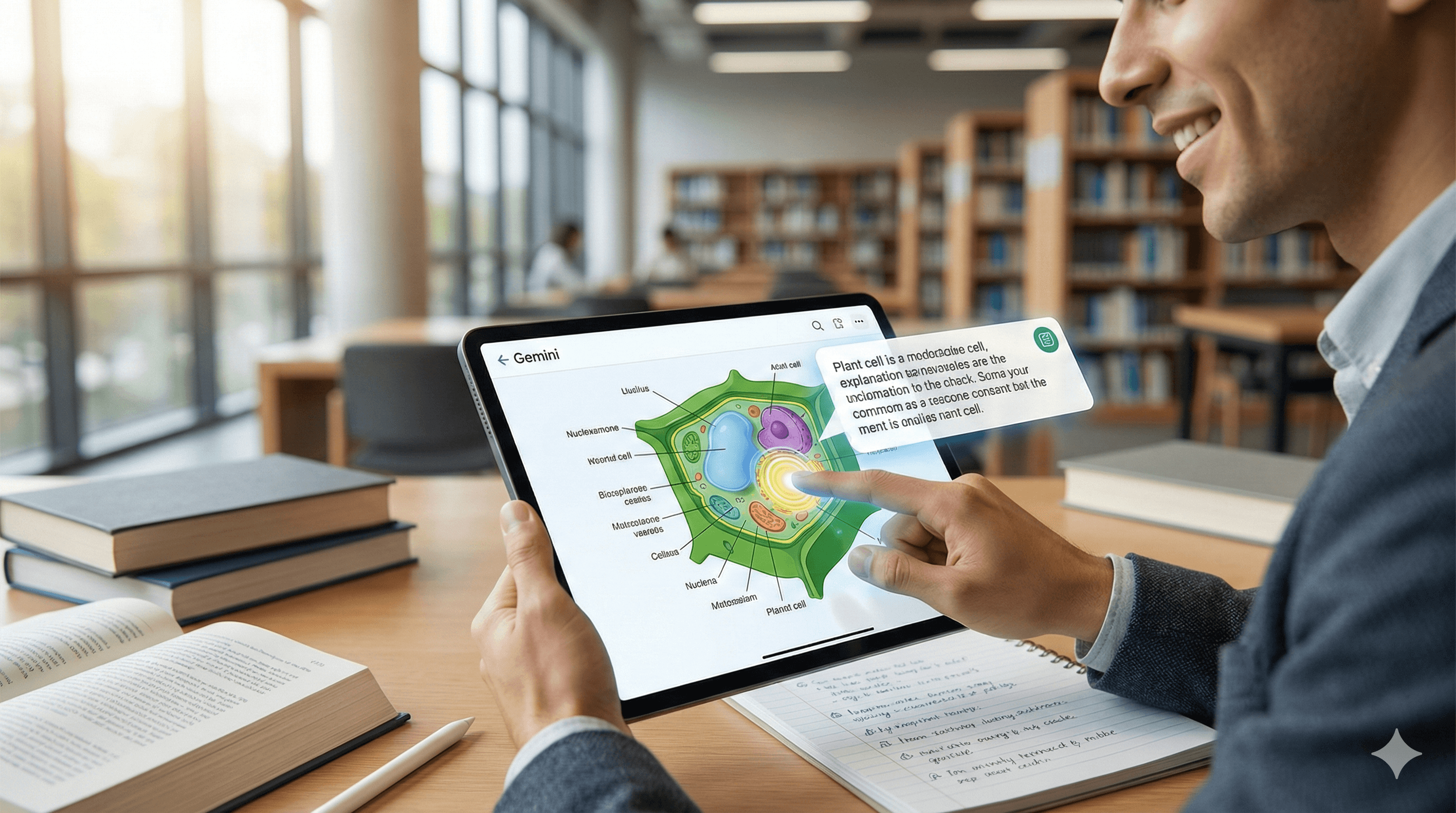
A new Gemini app capability that turns static diagrams into explorable visuals. Learners can tap labelled parts to reveal explanations, applying learning-science principles from LearnLM to deepen understanding and retention. Available as the feature rolls out across Gemini experiences.
Learning works best when you actively engage with ideas. Gemini now helps you do exactly that with interactive images—diagrams and visuals you can explore, not just look at. Instead of reading a wall of text, you tap a label, reveal an explanation, and build understanding step by step.
Why it matters
From passive to active learning. LearnLM—the research-driven approach behind Gemini’s learning features—focuses on questioning, feedback, and multisensory cues that improve comprehension and recall. Interactive images bring those principles to everyday study.
Clarity for complex topics. Visual explanations shorten the path from “I don’t get it” to “I see how this works,” whether you’re studying biology, circuits, or timelines.
Built into Gemini. You don’t need extra software; the capability is rolling out within the Gemini app with supporting “visual layout” modules that present richer, more interactive responses.
How it works
When you ask Gemini for a diagram (e.g., “Explain a plant cell with a labelled diagram”), Gemini can return an interactive image. Each hotspot/label can be tapped to expand a definition, example, or relationship, helping you build a mental model. This sits alongside other learning tools in Gemini (e.g., adding images to explanations, guided steps).
Practical examples
Biology: Tap each organelle in a plant or animal cell to see function, analogies, and common misconceptions.
Physics: Explore a circuit diagram; select components to learn what changes if resistance or voltage varies.
History: Interact with a timeline image; tap events for causes, consequences, and key figures.
Geography: Click layers on a tectonic plate diagram to reveal boundaries, hazards, and case studies.
Quick start: prompts to try
“Create an interactive image of a plant cell with tappable labels and brief explanations.”
“Show a timeline of the Industrial Revolution as an interactive image; let me tap to see causes and effects.”
“Make an interactive circuit diagram and explain what happens if I double the voltage.”
“Generate a map-based interactive image of plate boundaries with examples.”
Tip: If you don’t see interactivity yet, ask Gemini to “use visual layout” for a richer, modular response while the feature finishes rolling out.
Best practices for learners & teachers
Chunk content. Keep each hotspot focused on one concept; add examples and a misconception note to strengthen recall (LearnLM guidance).
Test understanding. After exploring an image, ask: “Quiz me on the parts I tapped,” or “Create flashcards from this diagram.”
Pair with notes. Export summaries to your notes/wiki so study materials stay searchable and shareable across your class or team.
Check sources. For factual topics, ask Gemini to cite sources or add links for further reading.
Where it shows up
Gemini app (web and mobile) as the feature roll-out progresses.
Complementary learning features appear in Gemini for Education (institutional context) and in support articles describing learning with images in Gemini Apps.
FAQs
Q1: How do interactive images enhance learning?
They turn diagrams into explorable lessons. Tapping labels triggers concise explanations that follow learning-science principles (chunking, retrieval cues), improving comprehension and retention.
Q2: What makes Gemini’s approach unique?
Gemini ties interactivity to LearnLM—Google’s research-informed models for education—so visuals, prompts, and feedback are designed to promote active learning rather than passive reading.
Q3: Can interactive images be used in all subjects?
Yes. Google’s examples span science, history, and more, and the visual layout capability supports modular, image-rich explanations across topics.
Q4: How do I try it today?
Use the Gemini app and prompt for an interactive image (e.g., “labelled diagram with tappable parts”). If interactivity hasn’t reached you yet, ask for visual layout or request a labelled diagram plus follow-up questions.
What are Gemini’s interactive images?
A new Gemini app capability that turns static diagrams into explorable visuals. Learners can tap labelled parts to reveal explanations, applying learning-science principles from LearnLM to deepen understanding and retention. Available as the feature rolls out across Gemini experiences.
Learning works best when you actively engage with ideas. Gemini now helps you do exactly that with interactive images—diagrams and visuals you can explore, not just look at. Instead of reading a wall of text, you tap a label, reveal an explanation, and build understanding step by step.
Why it matters
From passive to active learning. LearnLM—the research-driven approach behind Gemini’s learning features—focuses on questioning, feedback, and multisensory cues that improve comprehension and recall. Interactive images bring those principles to everyday study.
Clarity for complex topics. Visual explanations shorten the path from “I don’t get it” to “I see how this works,” whether you’re studying biology, circuits, or timelines.
Built into Gemini. You don’t need extra software; the capability is rolling out within the Gemini app with supporting “visual layout” modules that present richer, more interactive responses.
How it works
When you ask Gemini for a diagram (e.g., “Explain a plant cell with a labelled diagram”), Gemini can return an interactive image. Each hotspot/label can be tapped to expand a definition, example, or relationship, helping you build a mental model. This sits alongside other learning tools in Gemini (e.g., adding images to explanations, guided steps).
Practical examples
Biology: Tap each organelle in a plant or animal cell to see function, analogies, and common misconceptions.
Physics: Explore a circuit diagram; select components to learn what changes if resistance or voltage varies.
History: Interact with a timeline image; tap events for causes, consequences, and key figures.
Geography: Click layers on a tectonic plate diagram to reveal boundaries, hazards, and case studies.
Quick start: prompts to try
“Create an interactive image of a plant cell with tappable labels and brief explanations.”
“Show a timeline of the Industrial Revolution as an interactive image; let me tap to see causes and effects.”
“Make an interactive circuit diagram and explain what happens if I double the voltage.”
“Generate a map-based interactive image of plate boundaries with examples.”
Tip: If you don’t see interactivity yet, ask Gemini to “use visual layout” for a richer, modular response while the feature finishes rolling out.
Best practices for learners & teachers
Chunk content. Keep each hotspot focused on one concept; add examples and a misconception note to strengthen recall (LearnLM guidance).
Test understanding. After exploring an image, ask: “Quiz me on the parts I tapped,” or “Create flashcards from this diagram.”
Pair with notes. Export summaries to your notes/wiki so study materials stay searchable and shareable across your class or team.
Check sources. For factual topics, ask Gemini to cite sources or add links for further reading.
Where it shows up
Gemini app (web and mobile) as the feature roll-out progresses.
Complementary learning features appear in Gemini for Education (institutional context) and in support articles describing learning with images in Gemini Apps.
FAQs
Q1: How do interactive images enhance learning?
They turn diagrams into explorable lessons. Tapping labels triggers concise explanations that follow learning-science principles (chunking, retrieval cues), improving comprehension and retention.
Q2: What makes Gemini’s approach unique?
Gemini ties interactivity to LearnLM—Google’s research-informed models for education—so visuals, prompts, and feedback are designed to promote active learning rather than passive reading.
Q3: Can interactive images be used in all subjects?
Yes. Google’s examples span science, history, and more, and the visual layout capability supports modular, image-rich explanations across topics.
Q4: How do I try it today?
Use the Gemini app and prompt for an interactive image (e.g., “labelled diagram with tappable parts”). If interactivity hasn’t reached you yet, ask for visual layout or request a labelled diagram plus follow-up questions.
Recevez des conseils pratiques directement dans votre boîte de réception
En vous abonnant, vous consentez à ce que Génération Numérique stocke et traite vos informations conformément à notre politique de confidentialité. Vous pouvez lire la politique complète sur gend.co/privacy.

Génération
Numérique

Bureau au Royaume-Uni
33 rue Queen,
Londres
EC4R 1AP
Royaume-Uni
Bureau au Canada
1 University Ave,
Toronto,
ON M5J 1T1,
Canada
Bureau NAMER
77 Sands St,
Brooklyn,
NY 11201,
États-Unis
Bureau EMEA
Rue Charlemont, Saint Kevin's, Dublin,
D02 VN88,
Irlande
Bureau du Moyen-Orient
6994 Alsharq 3890,
An Narjis,
Riyad 13343,
Arabie Saoudite

Numéro d'entreprise : 256 9431 77 | Droits d'auteur 2026 | Conditions générales | Politique de confidentialité
Génération
Numérique

Bureau au Royaume-Uni
33 rue Queen,
Londres
EC4R 1AP
Royaume-Uni
Bureau au Canada
1 University Ave,
Toronto,
ON M5J 1T1,
Canada
Bureau NAMER
77 Sands St,
Brooklyn,
NY 11201,
États-Unis
Bureau EMEA
Rue Charlemont, Saint Kevin's, Dublin,
D02 VN88,
Irlande
Bureau du Moyen-Orient
6994 Alsharq 3890,
An Narjis,
Riyad 13343,
Arabie Saoudite

Numéro d'entreprise : 256 9431 77
Conditions générales
Politique de confidentialité
Droit d'auteur 2026