Asana Accessibility Testing: Streamlined, Organized Workflows

Asana Accessibility Testing: Streamlined, Organized Workflows
Asana

Dec 6, 2025

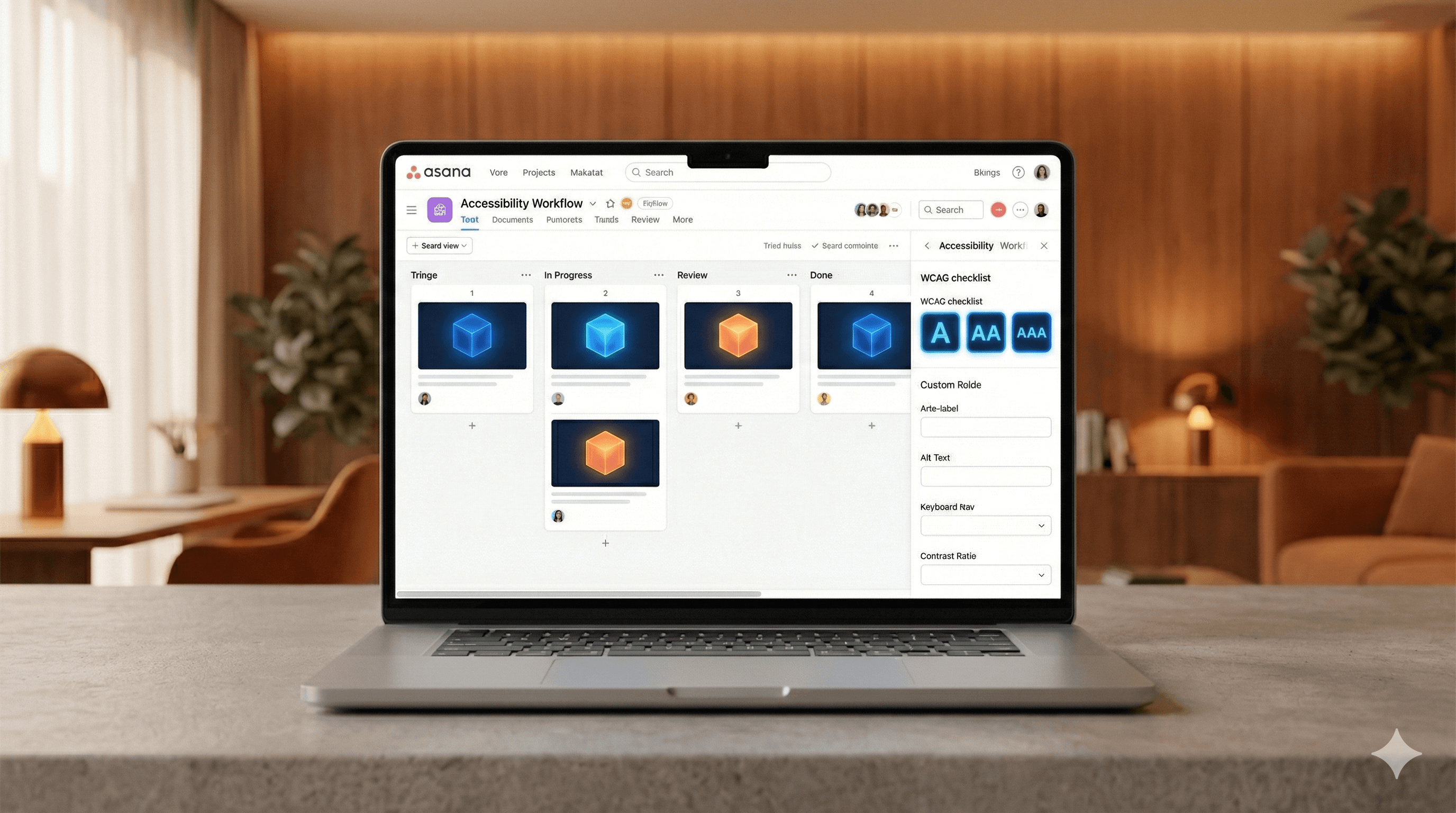
A laptop showcases the Asana interface, demonstrating an accessibility workflow with various tasks, featuring icons of cubes and accessibility symbols, all within a warmly lit, modern workspace.

Not sure what to do next with AI?
Assess readiness, risk, and priorities in under an hour.

Not sure what to do next with AI?
Assess readiness, risk, and priorities in under an hour.

➔ Schedule a Consultation

Asana’s enhanced accessibility testing strategy emphasizes organized checklists, lightweight automation, and systematic triage. By associating WCAG checks with Asana tasks and custom fields, teams can identify clear, correctable issues earlier, minimize back-and-forth, and monitor progress from discovery to verification in one clear workflow.

Why this matters now

Accessibility isn’t just a one-time audit. It’s a consistent practice throughout design, engineering, and content. When testing is random, teams overlook predictable problems—such as missing labels or inadequate colour contrast—and solutions take longer to implement. A structured workflow in Asana shortens the timeline from “discovered” to “resolved”.

What’s new in the approach

The emphasis is on clarity, speed, and verification:

  • Clarity: Turn WCAG rules into a concise, team-friendly checklist. Each check becomes a task template with acceptance criteria.

  • Speed: Integrate lightweight automation (linting, contrast checks, keyboard traps) to catch common issues before human review.

  • Verification: Gather evidence (screenshots, short clips, assistive tech notes) and record results with custom fields.

The core workflow in Asana

  1. Create an Accessibility Board

    • Columns: To Test, Found Issues, In Progress, Ready for Verification, Done.

    • Templates: “Keyboard Navigation”, “Forms & Labels”, “Colour Contrast”, “Screen Reader Semantics”.

  2. Use Custom Fields for precision

    • Area: Component/Page (e.g., “Checkout – Address Form”).

    • Type of Issue: Contrast, Focus, Semantics, Motion/Animation, Media Captions.

    • Severity/Impact: Blocker, High, Medium, Low.

    • WCAG Reference: e.g., 2.4.3 Focus Order, 1.4.11 Non‑text Contrast.

    • Status: New, Triaged, Fix Ready, Verified.

  3. Adopt a repeatable Checklist

    • Keyboard only: Ensure all actions are accessible, visible focus, no traps.

    • Screen Reader Fundamentals: Correct landmarks, headings, labels, and roles.

    • Forms: Programmatic labels, clear error messages, no placeholder-only labels.

    • Contrast: Meet minimum ratios (text, UI components, states).

    • Media: Include captions, transcripts, reduced-motion options.

  4. Accelerate discovery with automation

    • Execute automated checks either in CI or locally (linting, contrast tests, HTML validation). Treat results as signals, not final assessments. Create Asana subtasks marked “Automated finding” for fast triage.

  5. Quick triage instead of lengthy meetings

    • Apply a simple triage rule: Is it user-blocking? How many users affected? Ease of fix? Assign severity, owner, and deadline directly in Asana. Add a brief 2–3 sentence description and a 10–20 second video clip or screenshot.

  6. Make repairs with full context

    • Engineers link code changes, designers attach updated components, and content designers include alternative text. Keep WCAG references and acceptance criteria visible in the task description.

  7. Verify and learn

    • Move to Ready for Verification. Re-test using keyboard and a screen reader. Mark the task as Verified, attach proof, and add a one-line lesson to a recurring “A11y Learnings” task for upcoming sprints.

Practical examples

  • Form label gaps: A linter flags inputs lacking labels. The Asana template advises adding programmatic labels and testing with a screen reader. Verification involves a narrated clip showing field focus, announcement, and error recovery.

  • Contrast regressions: A design handoff diminishes button contrast. The “Colour Contrast” template includes a rapid ratio check and alternative tokens. Verification requires before/after screenshots showing measured ratios.

  • Focus order issues: A modal opens but focus remains behind. The “Keyboard Navigation” template provides guidance on trapping and restoring focus. Verification necessitates tabbing through and closing via keyboard.

Tips for quicker results

  • Incorporate the checklist into your Definition of Done.

  • Break down tasks; divide multi-page issues into individual tasks.

  • Set default due dates to the next sprint.

  • Create a hotlist section on the board for urgent, user-blocking items.

  • Weekly, review a small sample with a screen reader—even 15 minutes can reveal recurring patterns.

Evaluating success

Track:

  • Time to triage: From “Discovered” to “Triaged”.

  • Time to verify: From “Fix Ready” to “Verified”.

  • Recurring issue rate: Frequency of repeated issue types.

  • Coverage: Percentage of key flows tested monthly.

A consistent reduction in time-to-verify and recurrence indicates the workflow is yielding benefits.

Getting started

Launch the board, input the custom fields, insert the checklist, and conduct one hour of testing on a high-traffic flow. By the end of this hour, you’ll have a prioritized list of issues, owners, and due dates—all visible and advancing.

Need assistance implementing this? Generation Digital can customize Asana projects, fields, and templates to suit your product and compliance targets.

FAQs

How does this method enhance testing?
It transforms WCAG guidance into clear tasks, incorporates lightweight automation for quick wins, and uses systematic triage to ensure efficient movement from discovery to verification.

What are the advantages of faster accessibility testing?
Users experience fewer obstacles, teams encounter fewer regressions, and leadership gains insight into risks and progress—all within Asana.

Can these techniques be used elsewhere?
Yes. The checklist and triage model can be applied in any tracking system; Asana is strong due to its simplicity, templates, and cross-team visibility.

Do automated tools substitute manual testing?
No. Automation identifies common patterns; manual testing with keyboard and screen readers verifies practical usability.

Which standards are matched?
Primarily WCAG 2.2 success criteria, especially focus on focus order, semantics, labels, and contrast.

Asana’s enhanced accessibility testing strategy emphasizes organized checklists, lightweight automation, and systematic triage. By associating WCAG checks with Asana tasks and custom fields, teams can identify clear, correctable issues earlier, minimize back-and-forth, and monitor progress from discovery to verification in one clear workflow.

Why this matters now

Accessibility isn’t just a one-time audit. It’s a consistent practice throughout design, engineering, and content. When testing is random, teams overlook predictable problems—such as missing labels or inadequate colour contrast—and solutions take longer to implement. A structured workflow in Asana shortens the timeline from “discovered” to “resolved”.

What’s new in the approach

The emphasis is on clarity, speed, and verification:

  • Clarity: Turn WCAG rules into a concise, team-friendly checklist. Each check becomes a task template with acceptance criteria.

  • Speed: Integrate lightweight automation (linting, contrast checks, keyboard traps) to catch common issues before human review.

  • Verification: Gather evidence (screenshots, short clips, assistive tech notes) and record results with custom fields.

The core workflow in Asana

  1. Create an Accessibility Board

    • Columns: To Test, Found Issues, In Progress, Ready for Verification, Done.

    • Templates: “Keyboard Navigation”, “Forms & Labels”, “Colour Contrast”, “Screen Reader Semantics”.

  2. Use Custom Fields for precision

    • Area: Component/Page (e.g., “Checkout – Address Form”).

    • Type of Issue: Contrast, Focus, Semantics, Motion/Animation, Media Captions.

    • Severity/Impact: Blocker, High, Medium, Low.

    • WCAG Reference: e.g., 2.4.3 Focus Order, 1.4.11 Non‑text Contrast.

    • Status: New, Triaged, Fix Ready, Verified.

  3. Adopt a repeatable Checklist

    • Keyboard only: Ensure all actions are accessible, visible focus, no traps.

    • Screen Reader Fundamentals: Correct landmarks, headings, labels, and roles.

    • Forms: Programmatic labels, clear error messages, no placeholder-only labels.

    • Contrast: Meet minimum ratios (text, UI components, states).

    • Media: Include captions, transcripts, reduced-motion options.

  4. Accelerate discovery with automation

    • Execute automated checks either in CI or locally (linting, contrast tests, HTML validation). Treat results as signals, not final assessments. Create Asana subtasks marked “Automated finding” for fast triage.

  5. Quick triage instead of lengthy meetings

    • Apply a simple triage rule: Is it user-blocking? How many users affected? Ease of fix? Assign severity, owner, and deadline directly in Asana. Add a brief 2–3 sentence description and a 10–20 second video clip or screenshot.

  6. Make repairs with full context

    • Engineers link code changes, designers attach updated components, and content designers include alternative text. Keep WCAG references and acceptance criteria visible in the task description.

  7. Verify and learn

    • Move to Ready for Verification. Re-test using keyboard and a screen reader. Mark the task as Verified, attach proof, and add a one-line lesson to a recurring “A11y Learnings” task for upcoming sprints.

Practical examples

  • Form label gaps: A linter flags inputs lacking labels. The Asana template advises adding programmatic labels and testing with a screen reader. Verification involves a narrated clip showing field focus, announcement, and error recovery.

  • Contrast regressions: A design handoff diminishes button contrast. The “Colour Contrast” template includes a rapid ratio check and alternative tokens. Verification requires before/after screenshots showing measured ratios.

  • Focus order issues: A modal opens but focus remains behind. The “Keyboard Navigation” template provides guidance on trapping and restoring focus. Verification necessitates tabbing through and closing via keyboard.

Tips for quicker results

  • Incorporate the checklist into your Definition of Done.

  • Break down tasks; divide multi-page issues into individual tasks.

  • Set default due dates to the next sprint.

  • Create a hotlist section on the board for urgent, user-blocking items.

  • Weekly, review a small sample with a screen reader—even 15 minutes can reveal recurring patterns.

Evaluating success

Track:

  • Time to triage: From “Discovered” to “Triaged”.

  • Time to verify: From “Fix Ready” to “Verified”.

  • Recurring issue rate: Frequency of repeated issue types.

  • Coverage: Percentage of key flows tested monthly.

A consistent reduction in time-to-verify and recurrence indicates the workflow is yielding benefits.

Getting started

Launch the board, input the custom fields, insert the checklist, and conduct one hour of testing on a high-traffic flow. By the end of this hour, you’ll have a prioritized list of issues, owners, and due dates—all visible and advancing.

Need assistance implementing this? Generation Digital can customize Asana projects, fields, and templates to suit your product and compliance targets.

FAQs

How does this method enhance testing?
It transforms WCAG guidance into clear tasks, incorporates lightweight automation for quick wins, and uses systematic triage to ensure efficient movement from discovery to verification.

What are the advantages of faster accessibility testing?
Users experience fewer obstacles, teams encounter fewer regressions, and leadership gains insight into risks and progress—all within Asana.

Can these techniques be used elsewhere?
Yes. The checklist and triage model can be applied in any tracking system; Asana is strong due to its simplicity, templates, and cross-team visibility.

Do automated tools substitute manual testing?
No. Automation identifies common patterns; manual testing with keyboard and screen readers verifies practical usability.

Which standards are matched?
Primarily WCAG 2.2 success criteria, especially focus on focus order, semantics, labels, and contrast.

Receive practical advice directly in your inbox

By subscribing, you agree to allow Generation Digital to store and process your information according to our privacy policy. You can review the full policy at gend.co/privacy.


Are you ready to get the support your organization needs to successfully leverage AI?

Miro Solutions Partner
Asana Platinum Solutions Partner
Notion Platinum Solutions Partner
Glean Certified Partner

Ready to get the support your organization needs to successfully use AI?

Miro Solutions Partner
Asana Platinum Solutions Partner
Notion Platinum Solutions Partner
Glean Certified Partner

Generation
Digital

Canadian Office
33 Queen St,
Toronto
M5H 2N2
Canada

Canadian Office
1 University Ave,
Toronto,
ON M5J 1T1,
Canada

NAMER Office
77 Sands St,
Brooklyn,
NY 11201,
USA

Head Office
Charlemont St, Saint Kevin's, Dublin,
D02 VN88,
Ireland

Middle East Office
6994 Alsharq 3890,
An Narjis,
Riyadh 13343,
Saudi Arabia

UK Fast Growth Index UBS Logo
Financial Times FT 1000 Logo
Febe Growth 100 Logo (Background Removed)

Business Number: 256 9431 77 | Copyright 2026 | Terms and Conditions | Privacy Policy

Generation
Digital

Canadian Office
33 Queen St,
Toronto
M5H 2N2
Canada

Canadian Office
1 University Ave,
Toronto,
ON M5J 1T1,
Canada

NAMER Office
77 Sands St,
Brooklyn,
NY 11201,
USA

Head Office
Charlemont St, Saint Kevin's, Dublin,
D02 VN88,
Ireland

Middle East Office
6994 Alsharq 3890,
An Narjis,
Riyadh 13343,
Saudi Arabia

UK Fast Growth Index UBS Logo
Financial Times FT 1000 Logo
Febe Growth 100 Logo (Background Removed)


Business No: 256 9431 77
Terms and Conditions
Privacy Policy
© 2026





