Claude Computer Use: Automate macOS Tasks with Dispatch
Claude
Uncertain about how to get started with AI?Evaluate your readiness, potential risks, and key priorities in less than an hour.
➔ Download Our Free AI Preparedness Pack
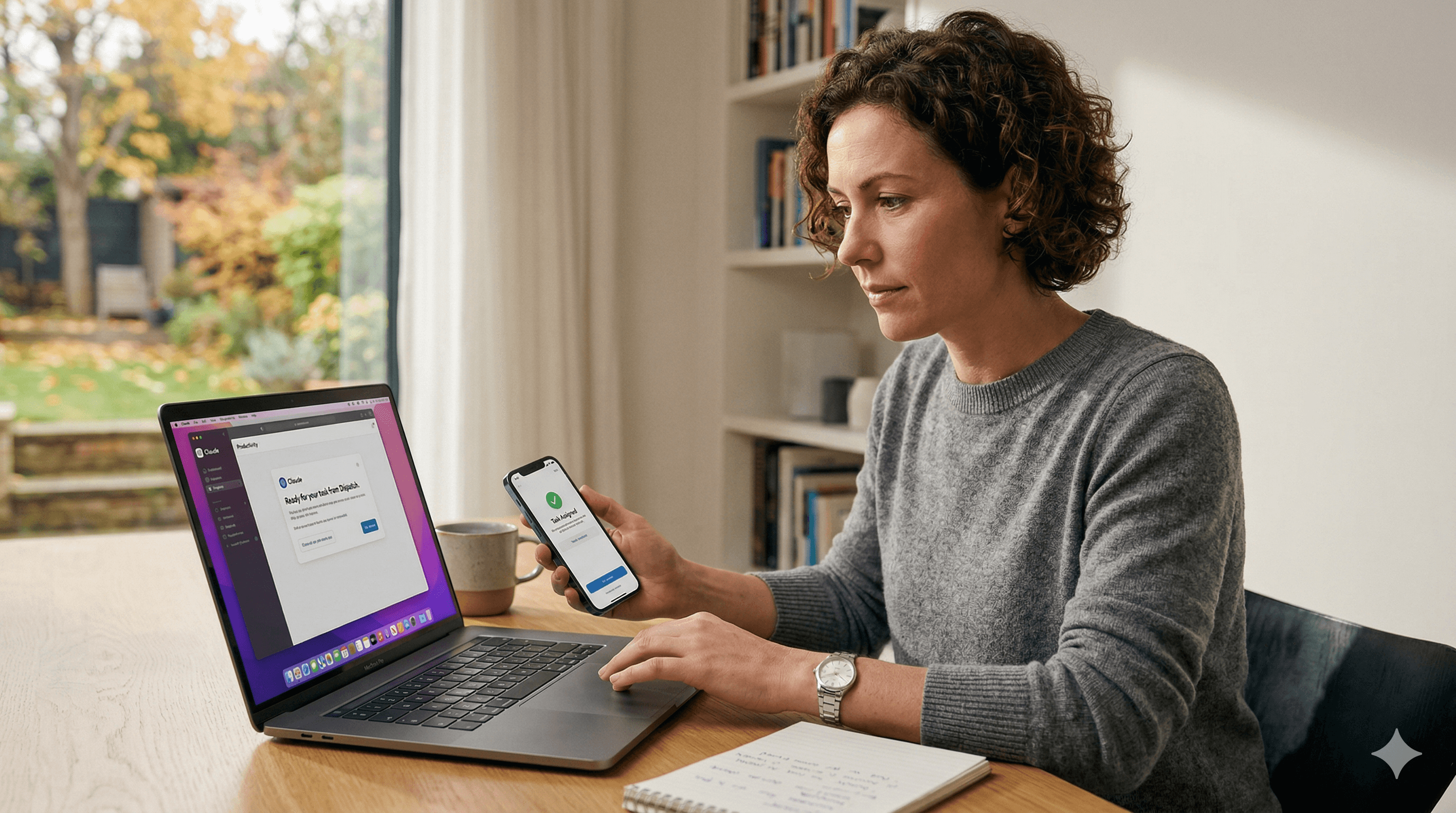
Claude’s computer use feature lets the assistant control your Mac to complete tasks like opening apps, navigating the browser, and running developer tools. With Dispatch, you can assign work from your phone and return to finished outputs on your desktop. It’s currently offered as a research preview on macOS.
Most “AI assistants” stop where your real work begins: inside desktop apps, browser workflows, and dev tools that don’t have a neat API.
Claude’s newest capability changes that. With computer use on macOS, Claude can interact with your computer much like a person would—opening applications, clicking through interfaces, navigating the web, and running tooling. Pair that with Dispatch, and you can hand Claude tasks from your phone while you’re away from your Mac.
This article explains what’s available today, how it works, and how to use it responsibly.
What is Claude’s computer use feature?
Computer use is a capability in Claude (delivered through the Claude desktop experience and related tools) that allows Claude to operate your Mac’s interface to complete tasks. It can:
open and switch between apps
navigate websites and complete browser-based workflows
run developer tools and interact with GUIs when there’s no CLI option
work with local files (where you explicitly grant access)
It’s currently positioned as a research preview on macOS, meaning it’s early, evolving, and designed to gather real-world feedback.
What is Dispatch?
Dispatch is Claude’s cross-device workflow that lets you assign tasks from your phone and then review the result later on your desktop.
Think of Dispatch as the “handover layer”:
you start a task on mobile (e.g., commuting)
Claude completes it on your Mac (while the desktop app is running and permissions allow)
you return to a finished output: notes, files, summaries, drafts, or updates
How it works (in plain English)
Claude prefers the safest and most direct path to completing a task:
Use connected tools where possible (for example, through connectors).
Fall back to controlling your computer when needed (mouse/keyboard/screen interaction).
Ask for permission before taking actions that affect your system or data.
The result is a practical “agent” that can handle real workflows, not just chat about them.
What Claude can automate: practical examples
Here are realistic ways teams use computer-use automation without turning it into a gimmick.
1) Admin and operations tasks
“Find the latest invoice PDF in the shared folder and summarise key line items.”
“Open the spreadsheet and produce a one-page weekly update.”
2) Meeting prep and follow-ups
“Pull the last meeting notes and draft an agenda for today.”
“Turn these bullet points into a concise update and save it to the project folder.”
3) Web workflows that don’t have clean integrations
“Log into the portal, download the report for last week, and highlight anomalies.”
“Check three dashboards and compile a short status summary.”
4) Developer workflows
“Run the build, open the logs, and summarise the failing tests.”
“Test this flow in the iOS simulator and note the steps to reproduce the bug.”
Getting started on macOS
Exact steps may vary depending on your environment, but a typical setup looks like this:
Install or update Claude Desktop on your Mac.
Install or update Claude on iOS/Android.
Open Cowork and navigate to Dispatch.
Complete the setup prompts to grant only the permissions you’re comfortable with (e.g., file access, keeping the computer awake).
Start by assigning small, low-risk tasks, then expand.
Best practices for first-time users
Use one clear task per message.
Specify where outputs should go (“Save the report in /Projects/Weekly Updates”).
Ask for confirmations when a step is irreversible (“Before sending, show me the draft”).
Safety, governance, and what to watch for
Computer automation is powerful, but it changes your risk profile.
Permission-aware by design, but still needs guardrails
Limit access to folders and apps that matter.
Avoid sensitive workflows until you have confidence (finance approvals, HR casework, legal review, customer PII).
Use a “review before action” norm for sending, deleting, or publishing.
Plan for prompt injection and unsafe web content
Any agent that browses the web can be exposed to malicious instructions embedded in pages.
Practical mitigations:
prefer internal systems and trusted sites
keep tasks narrowly scoped
require confirmations for high-impact actions
How Generation Digital helps
Generation Digital supports teams adopting modern AI tools with a focus on real productivity, not novelty.
We can help you:
identify high-value automation workflows
define usage policies and safe operating procedures
create enablement materials that drive adoption responsibly
connect Claude alongside your collaboration stack (including Asana, Miro, Notion, and Glean)
Related pages:
Learn more about Asana: /asana/
Discover insights on Miro: /miro/
Explore tools in Notion: /notion/
Explore Glean: /glean/
Summary and next steps
Claude’s computer use plus Dispatch is an early but meaningful step towards assistants that can complete tasks inside the tools people actually use every day.
Next steps:
Pick 3–5 low-risk tasks that currently waste time.
Trial Dispatch on a single Mac with limited permissions.
Document what works, what’s brittle, and what needs review.
Scale with training, safety norms, and a clear policy for sensitive actions.
If you’d like help designing a safe pilot with measurable outcomes, contact Generation Digital.
FAQs
Q1: How can I start using Claude on my macOS?
Download or update Claude Desktop for macOS, then set up Cowork and enable Dispatch. During setup, you’ll be prompted to grant permissions (such as access to files) so Claude can complete tasks on your Mac.
Q2: What types of tasks can Claude automate?
Claude can open applications, navigate through browser workflows, work with files you grant access to, and run developer tools—particularly helpful when tasks require a GUI rather than an integration.
Q3: Is Claude available for other operating systems?
At the time of writing, computer use is positioned as a macOS research preview. Availability on other operating systems may change as Anthropic expands the feature.
Q4: Is it safe to let Claude control my computer?
It can be safe when you keep permissions narrow, start with low-risk tasks, and require confirmation before irreversible actions (sending, deleting, publishing). Treat it like any powerful admin tool: define policies and keep humans in the loop.
Q5: How do I get better results from Dispatch?
Be specific about the goal, the location of files, and where outputs should be saved. For important actions, instruct Claude to pause and show you the draft or plan before executing.
Receive weekly AI news and advice straight to your inbox
By subscribing, you agree to allow Generation Digital to store and process your information according to our privacy policy. You can review the full policy at gend.co/privacy.



Generation
Digital

Canadian Office
33 Queen St,
Toronto
M5H 2N2
Canada
Canadian Office
1 University Ave,
Toronto,
ON M5J 1T1,
Canada
NAMER Office
77 Sands St,
Brooklyn,
NY 11201,
USA
Head Office
Charlemont St, Saint Kevin's, Dublin,
D02 VN88,
Ireland
Middle East Office
6994 Alsharq 3890,
An Narjis,
Riyadh 13343,
Saudi Arabia







Business Number: 256 9431 77 | Copyright 2026 | Terms and Conditions | Privacy Policy