Visualisez la recherche avec les rapports intégrés de Gemini (2026)
Gémeaux
Pas sûr de quoi faire ensuite avec l'IA?Évaluez la préparation, les risques et les priorités en moins d'une heure.
➔ Téléchargez notre kit de préparation à l'IA gratuit
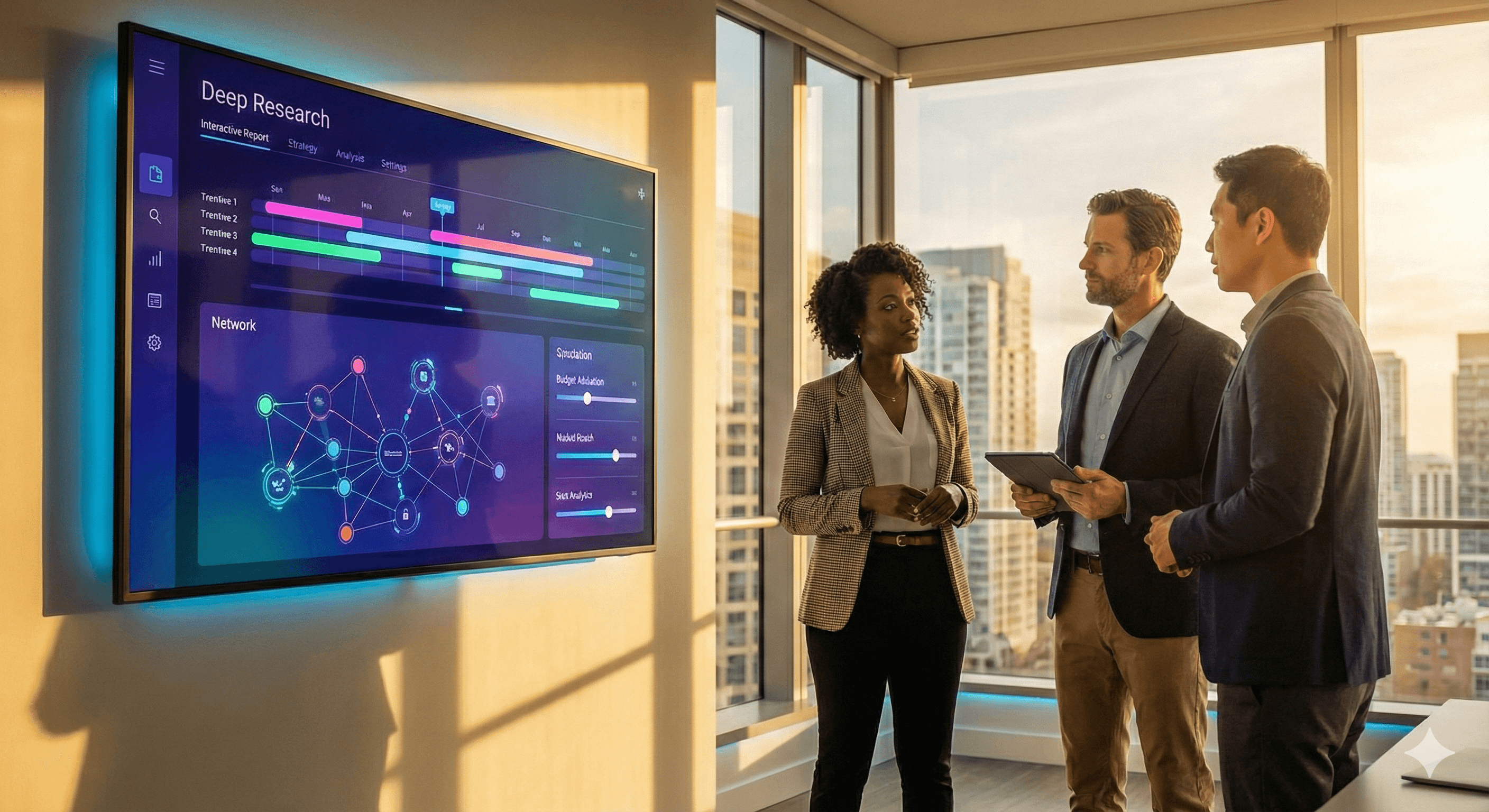
Gemini Deep Research transforme maintenant des briefs complexes en rapports visuels et interactifs—incluant des graphiques, des diagrammes et des simulations—pour que les équipes puissent saisir les insights d'un coup d'œil. Les rapports visuels sont disponibles pour les membres de Google AI Ultra, avec des modifications dans Canvas et Export vers Docs pour la collaboration et l'approbation.
Pourquoi cela compte maintenant
Les décideurs parcourent rapidement; ils prennent leurs décisions sur la base de visuels. Le Gemini Deep Research de Google va au-delà du texte long pour produire des rapports visuels intégrés—graphiques, diagrammes, même des simulations interactives—pour que les preuves complexes deviennent "visibles" en quelques secondes. Les rapports visuels sont accessibles aux membres de Google AI Ultra, ce qui augmente également les limites et débloque de nouvelles capacités des agents.
Quelles sont les nouveautés
Sorties visuelles et interactives: Deep Research peut intégrer des images personnalisées, des graphiques et des simulateurs interactifs directement dans le rapport, pas seulement les décrire.
Édition et exportation centrée sur Canvas: Affinez les visuels dans Canvas, puis Exportez vers Google Docs pour une révision/approbation plus large.
Agent intégré: L'Agent Deep Research (alimenté par Gemini 3 Pro) planifie, recherche et synthétise sur le web (et éventuellement vos données) pour produire des rapports cités. Les équipes de développement peuvent l'appeler via l'API Interactions.
Mise en garde: Si vous incluez Gmail/Drive comme sources dans le même volet, les visuels/animations ne sont pas disponibles actuellement. Limitez-vous au web uniquement lorsque vous avez besoin de visuels interactifs.
L'avis des dirigeants
Il ne s'agit pas de "graphiques plus agréables à regarder." Il s'agit de la vitesse de décision: passer des pages de texte aux preuves que vous pouvez interroger. Les équipes qui réussissent avec Deep Research traitent les visuels comme des artefacts testables—vous pouvez ajuster les hypothèses dans un simulateur, relancer la sensibilité, et parvenir à une décision plus rapidement qu'une chaîne de courriels.
Guide: comment obtenir de la valeur en 5 étapes
Confirmez le plan et les limites
Vérifiez que vous êtes sur Google AI Ultra pour les rapports visuels/interactifs (les utilisateurs Pro ont toujours Deep Research, mais les visuels sont réservés à Ultra).Cadrez le brief comme un analyste
Dans Gemini → Deep Research, définissez le périmètre (question, période, régions, contraintes). Demandez des sources citées et un résumé exécutif ainsi que des sections de "exploration visuelle".Visualisez dans Canvas
Ouvrez le rapport → Canvas → Créer → décrivez le visuel: “graphique linéaire de l'adoption par région 2021–2026; ajoutez un curseur interactif sur la répartition budgétaire”.Exportez et diffusez
Partagez Canvas pour co-éditer ou Exportez vers Docs pour l'intégrer dans votre flux de travail de révision (mode suggestion, commentaires, versioning).Matérialisez les décisions
Joignez le rapport et les visuels à vos notes de réunion; enregistrez décision, propriétaire, métrique (p. ex., CAC, temps pour insight) et réexaminez après 30/60 jours.
Exemples d'utilisation (à expédier ce trimestre)
Simulateur de réallocation budgétaire: Comparez trois combinaisons de dépenses (p. ex., marque/performance/rétention). Utilisez un modèle interactif pour montrer les bandes de résultat et justifier les compromis.
Trousse de vérification diligente: Deep Research compile un paysage cité; Canvas ajoute une carte de chaleur des risques et un diagramme de propriété; exportez vers Docs pour les annotations juridiques/financières.
Synthèse de la littérature avec visuels: Générez une carte conceptuelle (qui publie, où les preuves se regroupent), ainsi qu'une chronologie des jalons pour aligner sur l'état de l'art.
Gouvernance & balises
Hygiène des sources: Conservez des sources web uniquement lorsque vous avez besoin de visuels interactifs; si vous incluez Gmail/Drive, attendez-vous à un rapport axé sur le texte.
Attribution par défaut: Demandez à l'agent des citations et gardez-les visibles dans les documents exportés pour l'auditabilité.
Séparation des données: Si vous devez mélanger des fichiers privés et la navigation sur le web, consultez les indications pour développeur sur Recherche de fichiers et les risques d'exfiltration; envisagez de traiter les données privées dans un parcours séparé.
Contrôle des changements: Traitez les Docs exportés comme le système d'enregistrement; verrouillez les rapports finaux et archivez les états de Canvas selon la politique.
FAQs
Qui a accès aux rapports visuels?
Les membres de Google AI Ultra; les utilisateurs Pro ont Deep Research avec des limites plus élevées mais les visuels/animations sont réservés à Ultra. Google Aide+1
Quels visuels puis-je générer?
Des graphiques, des diagrammes et des simulateurs interactifs intégrés dans le rapport; créez-les ou affinez-les à partir de Canvas → Créer. blog.google+1
Puis-je exporter et collaborer?
Oui—Partagez Canvas ou Exportez vers Docs pour une révision plus large et le contrôle des versions. Google Aide
Angle développeur?
Appelez l'Agent Deep Research via l'API Interactions (aperçu), alimenté par Gemini 3 Pro, pour automatiser la génération de rapports dans les outils internes. Google AI pour Développeurs+1
Y a-t-il des limites à connaître?
Les visuels ne sont pas disponibles lorsque Gmail/Drive sont utilisés comme sources dans le même volet. Les requêtes Deep Research ont également des limites quotidiennes et de concurrence (plus élevées sur Pro/Ultra). Google Aide
Solutions logicielles
Recevez chaque semaine des nouvelles et des conseils sur l'IA directement dans votre boîte de réception
En vous abonnant, vous consentez à ce que Génération Numérique stocke et traite vos informations conformément à notre politique de confidentialité. Vous pouvez lire la politique complète sur gend.co/privacy.



Génération
Numérique

Bureau du Royaume-Uni
Génération Numérique Ltée
33 rue Queen,
Londres
EC4R 1AP
Royaume-Uni
Bureau au Canada
Génération Numérique Amériques Inc
181 rue Bay, Suite 1800
Toronto, ON, M5J 2T9
Canada
Bureau aux États-Unis
Generation Digital Americas Inc
77 Sands St,
Brooklyn, NY 11201,
États-Unis
Bureau de l'UE
Génération de logiciels numériques
Bâtiment Elgee
Dundalk
A91 X2R3
Irlande
Bureau du Moyen-Orient
6994 Alsharq 3890,
An Narjis,
Riyad 13343,
Arabie Saoudite







Numéro d'entreprise : 256 9431 77 | Droits d'auteur 2026 | Conditions générales | Politique de confidentialité