Créez votre premier tableau Kanban dans Miro (guide facile)
Miro
Pas sûr de quoi faire ensuite avec l'IA?Évaluez la préparation, les risques et les priorités en moins d'une heure.
➔ Téléchargez notre kit de préparation à l'IA gratuit
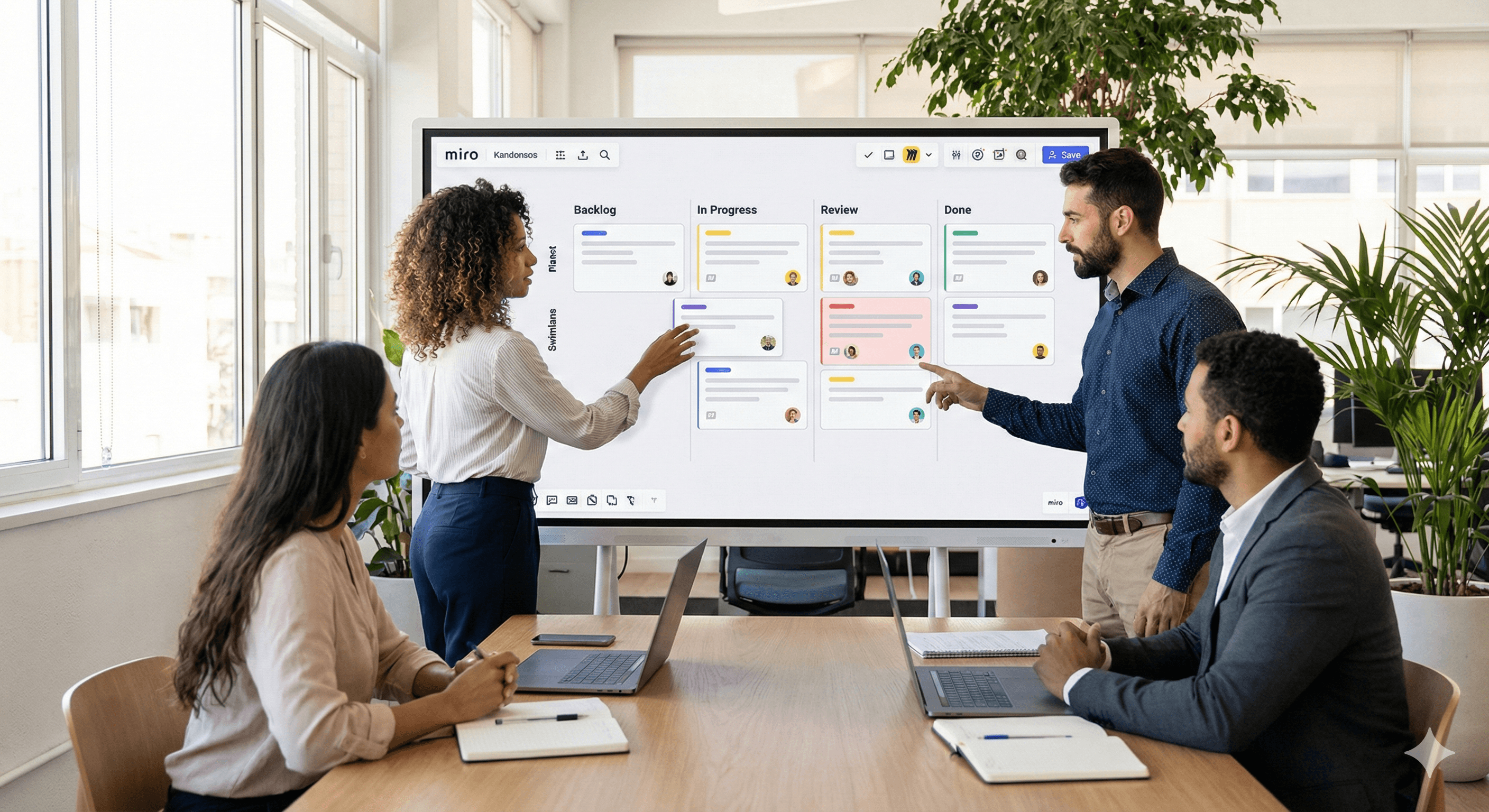
Miro simplifie Kanban : commencez avec un modèle prêt à l'emploi, personnalisez les colonnes pour qu'elles correspondent à votre flux de travail et ajoutez des Cartes pour suivre les tâches à mesure qu'elles passent de "À faire" à "Fait". Tout se met à jour en temps réel, donc les équipes restent alignées sans jongler avec plusieurs outils.
Pourquoi Kanban dans Miro?
Disposition visuelle et flexible : Glissez-déposez les cartes, ajoutez des colonnes ou des corridors, et adaptez le tableau à toute équipe ou processus.
Conçu pour la collaboration : Passez entre les vues Kanban, Chronologie et Tableau à mesure que le travail évolue; les mises à jour sont instantanées sur tous les appareils.
Démarrage rapide avec modèle : Choisissez parmi les modèles Kanban de Miro (y compris une option assistée par l'IA) pour éviter de commencer sur une toile vierge.
Étape par étape : construisez votre premier Kanban en quelques minutes
1) Choisissez un modèle Kanban
Ouvrez la bibliothèque de modèles de Miro et sélectionnez un modèle Kanban ou un modèle de cadre Kanban pour obtenir une structure de tableau pré-construite.
2) Personnalisez les colonnes (vos étapes de travail)
Renommez les colonnes par défaut (par exemple, Arriéré → En cours → Revue → Terminé) et ajoutez/supprimez des colonnes au besoin. Vous pouvez également passer à d'autres vues plus tard si vous avez besoin d'une perspective différente.
3) Ajoutez des Cartes pour les tâches
Utilisez des Cartes pour capturer le titre de la tâche, la description, le responsable et la date d'échéance; faites glisser pour réorganiser ou déplacer à travers les colonnes à mesure que le travail progresse.
4) Ajoutez des corridors (optionnel)
Si vous souhaitez des voies horizontales (par équipe, priorité ou flux), configurez-les avec des modèles ou des corridors de diagramme pour séparer visuellement le travail.
5) Connectez-vous aux outils de livraison (optionnel)
Travaillez-vous à partir de Jira ou Trello? Importez des problèmes dans Miro ou synchronisez les Cartes avec les Cartes Jira/Planner pour Jira pour garder tout en phase avec votre source de vérité.
6) Partagez et collaborez
Invitez vos collègues à commenter, mettre à jour les Cartes et gérer le flux ensemble — la toile de Miro est conçue pour une collaboration en direct et multi-utilisateurs.
Conseils Pro pour un flux plus fluide
Gardez-le simple : Commencez avec 3 à 5 colonnes; ajoutez-en plus à mesure que votre processus mûrit. (Le Kanban de Miro est facile à reconfigurer.)
Standardisez les Cartes : Créez une simple liste de contrôle de Carte (définition de terminé, propriétaire, date d'échéance) pour que la qualité soit constante à travers les tâches.
Évoluez avec les intégrations : Synchronisez le travail avec Jira pour éviter la double saisie et maintenir la parité des états.
FAQs
Q1: Qu'est-ce qu'un tableau Kanban?
Un flux de travail visuel qui organise les tâches en colonnes (par exemple, À faire, En cours, Terminé) pour que les équipes puissent voir le statut, repérer les goulots d'étranglement et améliorer le flux.
Q2: Pourquoi utiliser Miro pour Kanban?
Miro combine des modèles, la collaboration en temps réel et des vues flexibles (Kanban, Chronologie, Tableau) pour que vous puissiez planifier et exécuter au même endroit.
Q3: Puis-je personnaliser les modèles Kanban de Miro?
Oui—renommez les colonnes, ajoutez des corridors et adaptez les Cartes à votre processus. Vous pouvez également utiliser des modèles alimentés par l'IA pour générer un tableau à partir d'une courte description.
Q4: Puis-je m'intégrer avec Jira ou Trello?
Absolument. Utilisez les Cartes Jira ou le Planner pour Jira pour une synchronisation bidirectionnelle, et connectez les outils Atlassian à partir du hub d'intégrations de Miro.
Prochaines étapes
Vous souhaitez configurer cela pour votre équipe? Réservez un atelier Miro avec Generation Digital – nous personnaliserons votre modèle Kanban, ajouterons des corridors et connecterons la synchronisation Jira pour que votre tableau devienne la source unique de vérité.
Recevez chaque semaine des nouvelles et des conseils sur l'IA directement dans votre boîte de réception
En vous abonnant, vous consentez à ce que Génération Numérique stocke et traite vos informations conformément à notre politique de confidentialité. Vous pouvez lire la politique complète sur gend.co/privacy.



Génération
Numérique

Bureau du Royaume-Uni
Génération Numérique Ltée
33 rue Queen,
Londres
EC4R 1AP
Royaume-Uni
Bureau au Canada
Génération Numérique Amériques Inc
181 rue Bay, Suite 1800
Toronto, ON, M5J 2T9
Canada
Bureau aux États-Unis
Generation Digital Americas Inc
77 Sands St,
Brooklyn, NY 11201,
États-Unis
Bureau de l'UE
Génération de logiciels numériques
Bâtiment Elgee
Dundalk
A91 X2R3
Irlande
Bureau du Moyen-Orient
6994 Alsharq 3890,
An Narjis,
Riyad 13343,
Arabie Saoudite






Numéro d'entreprise : 256 9431 77 | Droits d'auteur 2026 | Conditions générales | Politique de confidentialité