Visualize Research with Gemini's Integrated Reports (2026)
Gemini
Uncertain about how to get started with AI?Evaluate your readiness, potential risks, and key priorities in less than an hour.
➔ Download Our Free AI Preparedness Pack
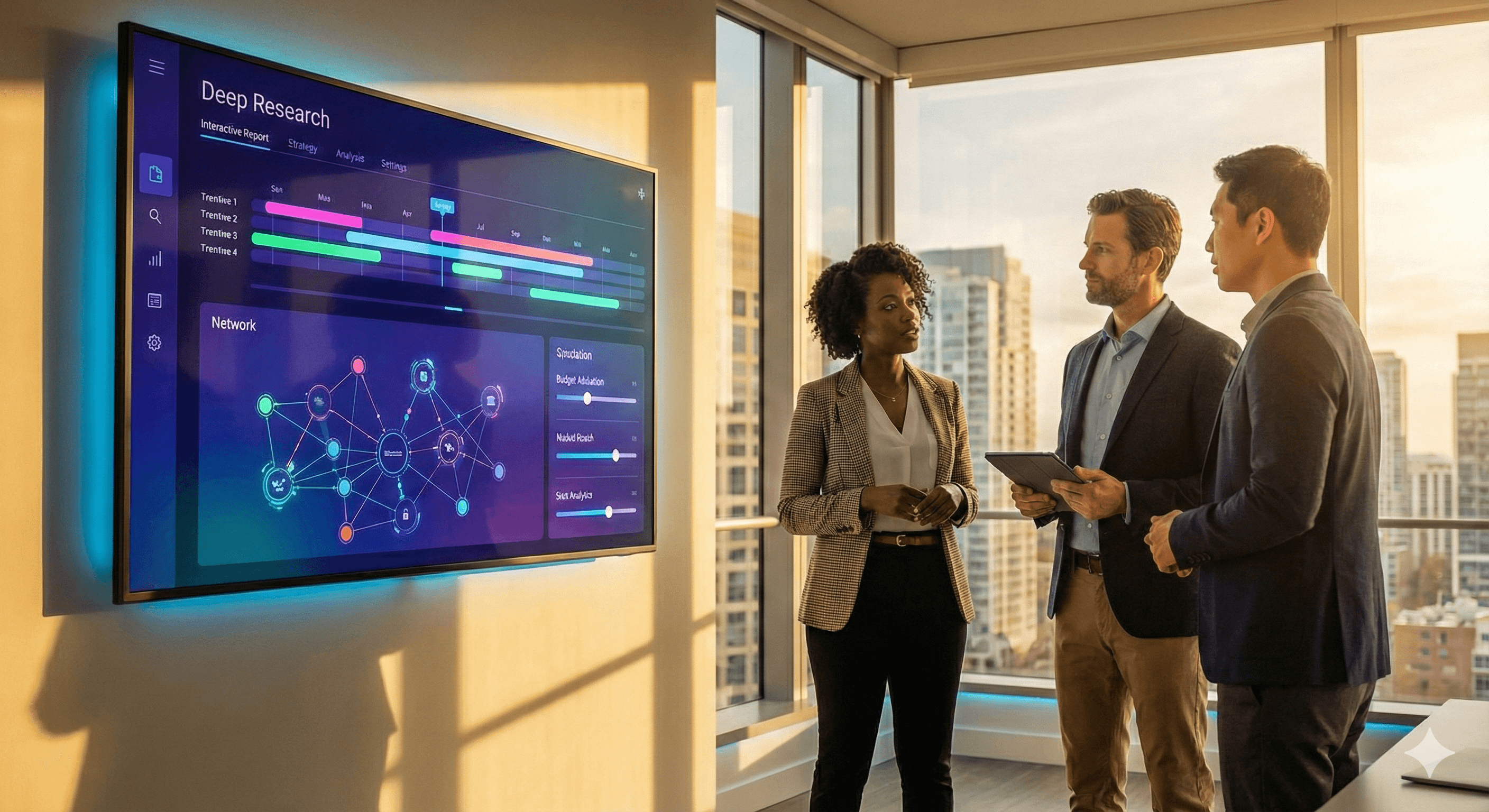
Gemini Deep Research now turns complex briefs into visual, interactive reports—including charts, diagrams, and simulations—so teams can grasp insights quickly. Visual reports are available to Google AI Ultra members, with editing in Canvas and Export to Docs for collaboration and approval.
Why this is important now
Decision-makers skim; they make choices based on visuals. Google’s Gemini Deep Research now goes beyond lengthy text to produce integrated visual reports—charts, diagrams, even interactive simulations—so complex data becomes immediately understandable. Visual reports are available to Google AI Ultra members, and this also enhances capabilities and access to advanced features.
What's actually new
Visual + interactive outputs: Deep Research can embed custom images, charts, and interactive simulators directly in the report, rather than just describing them.
Canvas-first editing & export: Refine visuals in Canvas, then Export to Google Docs for comprehensive review/approval.
Advanced agent capability: The Deep Research Agent (powered by Gemini 3 Pro) plans, searches, and synthesizes across the web (and optionally your data) to produce cited reports. Development teams can access it via the Interactions API.
Important: If you include Gmail/Drive as sources in the same session, visuals/animations aren’t currently supported. Stick to web-only when interactive visuals are needed.
The leadership view
This isn’t just about “better-looking charts.” It’s about faster decision-making: transitioning from text-heavy content to evidence that can be explored. Teams that succeed with Deep Research treat visuals as testable tools—you can adjust assumptions in a simulator, rerun analyses, and make decisions quicker than with email chains.
Playbook: How to get value in 5 steps
Check plan & limits
Ensure you’re on Google AI Ultra for access to visual/interactive reports (Pro users still receive Deep Research, but visuals are exclusive to Ultra).Structure the brief like an analyst
In Gemini → Deep Research, define the scope (questions, timeframe, regions, constraints). Request sources cited and an executive summary along with “visual exploration” sections.Visualize in Canvas
Open the report → Canvas → Create → describe the visual: “line chart of adoption by region 2021–2026; integrate interactive slider on budget allocation”.Export & share
Share Canvas for joint editing or Export to Docs to fit into your review workflow (suggestion mode, comments, version control).Set up decisions
Attach the report and visuals to your meeting notes; record decision, owner, metric (e.g., CAC, time-to-insight) and review after 30/60 days.
Example use cases (you can implement this quarter)
Budget reallocation simulator: Compare three spending strategies (e.g., brand/performance/retention). Use an interactive model to display potential outcomes and justify decisions.
Due diligence package: Deep Research compiles a cited landscape; Canvas adds a risk heatmap and ownership diagram; export to Docs for legal/finance commentary.
Literature synthesis with visuals: Create a concept map (who’s publishing, where evidence is clustered), plus a timeline of milestones to align on current best practices.
Governance & guidelines
Source integrity: Use web-only sources when you need interactive visuals; if you include Gmail/Drive, you’ll receive a text-based report.
Automatic attribution: Request the agent include citations and maintain visibility in exported documents for accountability.
Data management: If blending private files and web browsing is necessary, review the developer guidance on File Search and exfiltration concerns; consider processing private data separately.
Change management: Treat exported Docs as the official record; secure final reports and archive Canvas versions following the policy.
FAQs
Who can access visual reports?
Google AI Ultra members; Pro users gain access to Deep Research with enhanced limits, but visuals/animations are exclusive to Ultra. Google Help+1
What visuals can be created?
Charts, diagrams, and interactive simulators embedded in the report; create or enhance them from Canvas → Create. blog.google+1
Can I export and collaborate?
Yes—Share Canvas or Export to Docs for broader review and version control. Google Help
Developer perspective?
Access the Deep Research Agent via the Interactions API (preview), powered by Gemini 3 Pro, to automate report generation within internal tools. Google AI for Developers+1
Are there any limits to consider?
Visuals aren’t supported when Gmail/Drive sources are used in the same session. Deep Research requests also have daily and concurrency limits (higher on Pro/Ultra). Google Help
Software Solutions
Receive weekly AI news and advice straight to your inbox
By subscribing, you agree to allow Generation Digital to store and process your information according to our privacy policy. You can review the full policy at gend.co/privacy.



Generation
Digital

Canadian Office
33 Queen St,
Toronto
M5H 2N2
Canada
Canadian Office
1 University Ave,
Toronto,
ON M5J 1T1,
Canada
NAMER Office
77 Sands St,
Brooklyn,
NY 11201,
USA
Head Office
Charlemont St, Saint Kevin's, Dublin,
D02 VN88,
Ireland
Middle East Office
6994 Alsharq 3890,
An Narjis,
Riyadh 13343,
Saudi Arabia







Business Number: 256 9431 77 | Copyright 2026 | Terms and Conditions | Privacy Policy