Glean Assistant: Search, Autocomplete & Images (2026)
Gather
Uncertain about how to get started with AI?Evaluate your readiness, potential risks, and key priorities in less than an hour.
➔ Download Our Free AI Preparedness Pack
Glean’s latest Assistant update brings Search in Chat, smarter autocomplete, and image generation into one workflow. You can find company knowledge, accept type-ahead suggestions, and create on-brand visuals without leaving the conversation—reducing context-switching and speeding delivery for enterprise teams.
Why this matters now
Assistant has evolved from Q&A to a find-and-create workspace: search directly inside chat, accept autocomplete suggestions, and generate images that align to your enterprise context. This closes the gap between asking, locating the right source, and producing a shareable asset.
What’s new (at a glance)
Search in Chat: Query your company’s knowledge without switching tabs; results are grounded in your indexed sources and appear inline with answers.
Autocomplete: Faster navigation and query completion with intent-aware suggestions (docs, people, teams, operators) as you type.
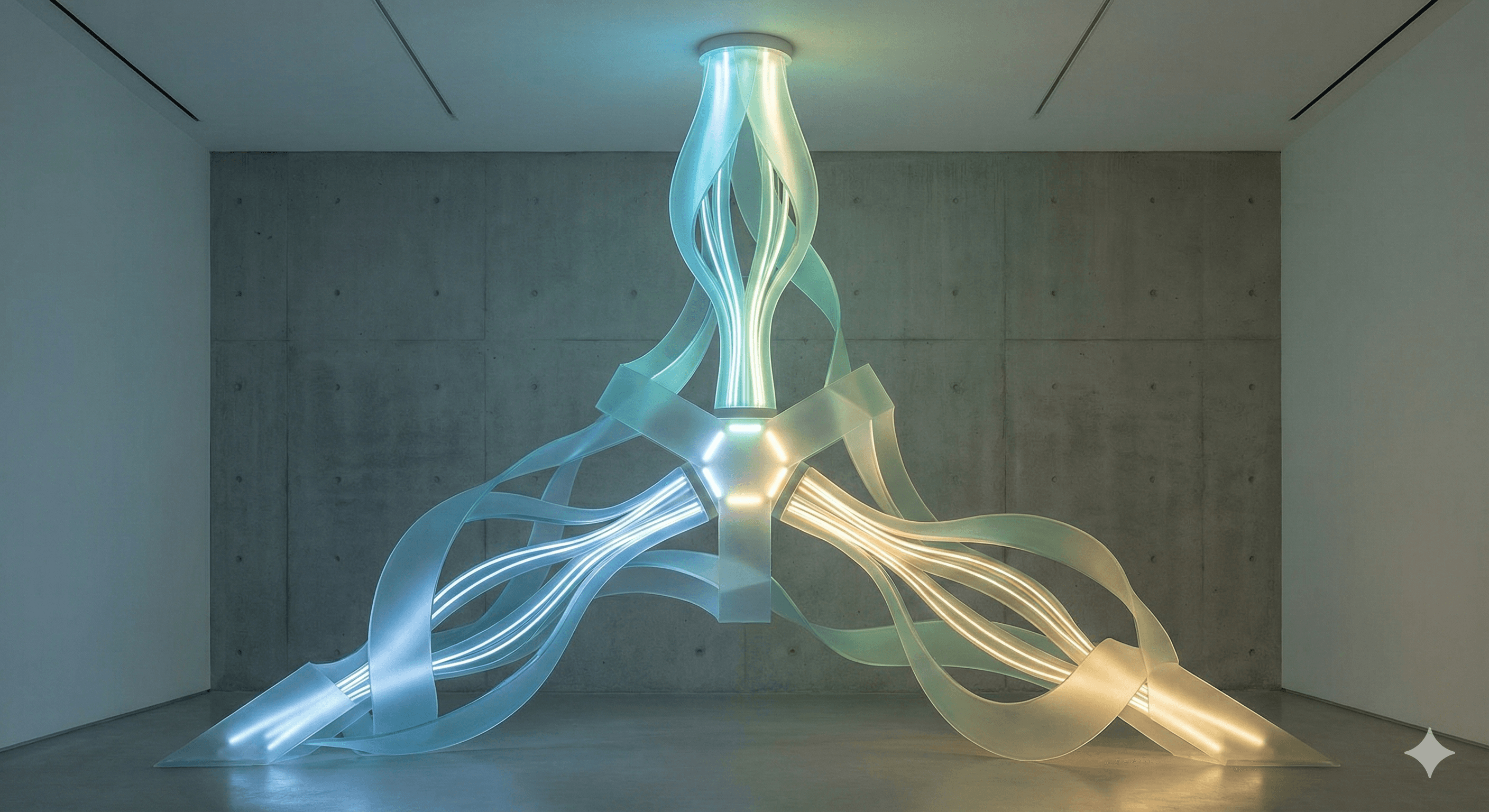
Image generation: Create contextual visuals from within Assistant so outputs live alongside citations and chat history.
(Related) Contextual images: Assistant can also surface diagrams/charts already in your company docs directly in chat.
Practical steps (enable in minutes)
Open Assistant and start a chat. Use natural language plus filters (app, author, date) to narrow results; pin key answers to Canvas.
Use autocomplete: begin typing a query or document title; select suggested docs or people to jump straight in.
Generate images: prompt Assistant to create a visual (e.g., “concept diagram for onboarding flow”), then insert it into your summary or deck.
Keep context rich: attach files from connected apps so search, chat and images reference the same sources.
Examples
Project brief in one thread: Ask Assistant for prior proposals, accept an autocomplete suggestion to open the right deck, then generate a diagram for the new variant—no app-switching.
Support runbook update: Search past incidents in chat, summarise fixes, and add a labelled image showing the escalation path.
FAQs
Q1: How does Search in Chat work?
Type a question in Assistant; it searches your enterprise sources and returns cited results directly in the chat so you can refine or act immediately.
Q2: What are the benefits of autocomplete?
It speeds discovery by suggesting queries, documents, people and operators as you type—helping you jump to the right item faster.
Q3: Can I create images directly in Assistant?
Yes. Assistant supports image generation in chat so you can produce visuals alongside your sources and summaries.
Next Steps
Rolling out Assistant’s new features across a UK org? Contact Generation Digital for a governance-first deployment—SSO, permissions, prompt libraries and adoption playbooks included.
Receive weekly AI news and advice straight to your inbox
By subscribing, you agree to allow Generation Digital to store and process your information according to our privacy policy. You can review the full policy at gend.co/privacy.



Generation
Digital

Canadian Office
33 Queen St,
Toronto
M5H 2N2
Canada
Canadian Office
1 University Ave,
Toronto,
ON M5J 1T1,
Canada
NAMER Office
77 Sands St,
Brooklyn,
NY 11201,
USA
Head Office
Charlemont St, Saint Kevin's, Dublin,
D02 VN88,
Ireland
Middle East Office
6994 Alsharq 3890,
An Narjis,
Riyadh 13343,
Saudi Arabia






Business Number: 256 9431 77 | Copyright 2026 | Terms and Conditions | Privacy Policy