5 Essential Miro AI Tips for Canadian Beginners
Miro
Uncertain about how to get started with AI?Evaluate your readiness, potential risks, and key priorities in less than an hour.
➔ Download Our Free AI Preparedness Pack
New to Miro AI? The fastest results come from features that operate right on the canvas, where your team already collaborates. Below are five easy tips you can try today—no complex setup needed.
Tip 1: Start with AI-boosted templates and Blueprints
Get started in minutes using templates that now come with Sidekicks and Flows built in. These AI-enhanced templates kickstart common boards (e.g., brainstorming, planning), so you don’t have to set up AI steps from scratch. If you have AI Canvas access, you’ll see automation and guidance available as soon as you open a compatible template.
Try this: open a relevant template, run the suggested AI steps, and compare before and after time to first result.
Tip 2: Use Sticky Notes AI to group, summarize, and tidy up
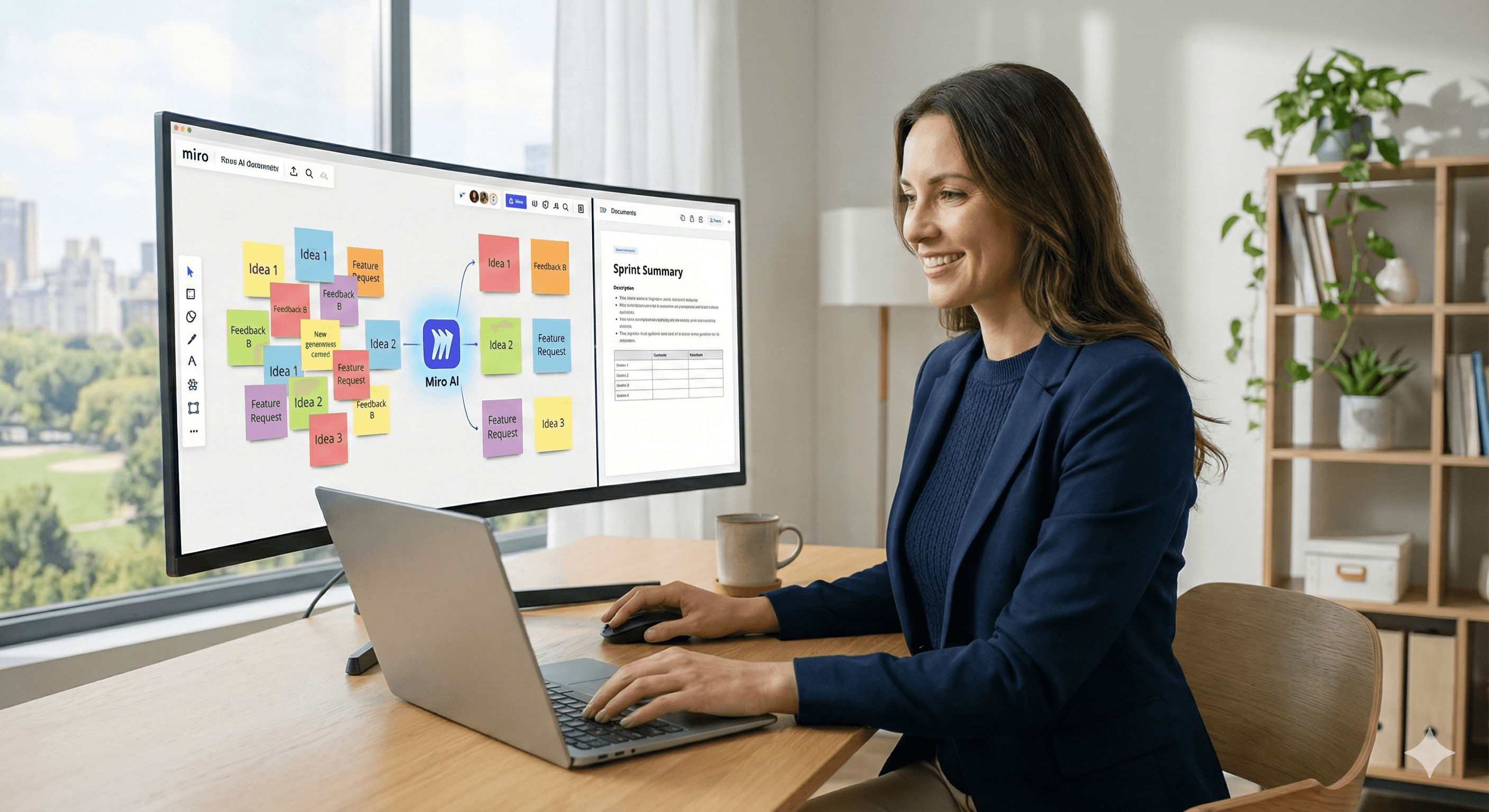
When a brainstorming session ends, the real work begins. Select your stickies and use Miro AI → Cluster to group by keywords or sentiment. Then run Miro AI → Document → Summary to turn disorganized ideas into a clear brief—all without leaving the board. It’s ideal for retro themes, research notes, or idea round-ups.
Bonus: If you’ve snapped photos of physical stickies, use Sticky Capture to convert them into editable notes before clustering.
Tip 3: Turn stickies into Docs (and more) with Create with AI
Avoid the hassle of copying and pasting into external tools. With Create with AI, select a group of stickies and generate a Doc (e.g., a meeting summary or prototype outline) in one step. You can also cluster by sentiment or keyword from the same context menu—perfect for transforming raw ideas into shareable documents quickly.
Try this: After brainstorming, convert the top clusters into a single summary Doc and share it for review directly on the board.
Tip 4: Follow prompt basics for clearer outputs
Clearer prompts lead to better outputs. Miro’s official prompting guide suggests being specific about context, audience, format, and constraints. When working with any Miro AI feature, add a sentence that explains the goal, the input selection, and the desired output structure (bullet list, table, or Doc).
Starter pattern: “Summarize the selected stickies for a product review meeting. Audience: engineering managers. Output: a Doc with three sections—Themes, Risks, Decisions—each with 3–5 bullets.”
Tip 5: Ask AI for quick insights from your work
Use Ask AI to query your backlog, feedback, or board content in natural language—it’s useful when you need quick prioritization signals or pattern detection. Keep your source data orderly for the best results, then use Ask AI to highlight trends and priority candidates in seconds.
Extra: Explore AI templates in Miroverse
If you prefer starting from community samples, browse AI & Transformation templates in Miroverse for boards that already incorporate AI-friendly structures. They’re excellent for workshops, strategy planning, and discovery activities.
Quick Setup Checklist (first week)
Select one AI-boosted template and follow its guided steps.
Conduct a short brainstorming session and use Cluster + Summary on the stickies.
Convert the output into a Doc with Create with AI and share it.
Use the prompting guide to refine your next AI action.
Try Ask AI on a backlog or research board to find quick insights.
Next Steps
Want hands-on assistance? Explore Miro and speak to Generation Digital about an introductory AI workshop.
FAQs
What is Miro AI?
Miro AI is a set of on-canvas capabilities—like clustering, summarizing, Ask AI, and AI-boosted templates—that help teams move from ideas to results faster. Miro+3Miro Help Centre+3Miro Help Centre+3
How does Miro AI benefit teams?
It automates tasks (e.g., clustering notes, creating Docs), provides structured outputs, and accelerates planning via templates with built-in Sidekicks/Flows. Miro Help Centre+2Miro Help Centre+2
Is Miro AI suitable for beginners?
Yes—start with AI-boosted templates, then try clustering and summaries on a small section of your board. Follow the prompting guide for clearer outputs. Miro+2Miro Help Centre+2
External Sources
What’s New (Nov & Oct 2025): AI-boosted templates; AI Canvas, Sidekicks, Flows. Miro+1
Sticky Notes AI (group, summarize, Sticky Capture). Miro Help Centre
Create with AI (convert stickies to Docs; clustering from context menu). Miro Help Centre
Prompting guide (how to write better prompts). Miro Help Centre
Ask AI (query your backlog/feedback). Miro Help Centre
Miroverse AI & Transformation templates. Miro
Miro What’s New hub for ongoing updates. Miro
Receive weekly AI news and advice straight to your inbox
By subscribing, you agree to allow Generation Digital to store and process your information according to our privacy policy. You can review the full policy at gend.co/privacy.



Generation
Digital

Canadian Office
33 Queen St,
Toronto
M5H 2N2
Canada
Canadian Office
1 University Ave,
Toronto,
ON M5J 1T1,
Canada
NAMER Office
77 Sands St,
Brooklyn,
NY 11201,
USA
Head Office
Charlemont St, Saint Kevin's, Dublin,
D02 VN88,
Ireland
Middle East Office
6994 Alsharq 3890,
An Narjis,
Riyadh 13343,
Saudi Arabia







Business Number: 256 9431 77 | Copyright 2026 | Terms and Conditions | Privacy Policy