Set Up Your First Kanban Board in Miro: A Simple Guide for Canadian Professionals
Miro
Uncertain about how to get started with AI?Evaluate your readiness, potential risks, and key priorities in less than an hour.
➔ Download Our Free AI Preparedness Pack
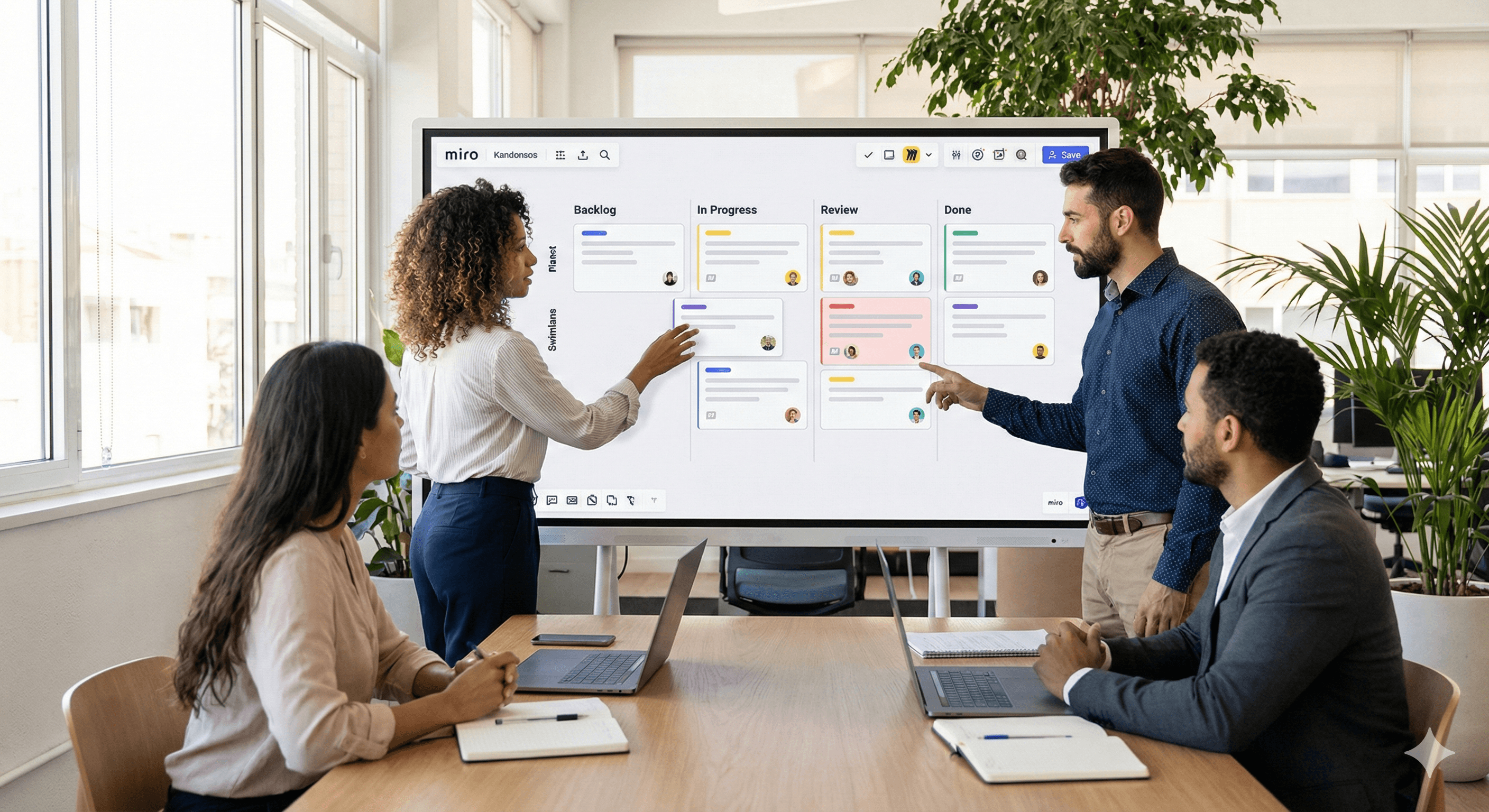
Miro makes Kanban easy: begin with a ready-to-use template, customize the columns to fit your workflow, and add Cards to track tasks as they move from “To do” to “Done.” Everything updates instantly, so teams stay in sync without handling multiple tools.
Why use Kanban in Miro?
Visual, adaptable layout: Drag-and-drop cards, add columns or swimlanes, and fine-tune the board to fit any team or process.
Designed for teamwork: Switch between Kanban, Timeline, and Table views as work changes; updates appear instantly across all devices.
Jump-start with templates: Pick from Miro’s Kanban templates (including an AI-assisted option) to skip starting from scratch.
Step-by-step: create your first Kanban in minutes
1) Select a Kanban template
Visit the Miro template library and choose a Kanban or Kanban framework template for a pre-built board framework.
2) Customize columns (your work stages)
Rename default columns (e.g., Backlog → In progress → Review → Done) and add/remove columns as needed. You can also transition to other views later if a different perspective is required.
3) Add Cards for tasks
Use Cards to input task title, description, assignee, and due date; drag to rearrange or move across columns as work advances.
4) Add swimlanes (optional)
If you want horizontal lanes (by team, priority, or stream), set them up using templates or diagram swimlanes to visually separate tasks.
5) Connect to delivery tools (optional)
Are you working from Jira or Trello? Pull issues into Miro or sync Cards with Jira Cards/Planner for Jira to ensure alignment with your central source.
6) Share and collaborate
Invite teammates to comment, update Cards, and jointly manage flow—Miro’s canvas is built for real-time, multi-user collaboration.
Pro tips for smoother flow
Keep it streamlined: Start with 3–5 columns; increase as your process develops. (Miro’s Kanban is easy to modify.)
Standardize Cards: Develop a straightforward Card checklist (definition of done, owner, due date) for consistent quality across tasks.
Expand with integrations: Sync work with Jira to avoid duplicate entries and keep status consistency.
FAQs
Q1: What is a Kanban board?
A visual tool that organizes tasks into columns (e.g., To do, In progress, Done) allowing teams to view status, identify bottlenecks, and enhance workflow.
Q2: Why opt for Miro for Kanban?
Miro combines templates, real-time collaboration, and adaptable views (Kanban, Timeline, Table) enabling planning and execution in one location.
Q3: Can I personalize Miro Kanban templates?
Of course—rename columns, add swimlanes, and adjust Cards to fit your process. You can also utilize AI-driven templates to create a board from a brief description.
Q4: Can I integrate with Jira or Trello?
Definitely. Utilize Jira Cards or Planner for Jira for two-way sync, and link Atlassian tools from Miro’s integrations hub.
Next Steps
Interested in setting this up for your team? Schedule a Miro workshop with Generation Digital—we’ll customize your Kanban template, add swimlanes, and integrate Jira sync so your board becomes your single source of truth.
Receive weekly AI news and advice straight to your inbox
By subscribing, you agree to allow Generation Digital to store and process your information according to our privacy policy. You can review the full policy at gend.co/privacy.



Generation
Digital

Canadian Office
33 Queen St,
Toronto
M5H 2N2
Canada
Canadian Office
1 University Ave,
Toronto,
ON M5J 1T1,
Canada
NAMER Office
77 Sands St,
Brooklyn,
NY 11201,
USA
Head Office
Charlemont St, Saint Kevin's, Dublin,
D02 VN88,
Ireland
Middle East Office
6994 Alsharq 3890,
An Narjis,
Riyadh 13343,
Saudi Arabia






Business Number: 256 9431 77 | Copyright 2026 | Terms and Conditions | Privacy Policy