Invites intelligents de Miro pour la toile : Plus de 35 modèles à créer avec l'IA
Miro
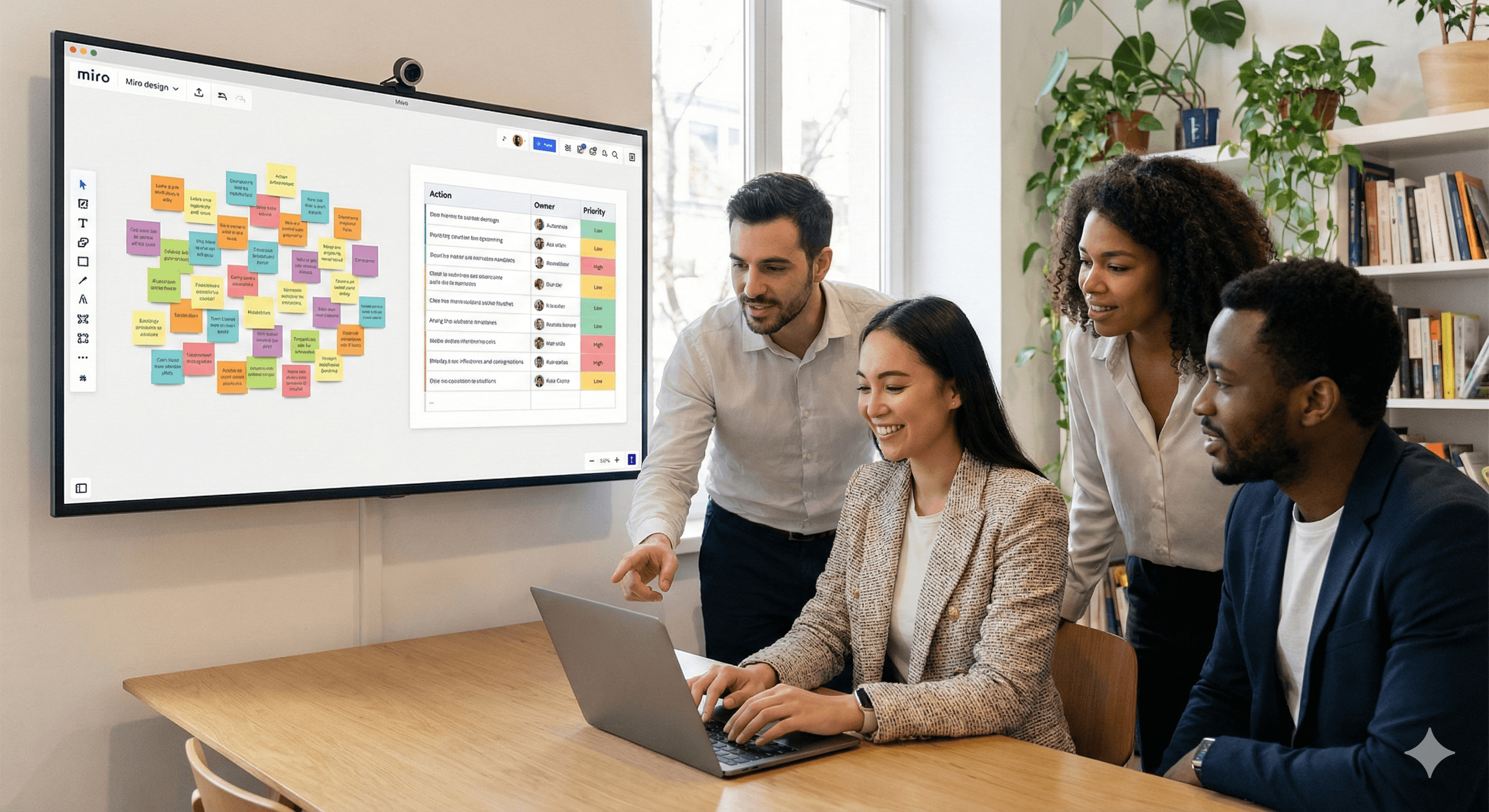
Pas sûr de quoi faire ensuite avec l'IA?Évaluez la préparation, les risques et les priorités en moins d'une heure.
➔ Téléchargez notre kit de préparation à l'IA gratuit
Les invites de Miro Intelligent Canvas sont de courtes instructions que vous utilisez dans Créer avec l'IA pour générer des artefacts de tableau—Docs, tableaux, diagrammes, chronologies et notes autocollantes regroupées—directement sur le tableau. Les meilleures instructions définissent l'objectif de l'atelier, le public et la restriction de temps, puis s'appuient sur le contenu sélectionné du tableau comme contexte et se terminent par une étape de révision rapide pour plus de clarté et d'inclusion.
Comment utiliser ces invites dans Miro (la méthode en 30 secondes)
L'IA de Miro fonctionne mieux lorsqu'elle peut « voir » votre réflexion sur le tableau. Sélectionnez le contenu d'abord, puis générez l'artefact que vous souhaitez. (miro.com)
Mettez le contexte de base sur le tableau (un objectif sur une note adhesive, quelques notes, ou un agenda approximatif).
Sélectionnez la zone que vous souhaitez que l'IA de Miro utilise (notes autocollantes, cadres, votes, diagrammes, etc.).
Ouvrez Créer avec l'IA (ou l'icône IA dans le menu contextuel) et choisissez la sortie : Notes autocollantes, Doc, Tableau, Diagramme (et d'autres formats selon le plan/fonctionnalités). (help.miro.com)
Collez une invite ci-dessous et remplacez les crochets.
Modifiez sur le tableau, puis capturez les décisions/actions dans un tableau et votre système d'enregistrement.
Règles d'invite qui améliorent considérablement l'IA de Miro
Donnez toujours un nom à l'artefact que vous souhaitez (Doc/tableau/diagramme/notes autocollantes/chronologie).
Référencez ce que vous avez sélectionné (« Utiliser les notes autocollantes sélectionnées comme seule source »).
Limitez la sortie (par exemple, « max 6 thèmes », « max 10 actions »).
Demandez un formatage prêt pour le tableau (titres, tableaux, courtes notes autocollantes).
Ajoutez une étape de révision (ambiguïtés, doublons, propriétaires manquants).
Bibliothèque d'invites Créer avec l'IA (Intelligent Canvas-first)
A) Notes autocollantes (générer, regrouper, résumer)
L'IA de Miro peut générer et organiser des notes autocollantes à partir de ce qui est sur le tableau. (help.miro.com)
1) Générer des notes autocollantes à partir d'un début vierge
2) Transformer un brainstorming désordonné en thèmes
3) Convertir les notes autocollantes en actions de prochaine étape (toujours sous forme de notes autocollantes)
4) Interprétation des votes par points
B) Documents (transformer le tableau en document lisible)
Les documents Miro peuvent être créés à partir du contenu sélectionné du tableau avec l'IA, et placés sur le tableau. (miro.com)
5) Document de résumé d'atelier (d'une page)
6) Document d'enregistrement de décision (pour les parties prenantes)
7) Document de synthèse de recherche (inputs du parcours client)
C) Tableaux (actions, RACI, arriérés, journaux de décisions)
Miro peut générer des tableaux à partir d'invites et/ou de contenu sélectionné, vous offrant un travail structuré juste à côté du brainstorming. (miro.com)
8) Tableau de plan d'action (tableau → exécution)
9) Tableau RACI
10) Tableau de priorisation (impact vs effort)
11) Tableau de journaux de décisions
D) Diagrammes (flux, cartes, cause racine, feuilles de route de service)
La création de diagrammes avec l'IA dans Miro peut générer des diagrammes modifiables à partir d'invites. (miro.com)
12) Carte de processus à partir des notes sélectionnées
13) Diagramme racine des 5 pourquoi
14) Diagramme de parcours client (niveau élevé)
15) Carte des hypothèses 2x2
E) Chronologies d'atelier (agenda sur le tableau)
Miro décrit la génération d'une chronologie d'atelier structurée et chronométrée directement sur le tableau. (miro.com)
16) Plan d'atelier de 90 minutes (divergence → convergence)
17) Chronologie rétro (santé de l'équipe + actions)
Bonus : invites “General LLM” (à utiliser si vous n'êtes pas encore dans Miro)
Si quelqu'un préfère commencer dans ChatGPT/Copilot/Gemini, celles-ci produisent un résultat que vous pouvez coller rapidement dans Miro sous forme de notes autocollantes/Docs/tableaux. Le message au lecteur : vous pouvez le faire directement dans Miro—ce n'est qu'un recours. (miro.com)
1) Plan du tableau (copier dans les cadres de Miro)
2) Paquet de notes autocollantes (copier/coller)
3) Tableau des actions (copier dans un tableau Miro)
4) Résumé pour les parties prenantes (copier dans un Doc Miro)
FAQs
Ces invites fonctionnent-elles dans la fonctionnalité Créer avec l'IA de Miro ?
Oui—chaque invite dans la bibliothèque principale est écrite pour générer des artefacts sur le tableau via Créer avec l'IA (Docs, tableaux, diagrammes, notes autocollantes, chronologies), en utilisant le contenu sélectionné du tableau comme contexte. (help.miro.com)
Quelle est la façon la plus rapide d'obtenir d'excellents résultats ?
Mettez un peu de contexte sur le tableau, sélectionnez la zone pertinente, et soyez précis sur l'artefact que vous voulez (Doc/tableau/diagramme) et les limites (max thèmes/actions). (miro.com)
La sortie est-elle prête à être publiée telle quelle ?
Traitez-la comme une ébauche : validez les faits, supprimez les données sensibles, et vérifiez le ton et l'inclusivité.
Prochaines étapes
Si vous le souhaitez, nous pouvons transformer ceux-ci en un ensemble réutilisable de modèles de tableaux que vos équipes peuvent lancer en un clic (plus des garde-fous de gouvernance et un flux de travail des résultats aux actions).
Recevez chaque semaine des nouvelles et des conseils sur l'IA directement dans votre boîte de réception
En vous abonnant, vous consentez à ce que Génération Numérique stocke et traite vos informations conformément à notre politique de confidentialité. Vous pouvez lire la politique complète sur gend.co/privacy.



Génération
Numérique

Bureau du Royaume-Uni
Génération Numérique Ltée
33 rue Queen,
Londres
EC4R 1AP
Royaume-Uni
Bureau au Canada
Génération Numérique Amériques Inc
181 rue Bay, Suite 1800
Toronto, ON, M5J 2T9
Canada
Bureau aux États-Unis
Generation Digital Americas Inc
77 Sands St,
Brooklyn, NY 11201,
États-Unis
Bureau de l'UE
Génération de logiciels numériques
Bâtiment Elgee
Dundalk
A91 X2R3
Irlande
Bureau du Moyen-Orient
6994 Alsharq 3890,
An Narjis,
Riyad 13343,
Arabie Saoudite







Numéro d'entreprise : 256 9431 77 | Droits d'auteur 2026 | Conditions générales | Politique de confidentialité