Create your first Kanban board in Miro (easy guide)

Create your first Kanban board in Miro (easy guide)

Miro
Jan 14, 2026

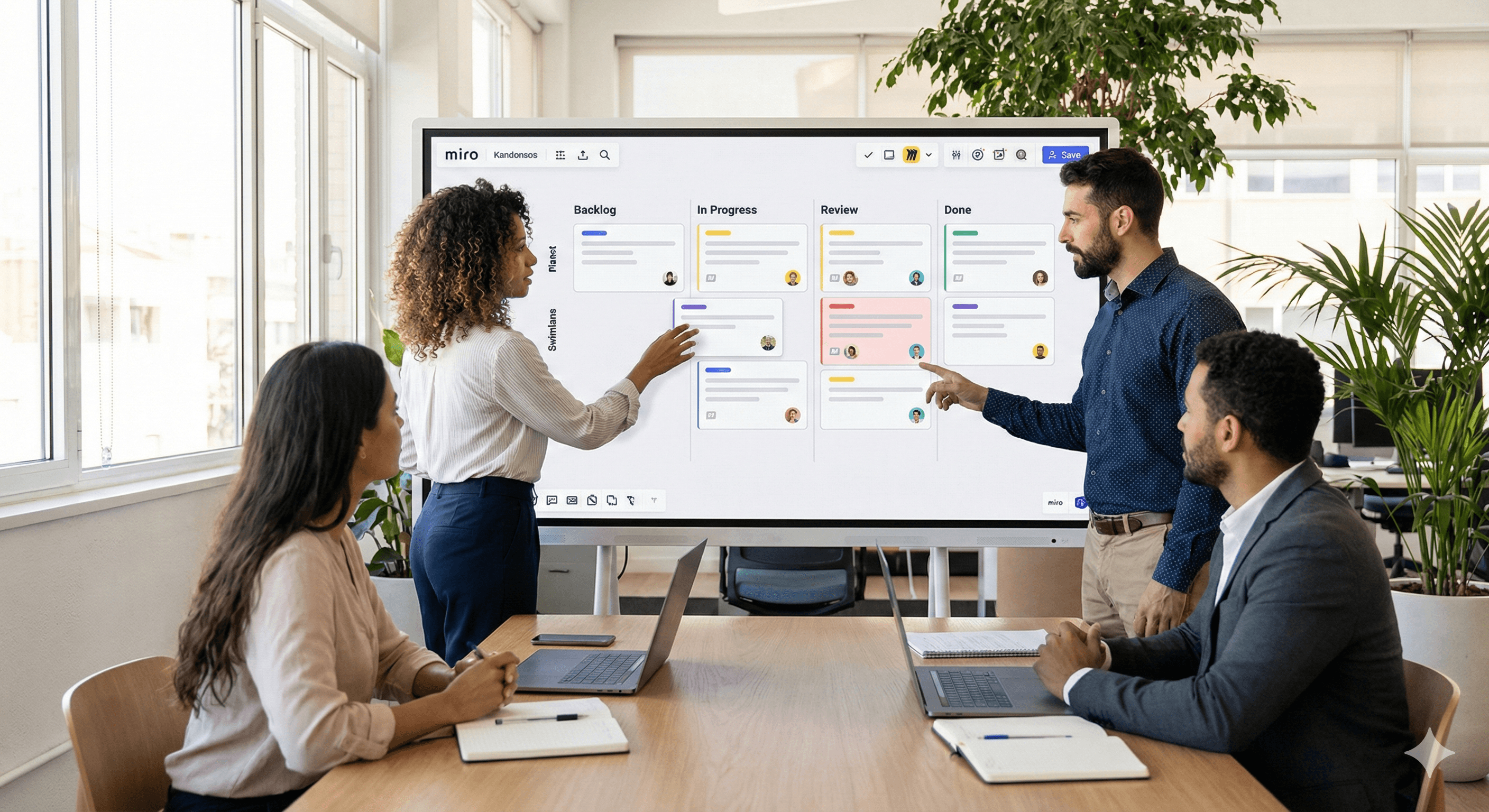
Miro makes Kanban simple: start from a ready-made template, customise the columns to match your workflow, and add Cards to track tasks as they move from “To do” to “Done”. Everything updates in real time, so teams stay aligned without juggling multiple tools.

Why Kanban in Miro?

  • Visual, flexible layout: Drag-and-drop cards, add columns or swimlanes, and tailor the board to any team or process.

  • Built for collaboration: Switch between Kanban, Timeline, and Table views as work evolves; updates are instant across devices.

  • Template jump-start: Choose from Miro’s Kanban templates (including an AI-assisted option) to avoid starting from a blank canvas.

Step-by-step: build your first Kanban in minutes

1) Pick a Kanban template
Open the Miro template library and select a Kanban or Kanban framework template to get a pre-built board structure.

2) Customise columns (your stages of work)
Rename default columns (e.g., Backlog → In progress → Review → Done) and add/remove columns as needed. You can also switch to other views later if you need a different perspective.

3) Add Cards for tasks
Use Cards to capture task title, description, assignee, and due date; drag to reorder or move across columns as work progresses.

4) Add swimlanes (optional)
If you want horizontal lanes (by team, priority, or stream), set them up with templates or diagram swimlanes to separate work visually.

5) Connect to delivery tools (optional)
Working from Jira or Trello? Pull issues into Miro or sync Cards with Jira Cards/Planner for Jira to keep everything in step with your source of truth.

6) Share and collaborate
Invite teammates to comment, update Cards, and manage flow together—Miro’s canvas is designed for live, multi-user collaboration.

Pro tips for smoother flow

  • Keep it lean: Start with 3–5 columns; add more as your process matures. (Miro’s Kanban is easy to reconfigure.)

  • Standardise Cards: Create a simple Card checklist (definition of done, owner, due date) so quality is consistent across tasks.

  • Scale with integrations: Sync work with Jira to avoid double entry and maintain status parity.

FAQs

Q1: What is a Kanban board?
A visual workflow that organises tasks into columns (e.g., To do, In progress, Done) so teams can see status, spot bottlenecks and improve flow.

Q2: Why use Miro for Kanban?
Miro combines templates, real-time collaboration, and flexible views (Kanban, Timeline, Table) so you can plan and execute in one place.

Q3: Can I customise Miro Kanban templates?
Yes—rename columns, add swimlanes, and tailor Cards to your process. You can also leverage AI-powered templates to generate a board from a short description.

Q4: Can I integrate with Jira or Trello?
Absolutely. Use Jira Cards or Planner for Jira for two-way sync, and connect Atlassian tools from Miro’s integrations hub.

Next Steps

Want this set up for your team? Book a Miro workshop with Generation Digital—we’ll tailor your Kanban template, add swimlanes, and wire Jira sync so your board becomes the single source of truth.

Miro makes Kanban simple: start from a ready-made template, customise the columns to match your workflow, and add Cards to track tasks as they move from “To do” to “Done”. Everything updates in real time, so teams stay aligned without juggling multiple tools.

Why Kanban in Miro?

  • Visual, flexible layout: Drag-and-drop cards, add columns or swimlanes, and tailor the board to any team or process.

  • Built for collaboration: Switch between Kanban, Timeline, and Table views as work evolves; updates are instant across devices.

  • Template jump-start: Choose from Miro’s Kanban templates (including an AI-assisted option) to avoid starting from a blank canvas.

Step-by-step: build your first Kanban in minutes

1) Pick a Kanban template
Open the Miro template library and select a Kanban or Kanban framework template to get a pre-built board structure.

2) Customise columns (your stages of work)
Rename default columns (e.g., Backlog → In progress → Review → Done) and add/remove columns as needed. You can also switch to other views later if you need a different perspective.

3) Add Cards for tasks
Use Cards to capture task title, description, assignee, and due date; drag to reorder or move across columns as work progresses.

4) Add swimlanes (optional)
If you want horizontal lanes (by team, priority, or stream), set them up with templates or diagram swimlanes to separate work visually.

5) Connect to delivery tools (optional)
Working from Jira or Trello? Pull issues into Miro or sync Cards with Jira Cards/Planner for Jira to keep everything in step with your source of truth.

6) Share and collaborate
Invite teammates to comment, update Cards, and manage flow together—Miro’s canvas is designed for live, multi-user collaboration.

Pro tips for smoother flow

  • Keep it lean: Start with 3–5 columns; add more as your process matures. (Miro’s Kanban is easy to reconfigure.)

  • Standardise Cards: Create a simple Card checklist (definition of done, owner, due date) so quality is consistent across tasks.

  • Scale with integrations: Sync work with Jira to avoid double entry and maintain status parity.

FAQs

Q1: What is a Kanban board?
A visual workflow that organises tasks into columns (e.g., To do, In progress, Done) so teams can see status, spot bottlenecks and improve flow.

Q2: Why use Miro for Kanban?
Miro combines templates, real-time collaboration, and flexible views (Kanban, Timeline, Table) so you can plan and execute in one place.

Q3: Can I customise Miro Kanban templates?
Yes—rename columns, add swimlanes, and tailor Cards to your process. You can also leverage AI-powered templates to generate a board from a short description.

Q4: Can I integrate with Jira or Trello?
Absolutely. Use Jira Cards or Planner for Jira for two-way sync, and connect Atlassian tools from Miro’s integrations hub.

Next Steps

Want this set up for your team? Book a Miro workshop with Generation Digital—we’ll tailor your Kanban template, add swimlanes, and wire Jira sync so your board becomes the single source of truth.

Get practical advice delivered to your inbox

By subscribing you consent to Generation Digital storing and processing your details in line with our privacy policy. You can read the full policy at gend.co/privacy.


Ready to get the support your organisation needs to successfully use AI?

Miro Solutions Partner
Asana Platinum Solutions Partner
Notion Platinum Solutions Partner
Glean Certified Partner

Ready to get the support your organisation needs to successfully use AI?

Miro Solutions Partner
Asana Platinum Solutions Partner
Notion Platinum Solutions Partner
Glean Certified Partner

Generation
Digital

UK Office

Generation Digital Ltd
33 Queen St,
London
EC4R 1AP
United Kingdom

Canada Office

Generation Digital Americas Inc
181 Bay St., Suite 1800
Toronto, ON, M5J 2T9
Canada

USA Office

Generation Digital Americas Inc
77 Sands St,
Brooklyn, NY 11201,
United States

EU Office

Generation Digital Software
Elgee Building
Dundalk
A91 X2R3
Ireland

Middle East Office

6994 Alsharq 3890,
An Narjis,
Riyadh 13343,
Saudi Arabia

UK Fast Growth Index UBS Logo
Financial Times FT 1000 Logo
Febe Growth 100 Logo (Background Removed)

Company No: 256 9431 77 | Copyright 2026 | Terms and Conditions | Privacy Policy

Generation
Digital

UK Office

Generation Digital Ltd
33 Queen St,
London
EC4R 1AP
United Kingdom

Canada Office

Generation Digital Americas Inc
181 Bay St., Suite 1800
Toronto, ON, M5J 2T9
Canada

USA Office

Generation Digital Americas Inc
77 Sands St,
Brooklyn, NY 11201,
United States

EU Office

Generation Digital Software
Elgee Building
Dundalk
A91 X2R3
Ireland

Middle East Office

6994 Alsharq 3890,
An Narjis,
Riyadh 13343,
Saudi Arabia

UK Fast Growth Index UBS Logo
Financial Times FT 1000 Logo
Febe Growth 100 Logo (Background Removed)


Company No: 256 9431 77
Terms and Conditions
Privacy Policy
Copyright 2026




