Miro Intelligent Canvas Prompts: 35+ Create with AI Templates

Miro Intelligent Canvas Prompts: 35+ Create with AI Templates
Miro

Feb 5, 2026

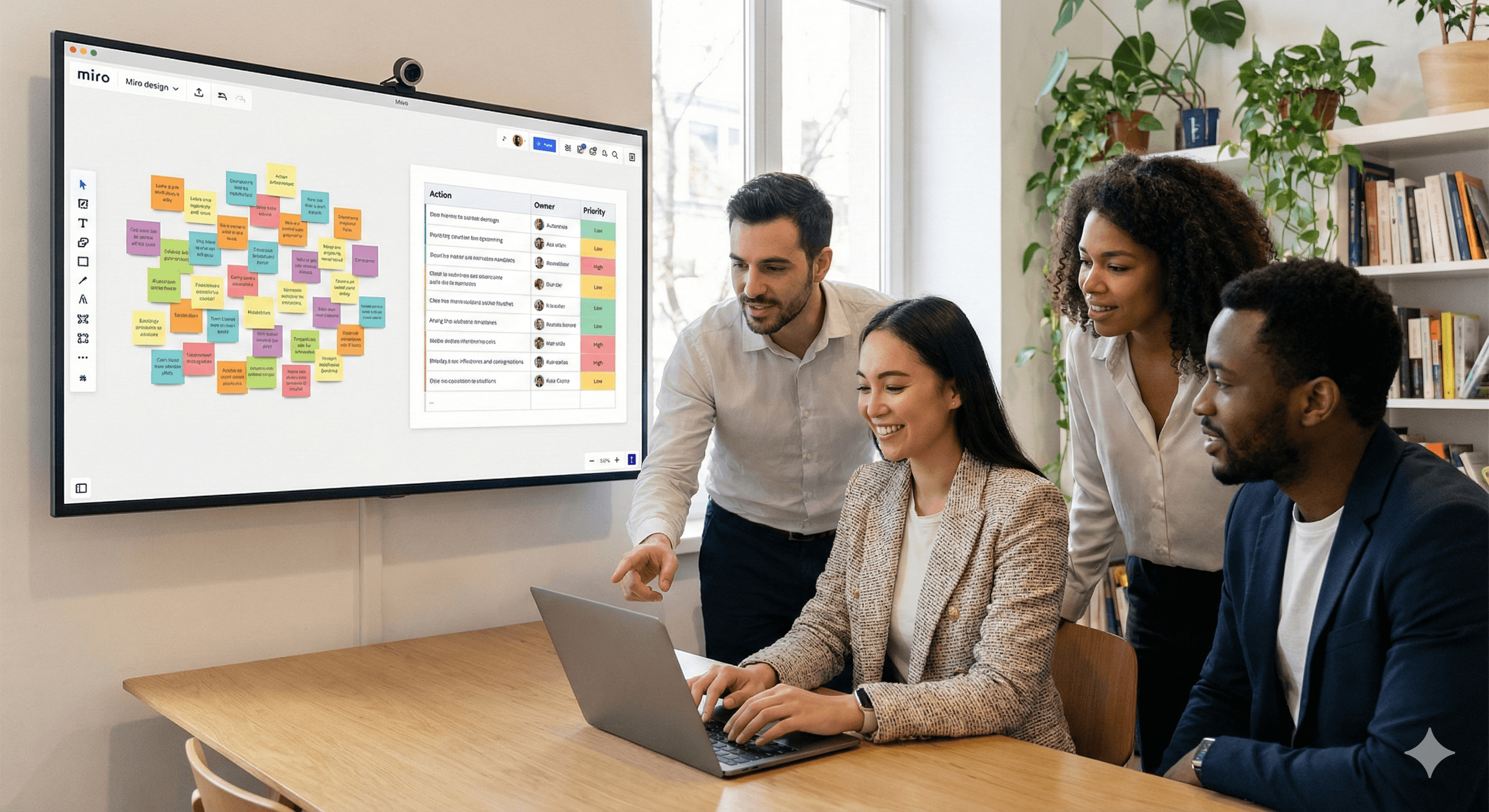
In a modern office setting, four colleagues gather around a laptop while discussing ideas displayed on a Miro intelligent canvas with colorful sticky notes and prompts on a large screen.

Not sure what to do next with AI?
Assess readiness, risk, and priorities in under an hour.

Not sure what to do next with AI?
Assess readiness, risk, and priorities in under an hour.

➔ Download Our Free AI Readiness Pack

Miro Intelligent Canvas prompts are short instructions you use in Create with AI to generate board artefacts—Docs, tables, diagrams, timelines and clustered sticky notes—directly on the canvas. The best prompts define the workshop goal, audience and timebox, then rely on selected board content as context and end with a quick review step for clarity and inclusion.

How to use these prompts in Miro (the 30‑second method)

Miro’s AI works best when it can “see” your thinking on the board. Select content first, then generate the artefact you want. (miro.com)

  1. Put basic context on the board (a goal sticky, a few notes, or a rough agenda).

  2. Select the area you want Miro AI to use (stickies, frames, votes, diagrams, etc.).

  3. Open Create with AI (or the AI icon in the context menu) and choose the output: Sticky notes, Doc, Table, Diagram (and other formats depending on plan/features). (help.miro.com)

  4. Paste a prompt below and replace the brackets.

  5. Edit on-canvas, then capture decisions/actions in a table and your system of record.

Prompt rules that make Miro AI noticeably better

  • Always name the artefact you want (Doc/table/diagram/stickies/timeline).

  • Reference what you selected (“Use the selected stickies as the only source”).

  • Limit the output (e.g., “max 6 themes”, “max 10 actions”).

  • Ask for board-ready formatting (headings, tables, short stickies).

  • Add a review step (ambiguities, duplicates, missing owners).

Create with AI prompt library (Intelligent Canvas-first)

A) Sticky notes (generate, cluster, summarise)

Miro AI can generate and organise sticky notes from what’s on the board. (help.miro.com)

1) Generate stickies from a blank start

Create 30 sticky notes for an ideation session on: [topic]

2) Turn a messy brainstorm into themes


3) Convert stickies into next-step actions (still as stickies)


4) Dot-vote interpretation


B) Docs (turn the board into a readable document)

Miro Docs can be created from selected board content with AI, and placed on the canvas. (miro.com)

5) Workshop summary Doc (one-page)


6) Decision record Doc (for stakeholders)


7) Research synthesis Doc (customer journey inputs)


C) Tables (actions, RACI, backlogs, decision logs)

Miro can generate tables from prompts and/or selected content, giving you structured work right next to the brainstorm. (miro.com)

8) Action plan table (board → execution)


9) RACI table


10) Prioritisation table (impact vs effort)


11) Decision log table


D) Diagrams (flows, maps, root cause, service blueprints)

Miro’s AI diagramming can generate editable diagrams from prompts. (miro.com)

12) Process map from selected notes


13) 5 Whys root-cause diagram

Create a root-cause diagram for: [problem]

14) Customer journey diagram (high level)

Create a journey map diagram for [persona] doing [job-to-be-done]

15) Assumption map 2x2


E) Workshop timelines (agenda on the canvas)

Miro describes generating a structured, timed workshop timeline directly on the canvas. (miro.com)

16) 90-minute workshop plan (diverge → converge)

Create a workshop timeline on the canvas for a [90]-minute session.
Goal: [goal]. Audience: [roles]

17) Retro timeline (team health + actions)

Create a 60-minute retrospective timeline.
Context: [team], [recent sprint/project]

Bonus: “General LLM” prompts (use if you’re not in Miro yet)

If someone prefers to start in ChatGPT/Copilot/Gemini, these produce a result you can quickly paste back into Miro as stickies/Docs/tables. The message to the reader: you can do this directly in Miro—this is just a fallback. (miro.com)

1) Board blueprint (copy into Miro frames)

Design a Miro board layout for a workshop with the goal: [goal]

2) Sticky-note pack (copy/paste)

Generate 30 sticky notes for [topic]

3) Action table (copy into a Miro Table)


4) Summary for stakeholders (copy into a Miro Doc)


FAQs

Do these prompts work in Miro’s Create with AI feature?
Yes—every prompt in the main library is written to generate on-canvas artefacts via Create with AI (Docs, tables, diagrams, stickies, timelines), using selected board content as context. (help.miro.com)

What’s the fastest way to get great results?
Put a bit of context on the board, select the relevant area, and be specific about the artefact you want (Doc/table/diagram) and the limits (max themes/actions). (miro.com)

Is the output safe to publish as-is?
Treat it as a draft: validate facts, remove sensitive data, and sense-check tone and inclusivity.

Next Steps

If you’d like, we can turn these into a reusable set of board templates your teams can launch in one click (plus governance guardrails and an outcomes-to-actions workflow).

Miro Intelligent Canvas prompts are short instructions you use in Create with AI to generate board artefacts—Docs, tables, diagrams, timelines and clustered sticky notes—directly on the canvas. The best prompts define the workshop goal, audience and timebox, then rely on selected board content as context and end with a quick review step for clarity and inclusion.

How to use these prompts in Miro (the 30‑second method)

Miro’s AI works best when it can “see” your thinking on the board. Select content first, then generate the artefact you want. (miro.com)

  1. Put basic context on the board (a goal sticky, a few notes, or a rough agenda).

  2. Select the area you want Miro AI to use (stickies, frames, votes, diagrams, etc.).

  3. Open Create with AI (or the AI icon in the context menu) and choose the output: Sticky notes, Doc, Table, Diagram (and other formats depending on plan/features). (help.miro.com)

  4. Paste a prompt below and replace the brackets.

  5. Edit on-canvas, then capture decisions/actions in a table and your system of record.

Prompt rules that make Miro AI noticeably better

  • Always name the artefact you want (Doc/table/diagram/stickies/timeline).

  • Reference what you selected (“Use the selected stickies as the only source”).

  • Limit the output (e.g., “max 6 themes”, “max 10 actions”).

  • Ask for board-ready formatting (headings, tables, short stickies).

  • Add a review step (ambiguities, duplicates, missing owners).

Create with AI prompt library (Intelligent Canvas-first)

A) Sticky notes (generate, cluster, summarise)

Miro AI can generate and organise sticky notes from what’s on the board. (help.miro.com)

1) Generate stickies from a blank start

Create 30 sticky notes for an ideation session on: [topic]

2) Turn a messy brainstorm into themes


3) Convert stickies into next-step actions (still as stickies)


4) Dot-vote interpretation


B) Docs (turn the board into a readable document)

Miro Docs can be created from selected board content with AI, and placed on the canvas. (miro.com)

5) Workshop summary Doc (one-page)


6) Decision record Doc (for stakeholders)


7) Research synthesis Doc (customer journey inputs)


C) Tables (actions, RACI, backlogs, decision logs)

Miro can generate tables from prompts and/or selected content, giving you structured work right next to the brainstorm. (miro.com)

8) Action plan table (board → execution)


9) RACI table


10) Prioritisation table (impact vs effort)


11) Decision log table


D) Diagrams (flows, maps, root cause, service blueprints)

Miro’s AI diagramming can generate editable diagrams from prompts. (miro.com)

12) Process map from selected notes


13) 5 Whys root-cause diagram

Create a root-cause diagram for: [problem]

14) Customer journey diagram (high level)

Create a journey map diagram for [persona] doing [job-to-be-done]

15) Assumption map 2x2


E) Workshop timelines (agenda on the canvas)

Miro describes generating a structured, timed workshop timeline directly on the canvas. (miro.com)

16) 90-minute workshop plan (diverge → converge)

Create a workshop timeline on the canvas for a [90]-minute session.
Goal: [goal]. Audience: [roles]

17) Retro timeline (team health + actions)

Create a 60-minute retrospective timeline.
Context: [team], [recent sprint/project]

Bonus: “General LLM” prompts (use if you’re not in Miro yet)

If someone prefers to start in ChatGPT/Copilot/Gemini, these produce a result you can quickly paste back into Miro as stickies/Docs/tables. The message to the reader: you can do this directly in Miro—this is just a fallback. (miro.com)

1) Board blueprint (copy into Miro frames)

Design a Miro board layout for a workshop with the goal: [goal]

2) Sticky-note pack (copy/paste)

Generate 30 sticky notes for [topic]

3) Action table (copy into a Miro Table)


4) Summary for stakeholders (copy into a Miro Doc)


FAQs

Do these prompts work in Miro’s Create with AI feature?
Yes—every prompt in the main library is written to generate on-canvas artefacts via Create with AI (Docs, tables, diagrams, stickies, timelines), using selected board content as context. (help.miro.com)

What’s the fastest way to get great results?
Put a bit of context on the board, select the relevant area, and be specific about the artefact you want (Doc/table/diagram) and the limits (max themes/actions). (miro.com)

Is the output safe to publish as-is?
Treat it as a draft: validate facts, remove sensitive data, and sense-check tone and inclusivity.

Next Steps

If you’d like, we can turn these into a reusable set of board templates your teams can launch in one click (plus governance guardrails and an outcomes-to-actions workflow).

Get weekly AI news and advice delivered to your inbox

By subscribing you consent to Generation Digital storing and processing your details in line with our privacy policy. You can read the full policy at gend.co/privacy.


Upcoming Workshops and Webinars

A diverse group of professionals collaborating around a table in a bright, modern office setting.

Operational Clarity at Scale - Asana

Virtual Webinar
Weds 25th February 2026
Online

A diverse group of professionals collaborating around a table in a bright, modern office setting.

Work With AI Teammates - Asana

In-Person Workshop
Thurs 26th February 2026
London, UK

A diverse group of professionals collaborating around a table in a bright, modern office setting.

From Idea to Prototype - AI in Miro

Virtual Webinar
Weds 18th February 2026
Online

Generation
Digital

UK Office

Generation Digital Ltd
33 Queen St,
London
EC4R 1AP
United Kingdom

Canada Office

Generation Digital Americas Inc
181 Bay St., Suite 1800
Toronto, ON, M5J 2T9
Canada

USA Office

Generation Digital Americas Inc
77 Sands St,
Brooklyn, NY 11201,
United States

EU Office

Generation Digital Software
Elgee Building
Dundalk
A91 X2R3
Ireland

Middle East Office

6994 Alsharq 3890,
An Narjis,
Riyadh 13343,
Saudi Arabia

UK Fast Growth Index UBS Logo
Financial Times FT 1000 Logo
Febe Growth 100 Logo (Background Removed)

Company No: 256 9431 77 | Copyright 2026 | Terms and Conditions | Privacy Policy

Generation
Digital

UK Office

Generation Digital Ltd
33 Queen St,
London
EC4R 1AP
United Kingdom

Canada Office

Generation Digital Americas Inc
181 Bay St., Suite 1800
Toronto, ON, M5J 2T9
Canada

USA Office

Generation Digital Americas Inc
77 Sands St,
Brooklyn, NY 11201,
United States

EU Office

Generation Digital Software
Elgee Building
Dundalk
A91 X2R3
Ireland

Middle East Office

6994 Alsharq 3890,
An Narjis,
Riyadh 13343,
Saudi Arabia

UK Fast Growth Index UBS Logo
Financial Times FT 1000 Logo
Febe Growth 100 Logo (Background Removed)


Company No: 256 9431 77
Terms and Conditions
Privacy Policy
Copyright 2026





