ChatGPT for Excel: Faster Financial Analysis with AI

ChatGPT for Excel: Faster Financial Analysis with AI

ChatGPT

Mar 5, 2026

A professional woman works at a desk in an office, focused on a computer monitor displaying an Excel spreadsheet with the "ChatGPT for Excel" feature active, showcasing faster financial analysis using AI tools.

Free AI at Work Playbook for managers using ChatGPT, Claude and Gemini.

Free AI at Work Playbook for managers using ChatGPT, Claude and Gemini.

➔ Download the Playbook

ChatGPT for Excel is an Excel add-in that embeds ChatGPT directly inside your workbook so it can build, update, and analyse models using your live cells and formulas. Powered by GPT-5.4, it can trace formula logic, explain changes, and propose fixes — while calculations run in Excel so analysts can audit assumptions and verify outputs. (openai.com)

Excel is still the engine room of finance.

But the work around spreadsheets has become the real time sink: cleaning data, reconciling versions, tracing broken links, documenting assumptions, rewriting the same monthly commentary, and onboarding new analysts onto legacy models.

On 5 March 2026, OpenAI announced ChatGPT for Excel (beta) — an Excel add-in that brings ChatGPT directly into workbooks so teams can build and update models, run scenarios, and generate outputs based on real cells and formulas. It’s powered by GPT-5.4 and designed to help analysts move faster while preserving Excel’s auditability. (openai.com)

OpenAI also announced new financial data integrations inside ChatGPT (separate from the Excel add-in) for providers such as FactSet, Dow Jones Factiva, LSEG, Daloopa, S&P Global, and more — plus support for proprietary integrations via MCP (Model Context Protocol).

This article goes deep on what that means for finance teams — with practical workflows, example prompts, and a governance checklist for regulated environments.
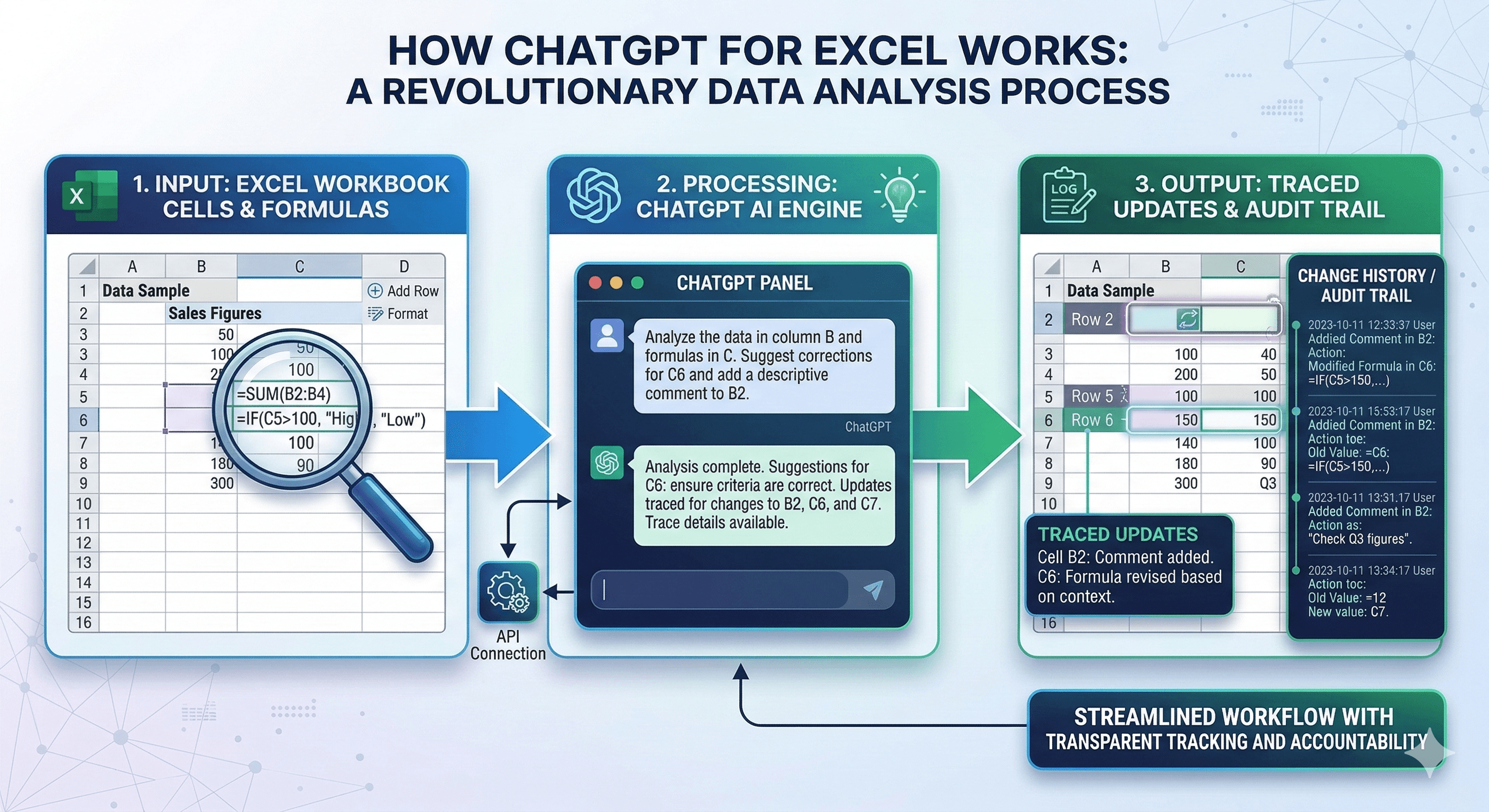
What ChatGPT for Excel actually is (and what it isn’t)

ChatGPT for Excel is an add-in that appears as a panel inside Excel. You can ask it to:

  • build or update models using your existing structure and formulas,

  • analyse data across tabs,

  • explain formulas in plain English,

  • trace why outputs changed,

  • and propose fixes for errors.

Crucially, it works directly in Excel — calculations run in the workbook, and ChatGPT links its work to the specific cells it reads or changes. It also asks for permission before making edits, so you can review and undo changes if needed. (openai.com)

What it isn’t (yet):

  • It does not currently support ChatGPT “apps”/connectors inside Excel. Those live in ChatGPT itself.

  • It’s beta and may require formatting clean-up for complex outputs.

Availability and admin control (important for regulated teams)

OpenAI states ChatGPT for Excel (beta) is rolling out to ChatGPT Business, Enterprise, Edu, Teachers, Pro, and Plus users in the U.S., Canada, and Australia, with Google Sheets coming soon.

For Enterprise, Edu, and Teacher workspaces, access is off by default and admins can enable it for specific users with role and group permissions.

If your organisation is in the UK/Europe, the key message is “plan now”: build your governance and pilot design so you can adopt quickly if/when the beta expands regionally.

Why finance teams should care: the real bottlenecks it removes

In practice, ChatGPT for Excel is most valuable when it removes work that is:

  1. time-consuming but structured (cleaning, reconciling, updating tables),

  2. highly repetitive (monthly packs, recurring reporting),

  3. prone to human error (manual edits, inconsistent logic),

  4. hard to onboard (legacy models with fragile links and undocumented assumptions).

Where it helps most isn’t “AI writes my model”. It’s:

  • I can understand and trust the model faster,

  • I can update assumptions without breaking logic,

  • I can produce decision-ready commentary without starting from scratch.

Practical workflows that save serious time

Below are the workflows we see as highest ROI for finance teams — especially in regulated environments where traceability matters.

1) Model onboarding: explain the model like a senior analyst would

Use case: You inherit a workbook, and you need to understand it before you touch it.

What to ask:

  • “Give me a map of this model: what each tab does and how the outputs flow.”

  • “Explain the key assumptions and where they live.”

  • “Which cells drive EBITDA, cash conversion, and valuation outputs?”

Why it’s powerful: ChatGPT can reason across tabs, explain linkages, and point to exact cells — reducing the time it takes to become “safe” on a model. (openai.com)

2) Scenario analysis: update assumptions without breaking structure

Use case: You need to run base / bear / bull scenarios quickly and consistently.

What to ask:

  • “Create a scenario switch that toggles revenue growth, gross margin, and opex assumptions across 2026–2029.”

  • “Add a sensitivity table for WACC (±100bps) and terminal growth (±50bps) and summarise the impact on EV.”

Key benefit: changes happen inside the workbook and can be reviewed cell-by-cell. (openai.com)

3) Model QA: trace errors, broken links, and inconsistent logic

Use case: You have an error in a specific cell, or outputs don’t reconcile.

What to ask:

  • “Why am I getting an error in cell B145? Trace the dependencies and suggest the safest fix.”

  • “Find any circular references or inconsistent assumptions across tabs.”

  • “Identify where the balance sheet doesn’t balance and show which assumptions drive the gap.”

OpenAI highlights that ChatGPT can trace and fix errors and explain why outputs changed. This is one of the most valuable capabilities in real-world financial modelling. (openai.com)

4) Variance analysis and commentary: turn numbers into narrative

Use case: Monthly close, budget vs actual, or forecast updates.

What to ask:

  • “Summarise the top 5 drivers of variance vs budget for revenue and gross margin, and draft a 150-word exec commentary.”

  • “Spot anomalies across these three tabs and flag anything unusual.” (chatgpt.com)

Helpful habit: ask for two versions — a Board-ready summary and an ops-detail version — so the output matches audience expectations.

5) Data clean-up and validation: reduce manual risk

Use case: You receive messy exports (ERP, CRM, data provider tables).

What to ask:

  • “Clean up this sheet: standardise formatting, fix inconsistent labels, and remove duplicates.” (chatgpt.com)

  • “Validate that dates are within the reporting period, currencies match, and totals reconcile.”

This isn’t glamorous, but it’s where finance teams lose huge time — and where errors creep in.

Getting started: how to install and use it (beta)

OpenAI’s instructions (as of March 2026):

  1. In Excel, go to Home → Add-ins

  2. Search for ChatGPT for Excel and add it (via the Microsoft marketplace)

  3. Open the add-in from the ribbon and sign in with the OpenAI account that has the relevant plan

Important operational note: ChatGPT for Excel runs separately from your ChatGPT chat history — conversations and data in Excel don’t sync into your ChatGPT chats at this time.

A finance team prompt pack

These are designed to be specific, auditable, and low-drama.

Model understanding

  • “Summarise what each tab does in one sentence. Then list the 10 most important driver cells with their locations.”

  • “Explain the revenue build: what is the logic, what are the inputs, and which cells drive the final output?”

Scenario and sensitivity

  • “Create three scenarios (Base/Bear/Bull) and a single selector cell. Keep formulas consistent and avoid hard-coding.”

  • “Add a sensitivity table for {driver} and summarise the impact on {output}.”

QA and audit

  • “Trace all precedents for cell {X} and identify the top three reasons it could be wrong.”

  • “Check for inconsistent time periods, units, and currency assumptions across tabs.”

Reporting

  • “Draft a variance commentary: top drivers, quantified impact, and what actions are implied. Keep to 120–160 words.”

  • “Create an executive summary table: KPI, Actual, Budget, Variance, Driver, Confidence.”

The regulated environment question: how to use this safely

If you work in regulated finance, your priority isn’t novelty — it’s control.

The good news is that ChatGPT for Excel is designed to keep work auditable by linking to cells and running calculations in Excel itself.

But you still need a governance approach that prevents:

  • sensitive data leakage,

  • unreviewed AI-generated conclusions,

  • and uncontrolled changes to models.

A practical control checklist

1) Access and rollout

  • Keep it off by default; enable via roles/groups for a pilot cohort first (consistent with OpenAI’s Enterprise default-off stance).

  • Define which workbooks are in-scope (e.g., internal-only models vs client deliverables).

2) Data rules

  • Define “never share” data classes (client identifiers, MNPI, certain HR data, credentials).

  • Require redaction or anonymisation for training/pilot datasets.

3) Approval gates

  • No AI-generated outputs go to clients, regulators, or Board packs without human review.

  • Use a “changes log” practice: what was changed, why, and by whom.

4) Verification habits

  • Treat AI as a drafter and analyst, not an authority.

  • For any high-impact output, require:

    • cell references,

    • a reasoned explanation,

    • and a second check (peer review or test set).

5) Auditability

  • Keep assumptions centralised.

  • Avoid hidden hard-codes; prefer scenario tables.

  • Save a “golden test set” workbook to re-run after changes.

Security and data handling (what OpenAI states)

OpenAI notes that for ChatGPT Business, Enterprise, Edu, and Teachers, data shared with ChatGPT isn’t used to improve models by default.

For leaders, the operational implication is: design your rollout around the plan type your organisation uses, and document it in your AI governance policy.

Where ChatGPT’s financial apps fit (and why it matters)

A frequent point of confusion: OpenAI announced financial data integrations in ChatGPT alongside the Excel add-in.

These integrations are intended to bring trusted market/company data into ChatGPT workflows (with cited outputs like earnings summaries, valuation snapshots, and credit memos), and OpenAI also points to MCP for building your own apps for proprietary data.

Remember: ChatGPT for Excel does not currently support apps. If you need FactSet/Factiva/LSEG data pulled directly, you’d typically do that research inside ChatGPT, then bring structured outputs into Excel.

A 30-day adoption plan for finance teams

If you want traffic and results, this is the bit that helps readers take action.

Week 1: Pick high-ROI use cases

Choose 2–3:

  • model onboarding and QA,

  • scenario/sensitivity updates,

  • monthly variance reporting.

Week 2: Build templates and guardrails

  • Create a “prompt pack” and a minimum review checklist.

  • Define what’s in/out of scope.

Week 3: Pilot and measure

Track:

  • time saved per workflow,

  • error reduction (rework),

  • quality indicators (review pass rate),

  • and adoption by role.

Week 4: Operationalise

  • Train the next cohort.

  • Set governance gates.

  • Standardise the best workflows as templates.

Summary

ChatGPT for Excel is designed to accelerate modelling, analysis, and spreadsheet QA by embedding ChatGPT directly into workbooks — preserving formulas and audit trails while reducing manual effort. Powered by GPT-5.4, it can explain logic, trace changes, and update models in a controlled way that suits professional finance workflows. (openai.com)

The strategic opportunity is bigger than faster formulas: it’s a shift towards consistent, repeatable financial workflows where analysis and commentary move at the pace of decision-making.

Next steps

If you want help rolling this out safely — from use-case selection and governance to workflow templates and adoption — Generation Digital can support end-to-end implementation.

FAQs

What is ChatGPT for Excel?
ChatGPT for Excel is an Excel add-in (beta) that embeds ChatGPT inside workbooks so you can build, update, and analyse spreadsheets using live cells and formulas. (openai.com)

How does ChatGPT improve financial analysis?
It reduces manual spreadsheet work by explaining formulas, tracing changes, spotting errors, running scenario updates, and summarising insights across tabs — while keeping calculations in Excel so outputs are auditable. (openai.com)

Is ChatGPT for Excel suitable for all industries?
Any organisation that relies on spreadsheets can benefit, but the biggest early wins are in finance, accounting, and analytics teams with repeatable workflows and high QA needs. In regulated environments, it should be rolled out with access controls and review gates. (openai.com)

Does ChatGPT for Excel connect to my financial data apps?
Not currently. OpenAI notes ChatGPT for Excel does not yet support ChatGPT apps/connectors. Financial data integrations are available within ChatGPT itself. (chatgpt.com)

Where is ChatGPT for Excel available?
In beta it is rolling out to supported plans in the U.S., Canada, and Australia (as of March 2026). (openai.com)

ChatGPT for Excel is an Excel add-in that embeds ChatGPT directly inside your workbook so it can build, update, and analyse models using your live cells and formulas. Powered by GPT-5.4, it can trace formula logic, explain changes, and propose fixes — while calculations run in Excel so analysts can audit assumptions and verify outputs. (openai.com)

Excel is still the engine room of finance.

But the work around spreadsheets has become the real time sink: cleaning data, reconciling versions, tracing broken links, documenting assumptions, rewriting the same monthly commentary, and onboarding new analysts onto legacy models.

On 5 March 2026, OpenAI announced ChatGPT for Excel (beta) — an Excel add-in that brings ChatGPT directly into workbooks so teams can build and update models, run scenarios, and generate outputs based on real cells and formulas. It’s powered by GPT-5.4 and designed to help analysts move faster while preserving Excel’s auditability. (openai.com)

OpenAI also announced new financial data integrations inside ChatGPT (separate from the Excel add-in) for providers such as FactSet, Dow Jones Factiva, LSEG, Daloopa, S&P Global, and more — plus support for proprietary integrations via MCP (Model Context Protocol).

This article goes deep on what that means for finance teams — with practical workflows, example prompts, and a governance checklist for regulated environments.

What ChatGPT for Excel actually is (and what it isn’t)

ChatGPT for Excel is an add-in that appears as a panel inside Excel. You can ask it to:

  • build or update models using your existing structure and formulas,

  • analyse data across tabs,

  • explain formulas in plain English,

  • trace why outputs changed,

  • and propose fixes for errors.

Crucially, it works directly in Excel — calculations run in the workbook, and ChatGPT links its work to the specific cells it reads or changes. It also asks for permission before making edits, so you can review and undo changes if needed. (openai.com)

What it isn’t (yet):

  • It does not currently support ChatGPT “apps”/connectors inside Excel. Those live in ChatGPT itself.

  • It’s beta and may require formatting clean-up for complex outputs.

Availability and admin control (important for regulated teams)

OpenAI states ChatGPT for Excel (beta) is rolling out to ChatGPT Business, Enterprise, Edu, Teachers, Pro, and Plus users in the U.S., Canada, and Australia, with Google Sheets coming soon.

For Enterprise, Edu, and Teacher workspaces, access is off by default and admins can enable it for specific users with role and group permissions.

If your organisation is in the UK/Europe, the key message is “plan now”: build your governance and pilot design so you can adopt quickly if/when the beta expands regionally.

Why finance teams should care: the real bottlenecks it removes

In practice, ChatGPT for Excel is most valuable when it removes work that is:

  1. time-consuming but structured (cleaning, reconciling, updating tables),

  2. highly repetitive (monthly packs, recurring reporting),

  3. prone to human error (manual edits, inconsistent logic),

  4. hard to onboard (legacy models with fragile links and undocumented assumptions).

Where it helps most isn’t “AI writes my model”. It’s:

  • I can understand and trust the model faster,

  • I can update assumptions without breaking logic,

  • I can produce decision-ready commentary without starting from scratch.

Practical workflows that save serious time

Below are the workflows we see as highest ROI for finance teams — especially in regulated environments where traceability matters.

1) Model onboarding: explain the model like a senior analyst would

Use case: You inherit a workbook, and you need to understand it before you touch it.

What to ask:

  • “Give me a map of this model: what each tab does and how the outputs flow.”

  • “Explain the key assumptions and where they live.”

  • “Which cells drive EBITDA, cash conversion, and valuation outputs?”

Why it’s powerful: ChatGPT can reason across tabs, explain linkages, and point to exact cells — reducing the time it takes to become “safe” on a model. (openai.com)

2) Scenario analysis: update assumptions without breaking structure

Use case: You need to run base / bear / bull scenarios quickly and consistently.

What to ask:

  • “Create a scenario switch that toggles revenue growth, gross margin, and opex assumptions across 2026–2029.”

  • “Add a sensitivity table for WACC (±100bps) and terminal growth (±50bps) and summarise the impact on EV.”

Key benefit: changes happen inside the workbook and can be reviewed cell-by-cell. (openai.com)

3) Model QA: trace errors, broken links, and inconsistent logic

Use case: You have an error in a specific cell, or outputs don’t reconcile.

What to ask:

  • “Why am I getting an error in cell B145? Trace the dependencies and suggest the safest fix.”

  • “Find any circular references or inconsistent assumptions across tabs.”

  • “Identify where the balance sheet doesn’t balance and show which assumptions drive the gap.”

OpenAI highlights that ChatGPT can trace and fix errors and explain why outputs changed. This is one of the most valuable capabilities in real-world financial modelling. (openai.com)

4) Variance analysis and commentary: turn numbers into narrative

Use case: Monthly close, budget vs actual, or forecast updates.

What to ask:

  • “Summarise the top 5 drivers of variance vs budget for revenue and gross margin, and draft a 150-word exec commentary.”

  • “Spot anomalies across these three tabs and flag anything unusual.” (chatgpt.com)

Helpful habit: ask for two versions — a Board-ready summary and an ops-detail version — so the output matches audience expectations.

5) Data clean-up and validation: reduce manual risk

Use case: You receive messy exports (ERP, CRM, data provider tables).

What to ask:

  • “Clean up this sheet: standardise formatting, fix inconsistent labels, and remove duplicates.” (chatgpt.com)

  • “Validate that dates are within the reporting period, currencies match, and totals reconcile.”

This isn’t glamorous, but it’s where finance teams lose huge time — and where errors creep in.

Getting started: how to install and use it (beta)

OpenAI’s instructions (as of March 2026):

  1. In Excel, go to Home → Add-ins

  2. Search for ChatGPT for Excel and add it (via the Microsoft marketplace)

  3. Open the add-in from the ribbon and sign in with the OpenAI account that has the relevant plan

Important operational note: ChatGPT for Excel runs separately from your ChatGPT chat history — conversations and data in Excel don’t sync into your ChatGPT chats at this time.

A finance team prompt pack

These are designed to be specific, auditable, and low-drama.

Model understanding

  • “Summarise what each tab does in one sentence. Then list the 10 most important driver cells with their locations.”

  • “Explain the revenue build: what is the logic, what are the inputs, and which cells drive the final output?”

Scenario and sensitivity

  • “Create three scenarios (Base/Bear/Bull) and a single selector cell. Keep formulas consistent and avoid hard-coding.”

  • “Add a sensitivity table for {driver} and summarise the impact on {output}.”

QA and audit

  • “Trace all precedents for cell {X} and identify the top three reasons it could be wrong.”

  • “Check for inconsistent time periods, units, and currency assumptions across tabs.”

Reporting

  • “Draft a variance commentary: top drivers, quantified impact, and what actions are implied. Keep to 120–160 words.”

  • “Create an executive summary table: KPI, Actual, Budget, Variance, Driver, Confidence.”

The regulated environment question: how to use this safely

If you work in regulated finance, your priority isn’t novelty — it’s control.

The good news is that ChatGPT for Excel is designed to keep work auditable by linking to cells and running calculations in Excel itself.

But you still need a governance approach that prevents:

  • sensitive data leakage,

  • unreviewed AI-generated conclusions,

  • and uncontrolled changes to models.

A practical control checklist

1) Access and rollout

  • Keep it off by default; enable via roles/groups for a pilot cohort first (consistent with OpenAI’s Enterprise default-off stance).

  • Define which workbooks are in-scope (e.g., internal-only models vs client deliverables).

2) Data rules

  • Define “never share” data classes (client identifiers, MNPI, certain HR data, credentials).

  • Require redaction or anonymisation for training/pilot datasets.

3) Approval gates

  • No AI-generated outputs go to clients, regulators, or Board packs without human review.

  • Use a “changes log” practice: what was changed, why, and by whom.

4) Verification habits

  • Treat AI as a drafter and analyst, not an authority.

  • For any high-impact output, require:

    • cell references,

    • a reasoned explanation,

    • and a second check (peer review or test set).

5) Auditability

  • Keep assumptions centralised.

  • Avoid hidden hard-codes; prefer scenario tables.

  • Save a “golden test set” workbook to re-run after changes.

Security and data handling (what OpenAI states)

OpenAI notes that for ChatGPT Business, Enterprise, Edu, and Teachers, data shared with ChatGPT isn’t used to improve models by default.

For leaders, the operational implication is: design your rollout around the plan type your organisation uses, and document it in your AI governance policy.

Where ChatGPT’s financial apps fit (and why it matters)

A frequent point of confusion: OpenAI announced financial data integrations in ChatGPT alongside the Excel add-in.

These integrations are intended to bring trusted market/company data into ChatGPT workflows (with cited outputs like earnings summaries, valuation snapshots, and credit memos), and OpenAI also points to MCP for building your own apps for proprietary data.

Remember: ChatGPT for Excel does not currently support apps. If you need FactSet/Factiva/LSEG data pulled directly, you’d typically do that research inside ChatGPT, then bring structured outputs into Excel.

A 30-day adoption plan for finance teams

If you want traffic and results, this is the bit that helps readers take action.

Week 1: Pick high-ROI use cases

Choose 2–3:

  • model onboarding and QA,

  • scenario/sensitivity updates,

  • monthly variance reporting.

Week 2: Build templates and guardrails

  • Create a “prompt pack” and a minimum review checklist.

  • Define what’s in/out of scope.

Week 3: Pilot and measure

Track:

  • time saved per workflow,

  • error reduction (rework),

  • quality indicators (review pass rate),

  • and adoption by role.

Week 4: Operationalise

  • Train the next cohort.

  • Set governance gates.

  • Standardise the best workflows as templates.

Summary

ChatGPT for Excel is designed to accelerate modelling, analysis, and spreadsheet QA by embedding ChatGPT directly into workbooks — preserving formulas and audit trails while reducing manual effort. Powered by GPT-5.4, it can explain logic, trace changes, and update models in a controlled way that suits professional finance workflows. (openai.com)

The strategic opportunity is bigger than faster formulas: it’s a shift towards consistent, repeatable financial workflows where analysis and commentary move at the pace of decision-making.

Next steps

If you want help rolling this out safely — from use-case selection and governance to workflow templates and adoption — Generation Digital can support end-to-end implementation.

FAQs

What is ChatGPT for Excel?
ChatGPT for Excel is an Excel add-in (beta) that embeds ChatGPT inside workbooks so you can build, update, and analyse spreadsheets using live cells and formulas. (openai.com)

How does ChatGPT improve financial analysis?
It reduces manual spreadsheet work by explaining formulas, tracing changes, spotting errors, running scenario updates, and summarising insights across tabs — while keeping calculations in Excel so outputs are auditable. (openai.com)

Is ChatGPT for Excel suitable for all industries?
Any organisation that relies on spreadsheets can benefit, but the biggest early wins are in finance, accounting, and analytics teams with repeatable workflows and high QA needs. In regulated environments, it should be rolled out with access controls and review gates. (openai.com)

Does ChatGPT for Excel connect to my financial data apps?
Not currently. OpenAI notes ChatGPT for Excel does not yet support ChatGPT apps/connectors. Financial data integrations are available within ChatGPT itself. (chatgpt.com)

Where is ChatGPT for Excel available?
In beta it is rolling out to supported plans in the U.S., Canada, and Australia (as of March 2026). (openai.com)

Get weekly AI news and advice delivered to your inbox

By subscribing you consent to Generation Digital storing and processing your details in line with our privacy policy. You can read the full policy at gend.co/privacy.


Generation
Digital

UK Office

Generation Digital Ltd
33 Queen St,
London
EC4R 1AP
United Kingdom

Canada Office

Generation Digital Americas Inc
181 Bay St., Suite 1800
Toronto, ON, M5J 2T9
Canada

USA Office

Generation Digital Americas Inc
77 Sands St,
Brooklyn, NY 11201,
United States

EU Office

Generation Digital Software
Elgee Building
Dundalk
A91 X2R3
Ireland

Middle East Office

6994 Alsharq 3890,
An Narjis,
Riyadh 13343,
Saudi Arabia

UK Fast Growth Index UBS Logo
Financial Times FT 1000 Logo
Febe Growth 100 Logo (Background Removed)

Company No: 256 9431 77 | Copyright 2026 | Terms and Conditions | Privacy Policy

Generation
Digital

UK Office

Generation Digital Ltd
33 Queen St,
London
EC4R 1AP
United Kingdom

Canada Office

Generation Digital Americas Inc
181 Bay St., Suite 1800
Toronto, ON, M5J 2T9
Canada

USA Office

Generation Digital Americas Inc
77 Sands St,
Brooklyn, NY 11201,
United States

EU Office

Generation Digital Software
Elgee Building
Dundalk
A91 X2R3
Ireland

Middle East Office

6994 Alsharq 3890,
An Narjis,
Riyadh 13343,
Saudi Arabia

UK Fast Growth Index UBS Logo
Financial Times FT 1000 Logo
Febe Growth 100 Logo (Background Removed)


Company No: 256 9431 77
Terms and Conditions
Privacy Policy
Copyright 2026




